All plans
Product management
Prices, barcodes, VAT, deposit, age and visibility – maintain your assortment yourself.
Under Price Tags in the Cloud Dashboard you put together shelf and product labels straight from your product data. Name, price, supplier and deposit come from the catalogue, and you print a PDF on your label or card printer.
Name, price, supplier and deposit come from the same product data as the checkout. Change a price and it is current the next time you open the price tags.
Cursor in the search field, scan the barcode: the product lands in the queue. Walking through the shop you collect every label that needs replacing.
Shelf label 50 × 33 mm with deposit and QR code, product label 50 × 20 mm and plastic cards 86 × 54 mm, whole or split in three.
Search by name, supplier or barcode and click “Add”, or scan straight into the queue. The queue stays saved in the browser.
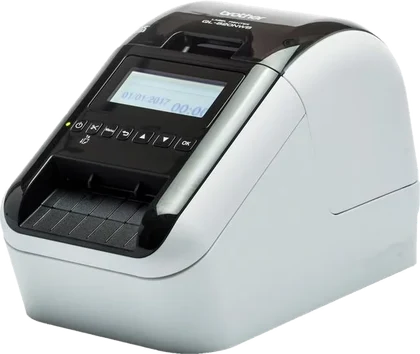
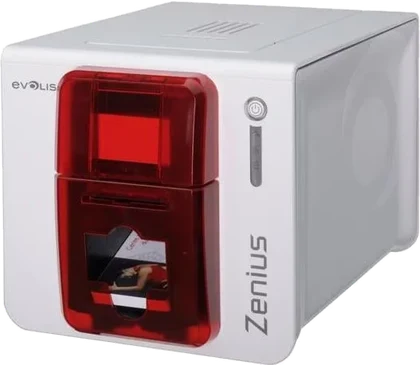
Pick the label format for the Brother label printer or the Evolis card printer. Format names appear in German.
Show or hide supplier and price, add country of origin and price per unit per product. This changes the label only, not the product.
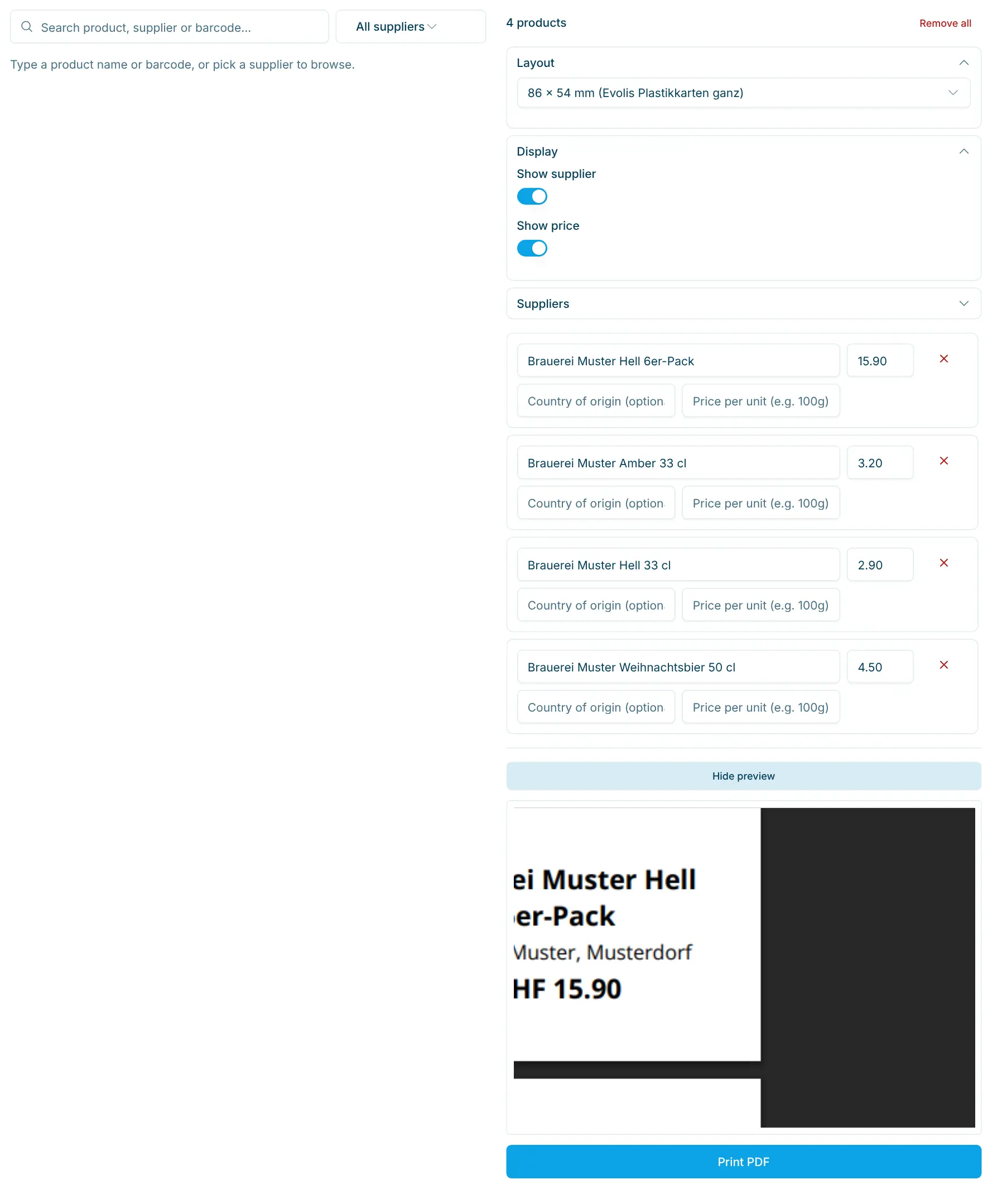
The preview shows the labels exactly as printed. Print the PDF without scaling (100 %).
The images are taken straight from the Cloud Dashboard.
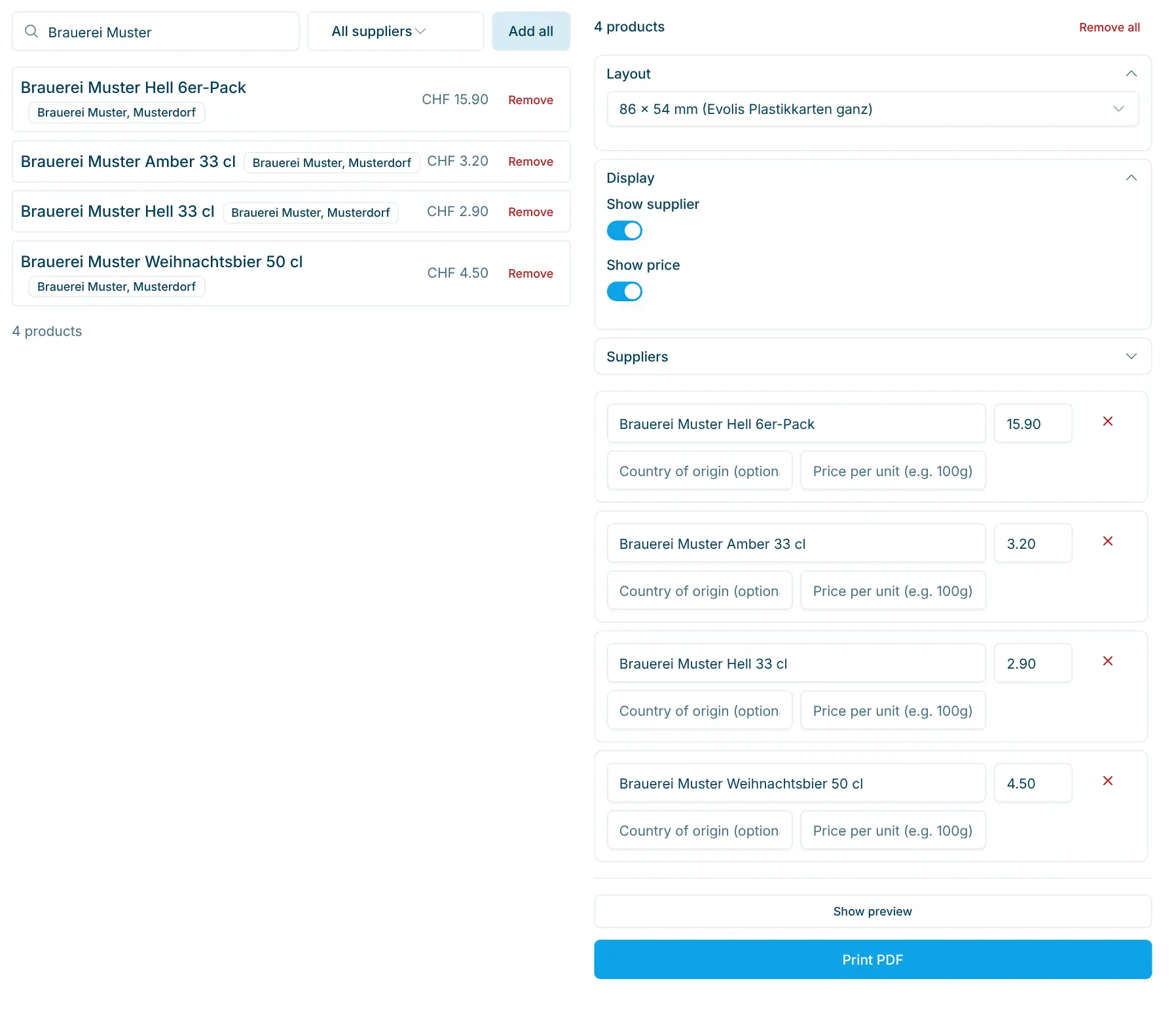
Product search and print queue
On the left the results with “Add all”, on the right the queue with layout, display and the details per product: name, price, country of origin, price per unit.
Choose layout and display
Pick the format, for example 86 × 54 mm for Evolis plastic cards, and whether supplier and price appear on the label. “Print PDF” opens the finished file in a new tab.
Price tags are a page in the Cloud Dashboard and run in the browser, nothing to install. They pay off for shops that change prices often or have to show deposits: the 50 × 33 mm shelf label prints the deposit automatically if the product has one.
Printers are not part of the scango.ch service, and there is no support for hardware or printer settings. The layouts are tuned to the two devices below. For electronic shelf labels there is a separate feature, enabled on request.
The layouts are tuned to these devices. scango.ch does not sell them.
All plans
Prices, barcodes, VAT, deposit, age and visibility – maintain your assortment yourself.
Retail plan
Percent or fixed amount on product, category or supplier – valid at self-checkout.
No. Price tags are a page in the Cloud Dashboard and run in the browser. You print the PDF from there on your printer.
Price tags are part of the Retail plan (CHF 179.–/month) and the Pro plan (CHF 199.–/month).
The layouts are tuned to the Brother QL-820NWBc label printer with the DK22223 roll and the Evolis Zenius card printer. Printers are not part of the scango.ch service.
Yes, on the 50 × 33 mm shelf label, if the product has a deposit. With the product’s deposit label field the tag shows e.g. “bottle deposit” instead of the default label.
No. The next time you open it, the queue takes name, price, supplier and deposit from the current product data. You only reprint the affected labels.
There is a separate feature for them, enabled on request. Ask us if you need it.
Happy to help. Sign up for free to get a first impression – or request a non-binding quote. I’m here if you have questions.
Tobias Kobelt · scango.ch