Retail plan
Delivery note matching
Photograph the delivery note, match it with your orders, book it after your check.
You keep the stock of every product per store: kiosk sales are deducted automatically, deliveries are added and every correction is saved with a reason. From the same screen you reorder from your suppliers and book the delivery.
Every sale at the self-checkout lowers the stock, every processed delivery raises it. You only correct by hand what really differs.
The six-pack deducts 6 cans from the base item. Stock stays right, whichever unit customers buy.
The suggestion fills up to the maximum quantity and rounds to whole packages. Stock 3, maximum 10, carton of 6: it suggests 2 cartons.
One at a time with “Add Stock”, for all products at once with “Init Stock”, or during the product import. Add a minimum and maximum quantity.
The “Low Stock Alert” lists everything at or below the minimum that has no open order. One click creates the order with the suggested quantity.
Each supplier gets an email with an Excel file. With “Send and Mark as Ordered” the order then waits for the delivery.
Choose “Delivered”, “Partial” or “Not Delivered” per line, or upload the delivery note and let it be matched.
The images are taken straight from the Cloud Dashboard.
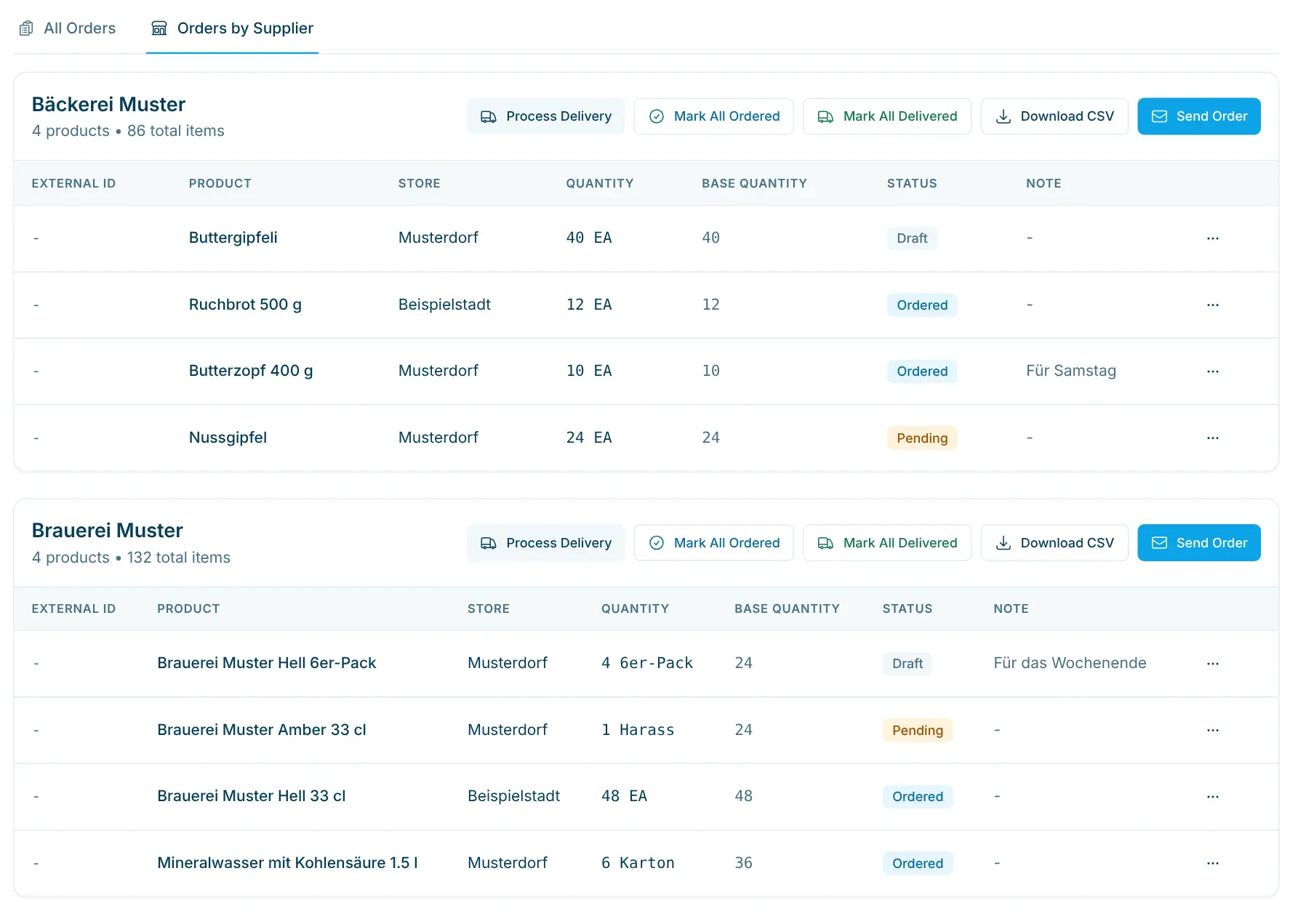
Orders by supplier
All open lines per supplier, with the quantity in order units and in base units (e.g. 6 cartons = 36 pieces). From here you send the order or download it as a CSV.
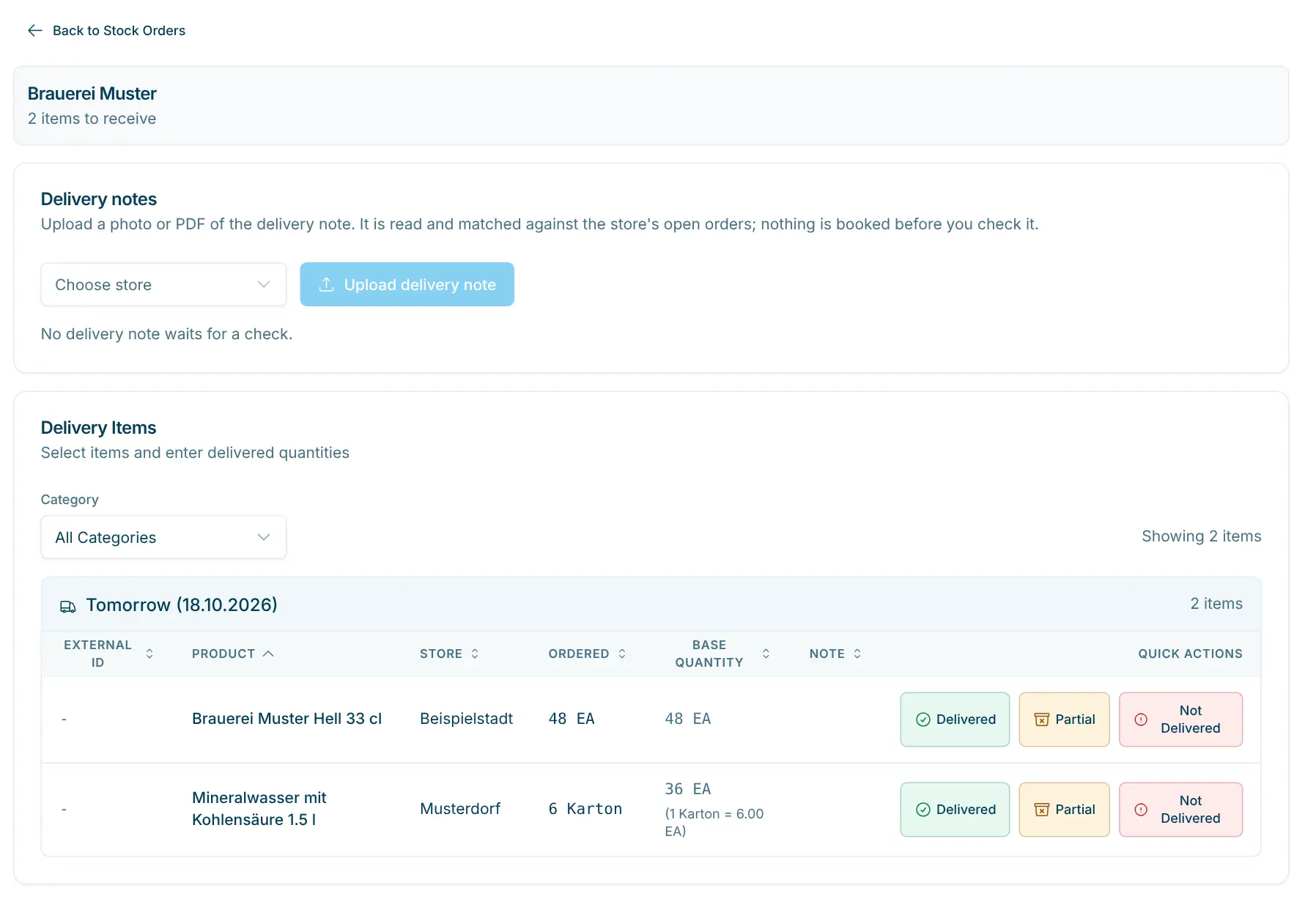
Process the delivery
A supplier’s ordered lines, grouped by delivery day. One quick action per line, or upload the delivery note at the top.
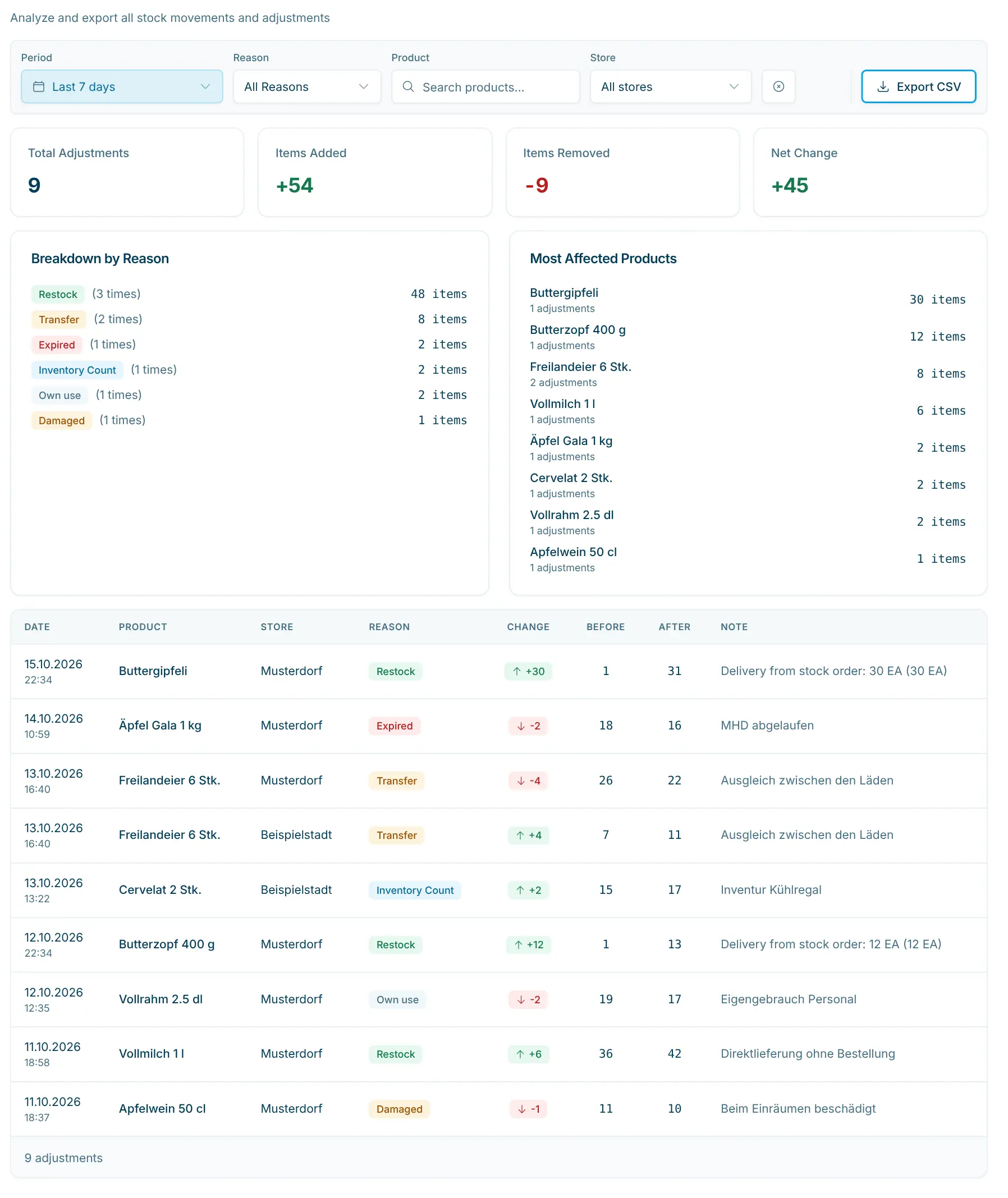
Analyse stock adjustments
Every stock movement with its reason, e.g. how much was written off as “Expired” or “Damaged”. Filter by period, reason, product and store, export as CSV.
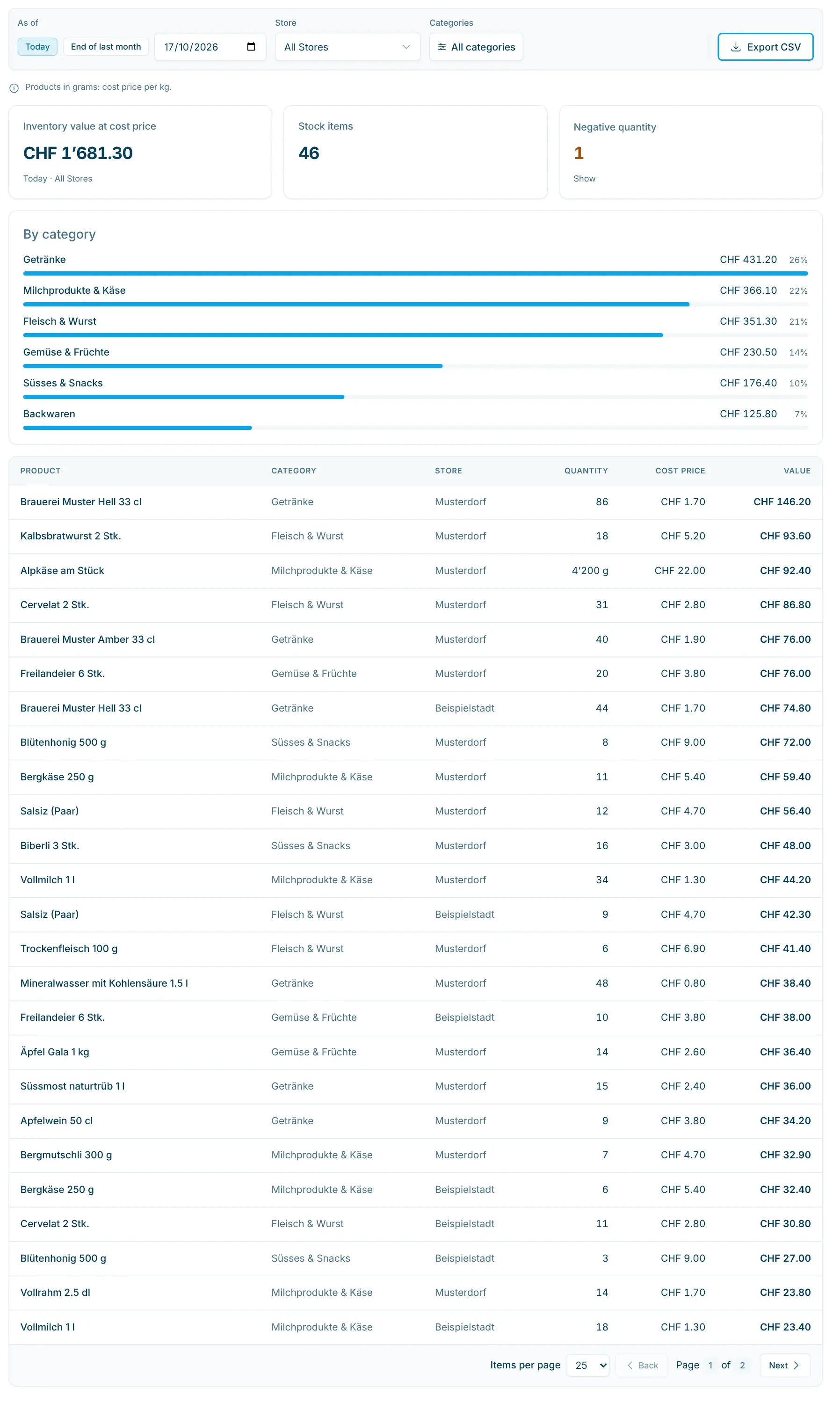
Inventory value at cost price
Stock times cost price, split by category. As the reference date you choose today, the end of last month or any earlier date, e.g. for the annual accounts.
It is built for small shops: village shops, company shops and drinks retailers that order from several suppliers and want an overview without a full merchandise management system. With several stores, each product has its own stock per store, and “Transfer Stock” moves goods between them.
Goods sold by weight deduct the sold weight when the scanned code contains it, as on the labels of the scango.ch scale. For stocktakes in the shop there is the stock scanner, e.g. on a tablet with a barcode scanner.
Retail plan
Photograph the delivery note, match it with your orders, book it after your check.
All plans
Prices, barcodes, VAT, deposit, age and visibility – maintain your assortment yourself.
Retail plan
One catalogue, multiple locations – visibility, stock and sales per store.
Retail plan
Revenue, margin and VAT by product, store, supplier and payment – including CSV.
Pro plan
Shop-in-shop: suppliers see sales, top products and peak hours via their own link.
No. Stock management is part of the Retail plan (CHF 179.–/month) and the Pro plan (CHF 199.–/month).
No. Every sale at the self-checkout is deducted from the store’s stock automatically and saved as a stock adjustment.
With “Partial” you book only the delivered quantity and the order is closed. Under “Mark All Delivered”, the option “Create new order” turns the remainder into a new order.
Usually goods were sold before their delivery was processed in the dashboard. Process the delivery or correct the stock with the reason “Inventory Count”.
In the stock scanner, choose the store, switch to “Adjust Stock” and scan item by item. Enter the counted quantity as the new quantity with the reason “Inventory Count”.
You order the linked item, the six-pack. On delivery the cans are credited to the base item: 2 six-packs make 12 cans.

Happy to help. Sign up for free to get a first impression – or request a non-binding quote. I’m here if you have questions.
Tobias Kobelt · scango.ch