Cloud Dashboard
Stock Management
Stock management keeps track of the stock of every product per store. Sales at the self-checkout are deducted automatically, supplier deliveries are added, and every manual change is logged with a reason. From here you reorder from your suppliers, process deliveries, do stocktakes and analyse stock movements.
You find the feature in the menu under Stock Management, with the sub-pages Stock Orders, Stock Adjustments, Inventory value and Stock Scanner. All roles from Employee upwards have access; the Inventory value is only visible to Admin and Owner. The feature is included in the Retail and Pro plans.
How stock management works
- A stock item is one product in one store. If you carry the same product in two stores, it has two stock items, each with its own stock.
- Stock is counted in the base unit, e.g. pieces, grams or kilograms. Suppliers often sell in larger units (e.g. a case of 24 pieces); see the section "Order units" below.
- Every stock change, whether a sale, delivery, transfer or manual correction, is saved as a stock adjustment, so you can always trace how a stock level came about.
Creating stock items
Stock items can be created in three ways:
- One at a time with the Add Stock button (see below).
- For all products at once with Init Stock in the ⋯ menu of the stock page. This creates a stock item for every product in every store. The entry only appears while the stock list is still empty, and the action cannot be undone.
- When importing products with the option Create stock items for imported products (see Products).
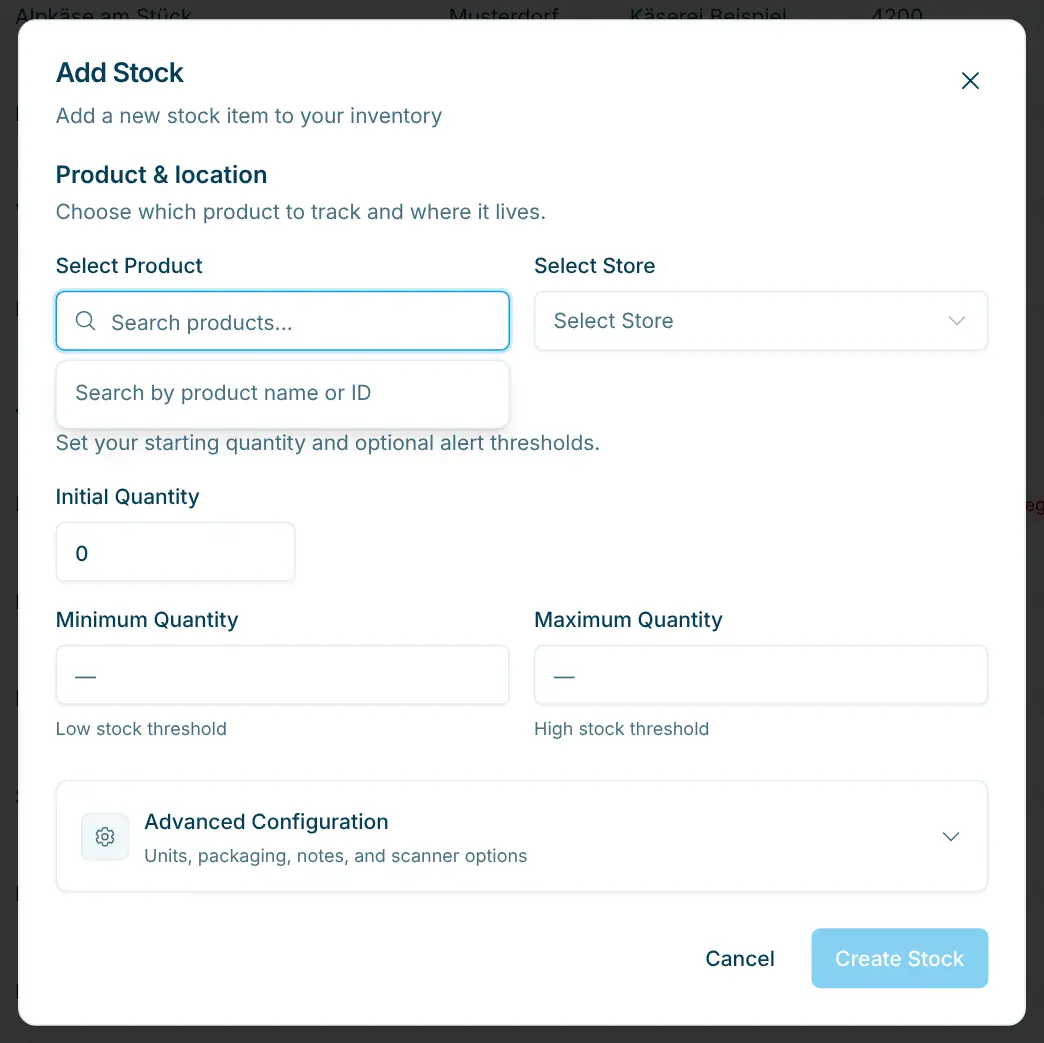
To create a single stock item:
- Open Stock Management and click Add Stock.
- Under Product & location, choose the product and the store.
- Under Stock levels, enter the Initial Quantity and, if needed, a Minimum Quantity and Maximum Quantity.
- Open Advanced Configuration if needed (fields see table).
- Click Create Stock.
There can only be one stock item per product and store.
Field | Meaning |
|---|---|
Initial Quantity | Current stock in the base unit. |
Minimum Quantity | When stock reaches or falls below this value, the item counts as "Low Stock" and appears in the Low Stock Alert. |
Maximum Quantity | When stock reaches or exceeds this value, it counts as "High Stock". The maximum is also the target for order suggestions. |
Stock Note | Permanent note on the stock item, e.g. its storage location. |
Stock Order Note | Automatically added to every stock order for this product, e.g. "4 x 200g". |
Base | Base unit in which stock is counted, e.g. |
Package Configuration | Package Unit (e.g. case), Items per Package (e.g. 24) and optionally the Package Barcode of the case. Used for ordering in packages. |
Manually Selectable | The product can be picked from a list in the Stock Scanner without a barcode, useful for loose goods such as vegetables. |
Stock list and status
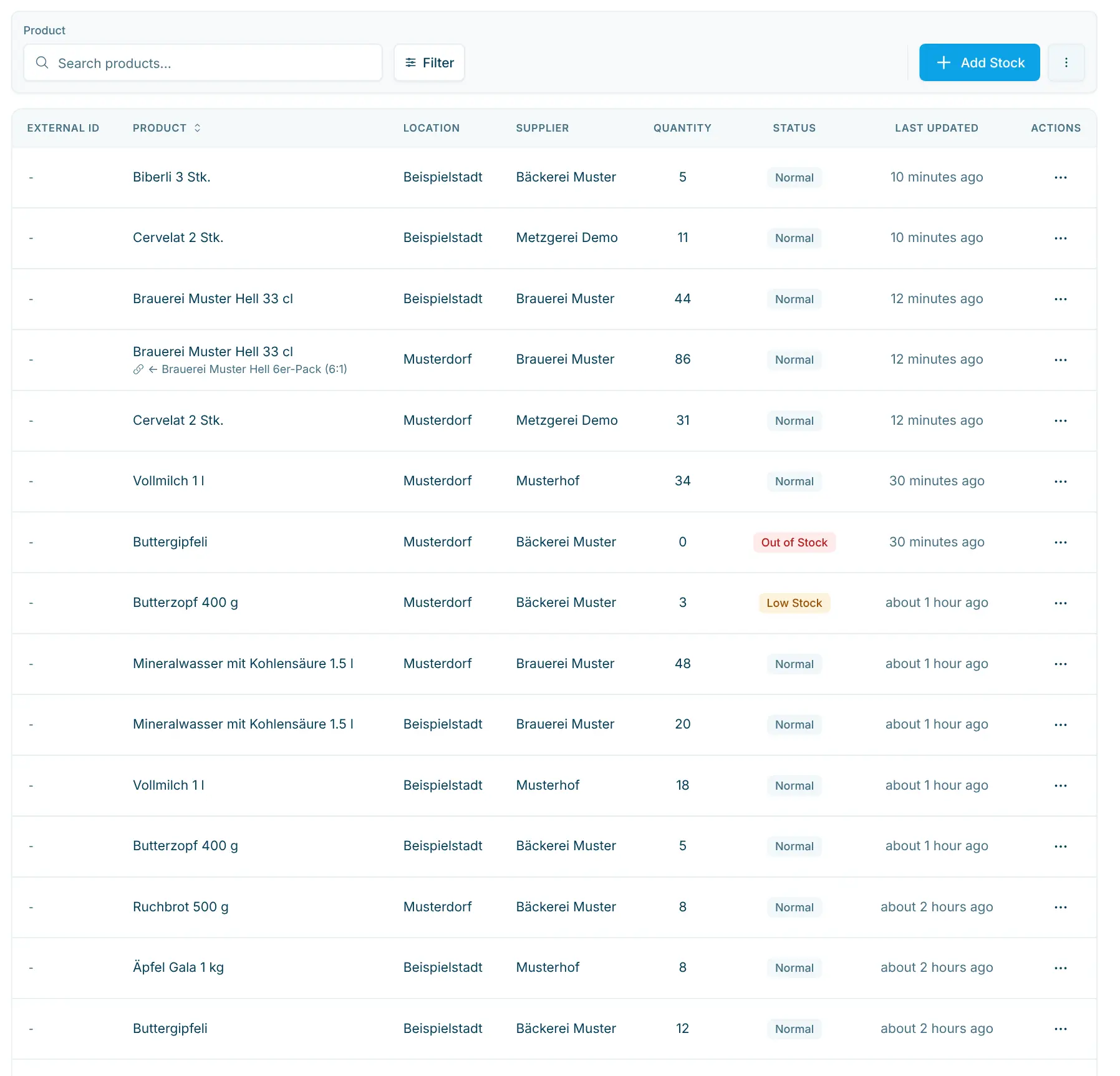
The Stock Management page lists all stock items with the columns External ID, Product, Location, Supplier, Quantity, Status and Last Updated. Use the filters at the top to narrow the list by Product, Store, Supplier, Category and Status; Clear Filters resets them all.
If a member is limited to some stores (Settings › Members › Store access), Stock Management, stock orders, stock adjustments and the stock scanner only show the stock items of those stores.
Status | Meaning |
|---|---|
Negative Stock | Stock is below 0. This happens when goods are sold before their delivery has been processed in the dashboard. A strongly negative stock often points to a delivery that was not recorded. |
Out of Stock | Stock is exactly 0. |
Low Stock | Stock is at or below the minimum quantity. |
Normal | Stock is between the minimum and maximum quantity (or no limits are set). |
High Stock | Stock is at or above the maximum quantity. |
Linked items (e.g. a six-pack) show a dash "–" in the Quantity column and no status, because their stock is kept on the base item; see the section "Linked items" below.
Products sold by weight: If a stock item has the base unit G or KG, a sale deducts the weight sold. For this, the code scanned at the checkout must contain the weight, as the labels of the scango.ch scale do. If the weight is missing, the number of items sold is deducted.
The ⋯ menu at the top right opens the Low Stock Alert: a list of all items whose stock is at or below the minimum quantity and that have no open order yet. You can create an order for each item right there. Scan Stock in the same menu opens the Stock Scanner.
Actions per stock item
Via the ⋯ menu at the end of each row:
Action | Purpose |
|---|---|
Adjust | Correct the stock and change minimum/maximum quantity, units, package and notes. |
Create Order | Create a stock order for this item. |
Transfer Stock | Move goods to another store (Transfer Quantity, Target Store, optional Note). Only shown with several stores and a positive stock. |
View History | All stock changes of the item with date, type, change and quantity before and after. |
Link Product | Link the item to a base item, or change or remove a link. |
Create Linked Product | Create a new sellable pack product that deducts from this item (only for items that are not linked themselves). |
Delete | Remove the stock item, e.g. if it was created by mistake. The product itself is kept. |
Adjusting stock
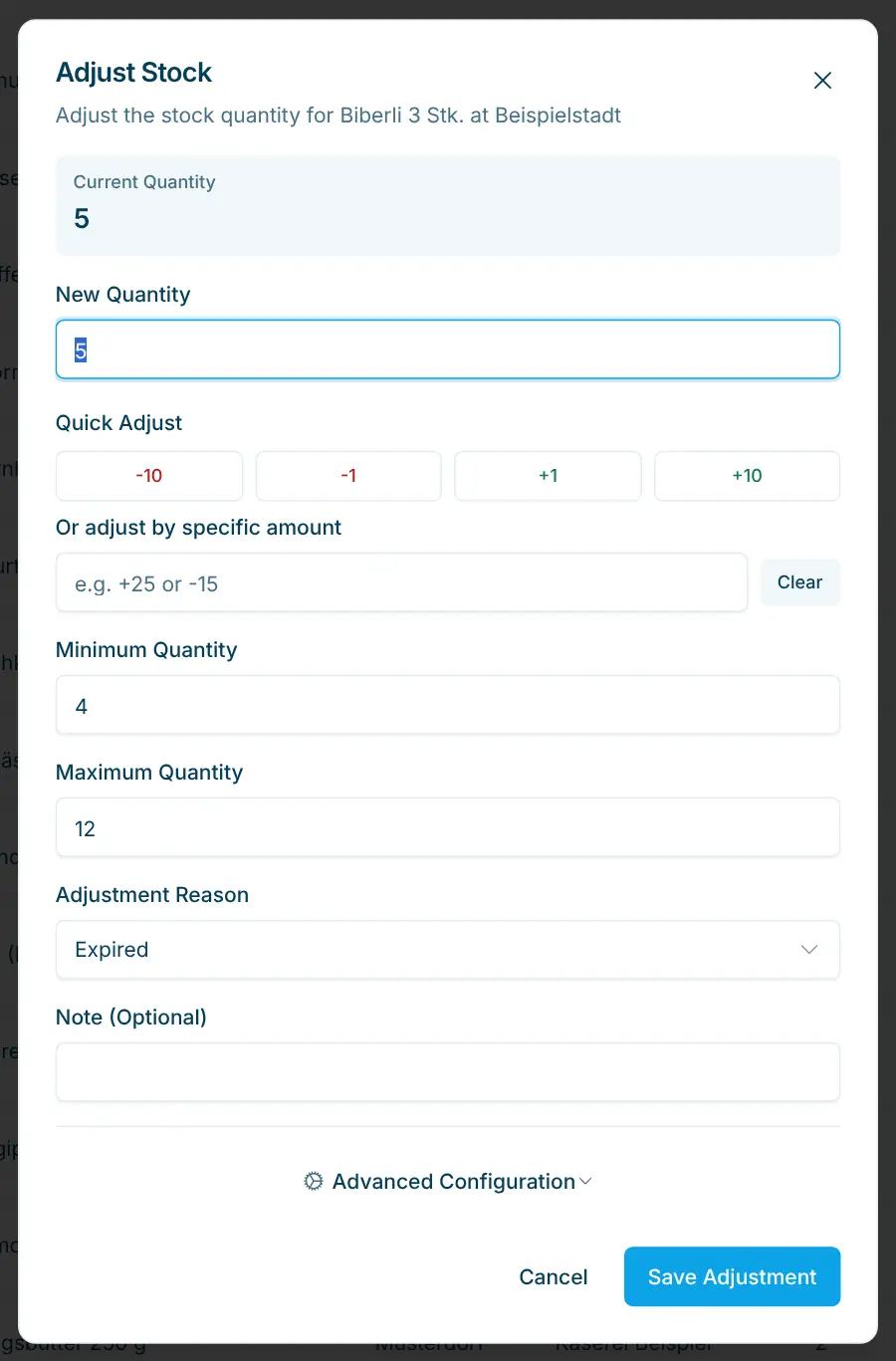
- Choose Adjust in the item's ⋯ menu. The Current Quantity is shown at the top.
- Enter the New Quantity. Alternatively, change the stock with Quick Adjust (−10, −1, +1, +10) or enter a difference under Or adjust by specific amount, e.g.
+25or-15. - Choose the Adjustment Reason, e.g. Inventory Count, Damaged, Expired, Theft, Own use or Correction.
- Add a Note (Optional) if needed.
- Click Save Adjustment.
Reasons such as Order Fulfillment (sale), Restock (delivery), Transfer, Order cancelled or Delivery reversal are set by the system for automatic bookings. For manual changes, choose the reason that fits best; it appears later in the Stock Adjustments analysis.
Mind the unit: The quantity is in the item's base unit (e.g. pieces or kilograms). Below New Quantity the dialog shows the unit and, if the item has a package configuration, the conversion, e.g. "Adjustments are in EA · 1 KRT = 1000 EA". So you enter two cartons of 1000 pieces as 2000. In the Stock Scanner you can also choose the package unit under Unit; the dialog then shows how many base units that is (e.g. "= 2000 EA"). Deliveries are best booked via Process Delivery (see below): there scango.ch converts packages into the base unit automatically.
Linked items (e.g. six-pack and single can)
Some goods are sold in several units that come from the same physical stock, such as the single can and the six-pack. Both are separate products with their own barcode. To keep the stock correct, it is kept in one place only:
- The base item is the smallest sellable unit (the can). Only the base item has stock.
- The linked item (the six-pack) deducts from the base item through a deduction ratio. When a six-pack is sold, the stock of cans drops by 6.
Example: You sell Coca-Cola 500 ml individually and as a 6-pack. The base item is the single bottle; the 6-pack is linked with ratio 6. Stock is 40 bottles; 2 bottles and 3 six-packs are sold → new stock 40 − 2 − 18 = 20 bottles.
To set up a link:
- Link an existing pack product: In the six-pack's ⋯ menu choose Link Product, search for the can under Base Product and enter the Deduction Ratio (the value from Items per Package is suggested). With Transfer existing stock (… units) to base product you move any existing six-pack stock to the can, either multiplied by the ratio or as a custom quantity. Click Link.
- Create a new pack product: In the can's ⋯ menu choose Create Linked Product, enter Product name, Price, Units per linked product, Barcode and Package unit, and click Create linked product. Product and link are created in one step.
From then on:
- Stock and status are always shown on the base item. The linked item shows "–".
- You order the linked item (you buy six-packs from the supplier, not single cans). A base item with linked items cannot be ordered itself: the order form suggests the linked item, or lets you pick under Choose which product to order, and shows which base item receives the stock.
- Deliveries of a linked item are credited to the base item (2 six-packs = 12 cans).
- Adjustments to a linked item are transferred to the base item using the ratio (+1 six-pack = +6 cans).
- Links are one level deep: a base item cannot itself be linked.
- Unlink does not move any stock back. The item keeps its current quantity.
Order units: base unit and package
Stock is counted in the base unit (e.g. pieces). From the supplier you order in the order unit, e.g. cases. The Package Configuration of the stock item defines how many base units one package contains.
- In the order form you enter the Order Quantity in packages. Next to it you see the conversion, e.g. "1 case = 24 pieces", and the total, e.g. "Order 2 cases = 48 pieces total".
- The order suggestion tops the stock up to the maximum quantity (without a maximum, up to the minimum quantity) and rounds up to whole packages. Example: stock 3, maximum 10, case of 6 → 7 pieces are missing, 2 cases (12 pieces) are suggested.
- The email to the supplier states the number of packages with the package unit. On delivery, the corresponding base units (12 pieces in the example) are credited to stock.
- Without a package configuration, you order directly in the base unit.
You can change the order unit in the order form under More Options → Order Unit; the recommended unit is marked.
Reordering
Create orders via Create Order in a stock item's ⋯ menu, from the Low Stock Alert or in the Stock Scanner.
- Check the suggested Order Quantity, or pick a quick choice or an earlier quantity from the Order History.
- Under More Options, set the Order Unit, Priority (Low, Normal, High, Urgent) and a Note if needed. A saved stock order note is added automatically.
- Click Create Order.
The order gets the status Draft and appears under Stock Orders. The product must have a supplier to be ordered.
Stock Orders
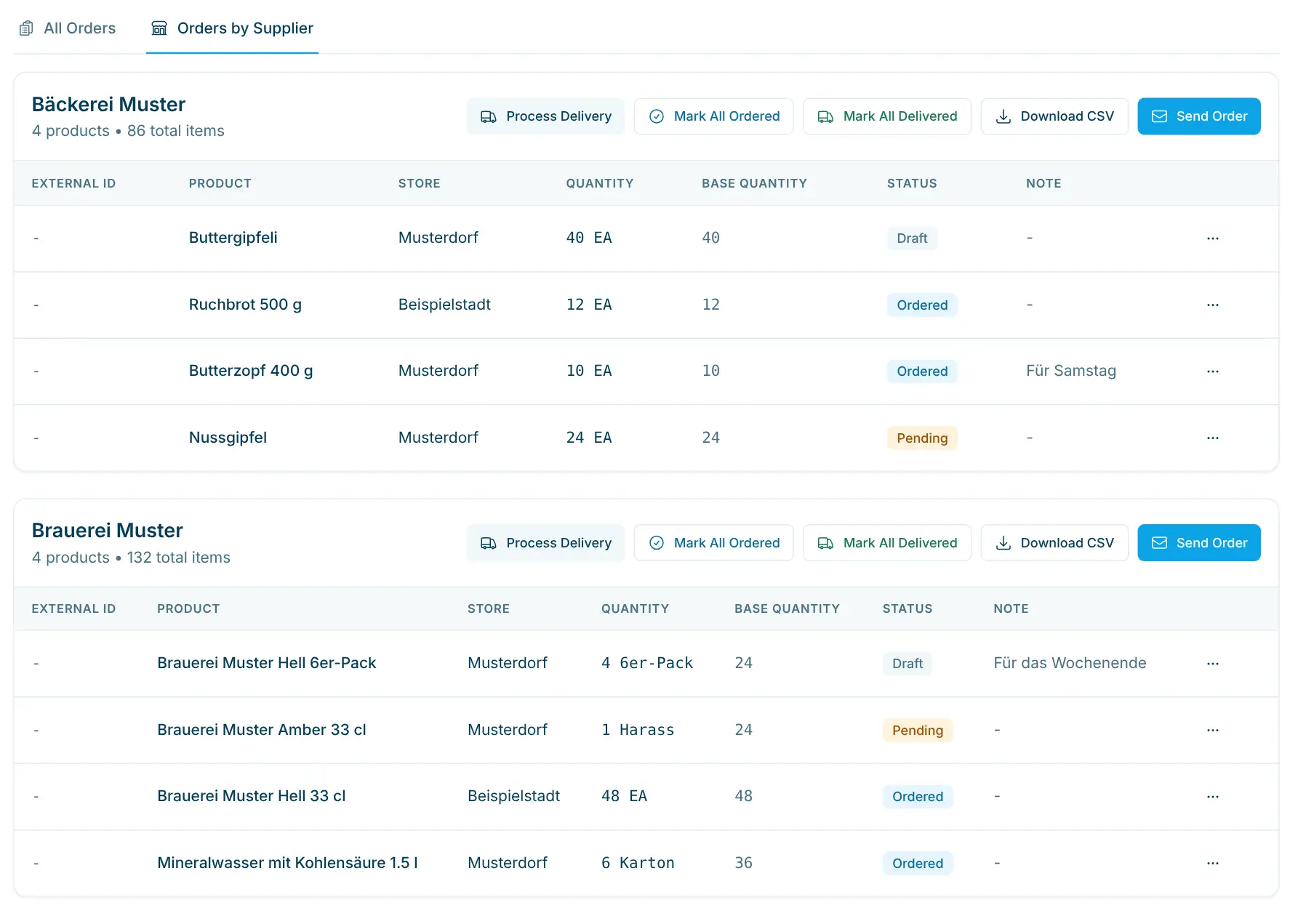
The Stock Orders page has two views:
- All Orders: a table of all order lines with product, store, supplier, quantity, status, priority, created and expected date. Use the toggle to switch between Open orders (Draft, Pending, Ordered) and History (Received, Partially Received, Cancelled). Filters: product, store, supplier, category and status.
- Orders by Supplier: all open lines grouped by supplier, with the actions for the ordering workflow.
Status | Meaning |
|---|---|
Draft | Created, but not yet marked as ordered. |
Pending | Interim status before ordering (e.g. from older workflows). |
Ordered | Ordered from the supplier, delivery expected. |
Partially Received | Part of the order was delivered and credited to stock. The order is then closed; the rest continues as a new order or is dropped. |
Received | Fully delivered and credited to stock. |
Cancelled | Will not be delivered. |
The workflow of an order:
- Collect drafts: Create orders as described above.
- Send the order: In Orders by Supplier, click Send Order for the supplier. The dialog shows the recipient (To:), an optional CC:, the subject and the Email message, which you can edit. The order details are attached as an Excel file (XLSX). The email goes to the supplier's Order Email, otherwise to its Email (under Settings › Organization › Suppliers).
- Mark as ordered: Choose Send and Mark as Ordered in the dialog. With Just Send the order stays in Draft status. You can set it to "Ordered" later with Mark All Ordered or Mark as Ordered, entering an Order Reference (Optional), an Expected Delivery Date and a note.
- Process the delivery: as soon as the goods arrive (see next section).
Each line is sent to the supplier only once; drafts that were already sent show "Sent …" and are not sent again. Download CSV saves a supplier's order list as a file.
💡 CSV files from the dashboard open in Excel with a double click, split into columns and with umlauts intact. If everything still ends up in one column, import the file via Data › From Text/CSV and choose semicolon as the delimiter.
In the ⋯ menu of a row under All Orders, depending on the status, you find Mark as Ordered, Mark as Delivered, Reopen, Edit and Delete.
Processing a delivery
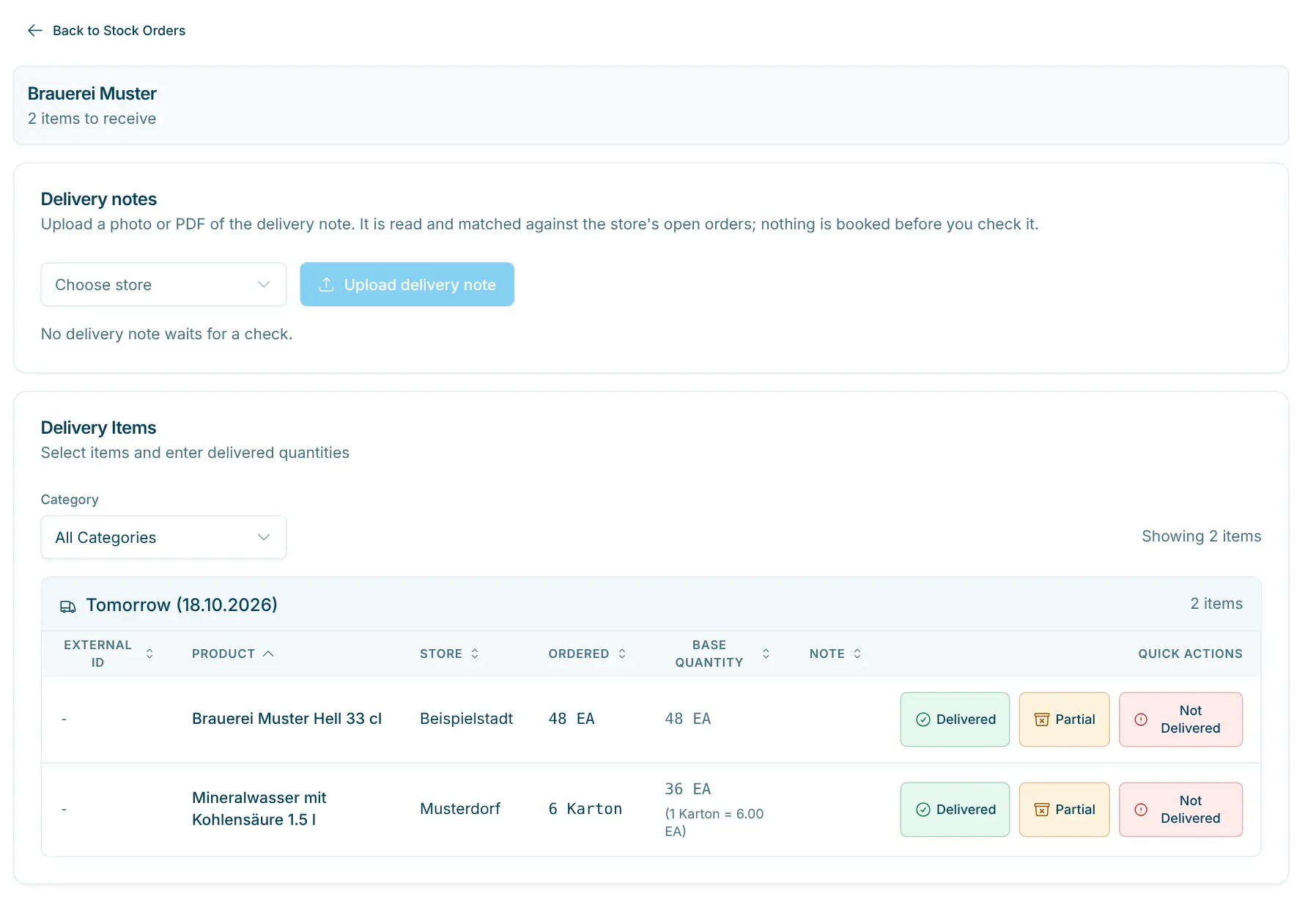
In Orders by Supplier, click Process Delivery. The page lists all of this supplier's lines with status Ordered, with their expected delivery date (overdue ones are marked). Use the category filter to work through the delivery shelf by shelf, for example. For each line, choose a quick action:
Action | Result |
|---|---|
Delivered | The ordered quantity is credited to stock; status "Received". |
Partial | Enter the Delivered Quantity (and the base quantity if the contents differ) and click Record Partial Delivery. Only this quantity is credited; status "Partially Received". No order for the remainder is created. |
Not Delivered | Nothing is credited; status "Cancelled". |
Alternative for the whole delivery: Mark All Delivered opens an overview of all ordered lines. Adjust the delivered quantities there if needed. For partial quantities, the option Create new order automatically creates an order for the remainder. Confirm with Confirm Delivery.
Matching a delivery note
Instead of checking every line by hand, you match the supplier's delivery note against your orders. This works in the staff app and in the dashboard:
- Staff app "scango.ch Admin": Under Stock › Orders, open the supplier and tap Scan delivery note. With Scan delivery note the app finds the page edges and straightens the page; several pages are sent as one PDF. You can also choose a photo or PDF. The delivery belongs to the store selected in the app.
- Dashboard: In Orders by Supplier, click Process Delivery for the supplier and then Upload delivery note. If you have access to several stores, choose the store first. While checking, the original is shown next to the lines.
Photos (JPEG, PNG, WebP) and PDF up to 10 MB are accepted. The note is read (number, date, articles, article numbers, EAN and quantities) and compared with this supplier's orders with status Ordered in the store. Lines are matched by EAN, article number (also from supplier catalogs such as Aligro), earlier confirmed matches and only last by name. The lines are grouped:
- Matches: order found, delivered quantity equals the order. These lines are selected already.
- Quantity differences: less or more delivered. More than ordered is never booked. For a partial quantity the rest stays open as a new order unless you clear that option.
- Unclear: no certain match, the unit is missing or the quantity is unreadable. Assign the line to an open order with Assign order.
- Not ordered: no open order. When the product is certain (EAN or article number) you can book it without order; the order is created and booked right away.
- Ordered, not delivered: orders with no line on the note. They stay open.
Quantities are compared through the packs: "4 × 6-pack" on the note equals 24 pieces ordered, "1 CT" one carton of 24 ordered. Each line shows the conversion. scango.ch remembers every confirmed match for the next note of the same supplier.
Nothing is booked before Book lines, and only what you selected. A delivery note number is booked only once per supplier; if it was booked already, scango.ch asks first (Book anyway). The original is kept. Discard in the ⋯ menu at the top right sets a note aside without booking anything.
Reopening orders
If you cancelled an order or marked it as received by mistake, choose Reopen in the ⋯ menu. The order returns to status Ordered, and quantities already credited are deducted from stock again. With Reopen by reference or Reopen all with reference … you reopen all orders with the same order reference in one step. Remaining orders from a partial delivery can be deleted at the same time if you wish.
Analysing stock adjustments
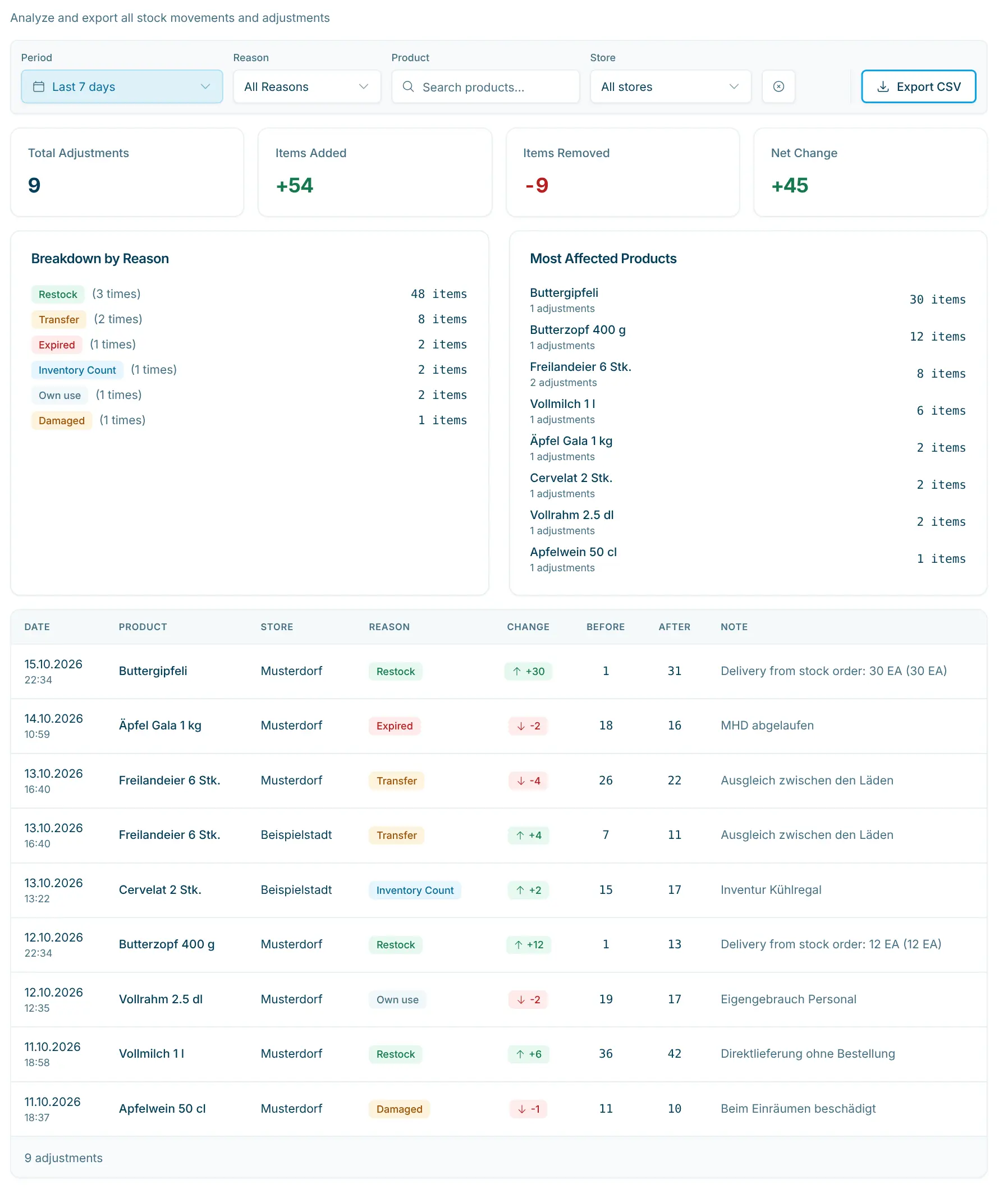
Under Stock Adjustments you find the Stock Adjustments Analysis with all stock movements: sales, deliveries, transfers and manual adjustments.
- Key figures: Total Adjustments, Items Added, Items Removed and Net Change.
- Breakdown by Reason: how often and with what quantity each reason occurred, e.g. how much was written off as "Expired" or "Theft".
- Most Affected Products: the products with the most adjustments.
- Filters: the filter bar always shows Period (All time, Today, Yesterday, Last 7 days, Last 30 days, Last 90 days or your own days with From and To; default: Last 7 days), Reason, Product and Store.
- Export CSV: exports the filtered adjustments with date, product, store, reason, quantity before/after, adjustment amount, note and "Created By".
Inventory value
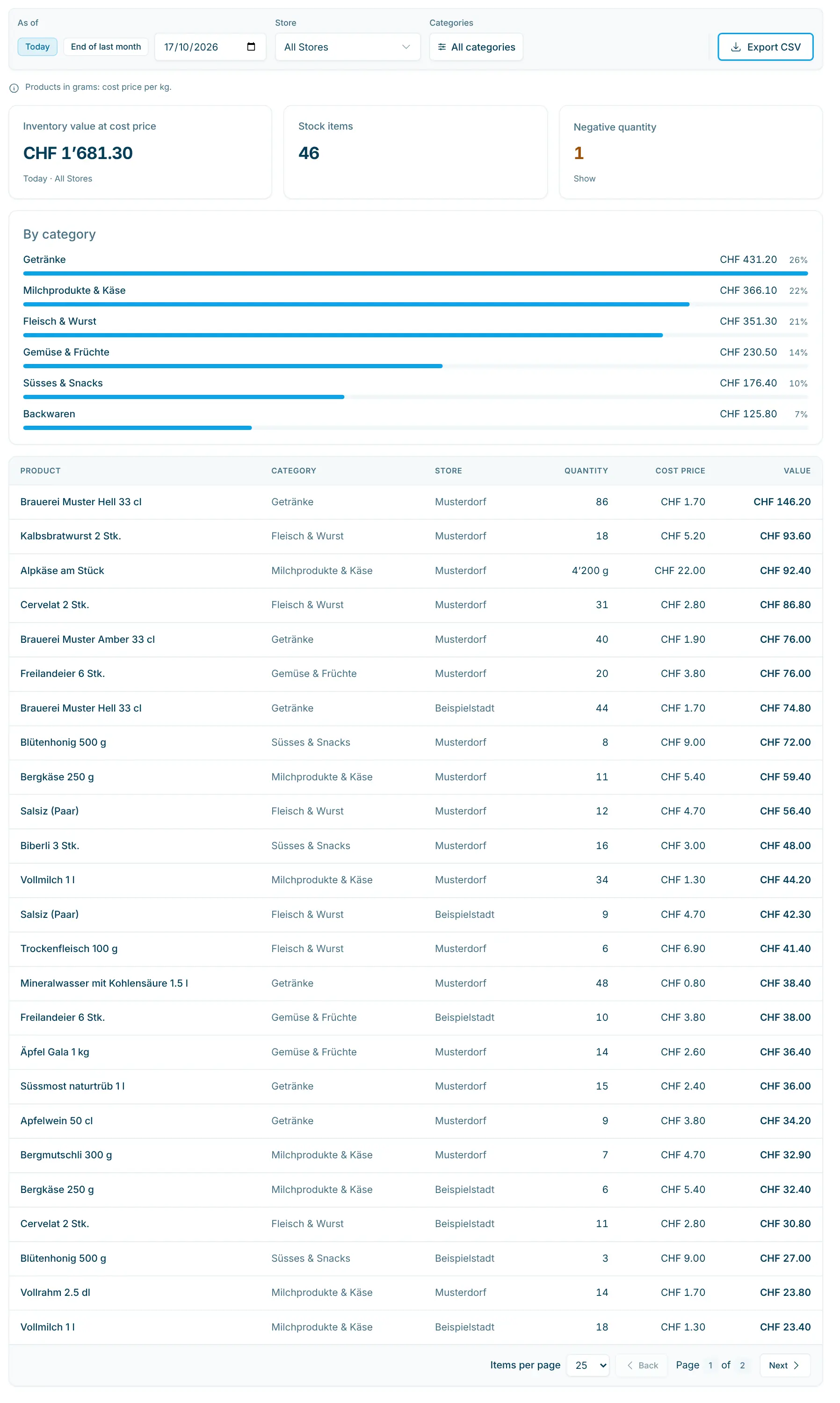
The Inventory value page (only Admin and Owner) shows the Inventory value at cost price: stock × the product's cost price, summed over all stock items, with a breakdown By category.
- As of: Today, End of last month or any earlier date, e.g. for the year-end closing. Past values are rebuilt from the stock adjustments and are only correct if every stock change was recorded.
- Filters: store and one or more categories.
- Notes: Without cost price lists products with stock but no cost price (they count as 0); Negative quantity lists items with a negative quantity (they count as 0). Linked items are not counted twice, only their base item.
- For products in grams, the cost price applies per kilogram.
- Export CSV downloads all lines with product, category, store, quantity, unit, cost price and value.
You enter the cost price on the product in the Purchase section (see Products).
Stocktaking and ordering with the Stock Scanner
The Stock Scanner is designed for work in the shop, e.g. on a tablet with a barcode scanner: scan items, count stock or reorder.
- Open Stock Scanner in the menu (or Scan Stock in the ⋯ menu of the stock page).
- Choose the store and click Start Scanning. With Remember as my default store for the stock scanner you skip this step in future in this browser.
- Scan the barcode of the product or of the case (Package Barcode). Without a scanner, use Enter Barcode Manually; items with the Manually Selectable option can be found via Browse Products. If several products share the barcode (e.g. the same item from two suppliers), the scanner only offers those stocked in the selected store; if it is exactly one, it opens directly.
- Choose at the top what you want to do:
- Stock Order (default): choose the order quantity and click Create Order. You see the current stock, open orders and the order history. If you scan a base item, its linked pack item is ordered automatically.
- Adjust Stock (stocktake): enter the counted quantity as New Quantity, choose Inventory Count as Adjustment Reason and click Save Adjustment.
- Scan the next item.
Frequently asked questions
Why is a stock level negative?
Usually goods were sold whose delivery has not been processed yet. Process the delivery or correct the stock with the reason Inventory Count.
Why does an item show "–" instead of a quantity?
It is a linked item. You find its stock on the base item.
I sent the order, but it is still in "Draft".
Sending and marking are separate steps. Mark the order with Mark as Ordered or Mark All Ordered.
"Process Delivery" shows no lines.
Only orders with status Ordered appear there. Mark the drafts as ordered first.
I cannot create an order.
Check whether the product has a supplier.