Cloud Dashboard
Gift cards
Gift cards let you sell or give away credit that your customers redeem at the self-checkout. Every gift card has its own code and QR code, a value in CHF and an expiry date. You can create single cards or many at once, for example for a Christmas promotion.
You will find the feature in the menu under Giftcards. All roles from Employee upwards have access; the feature is included in the Retail and Pro plans.
Overview
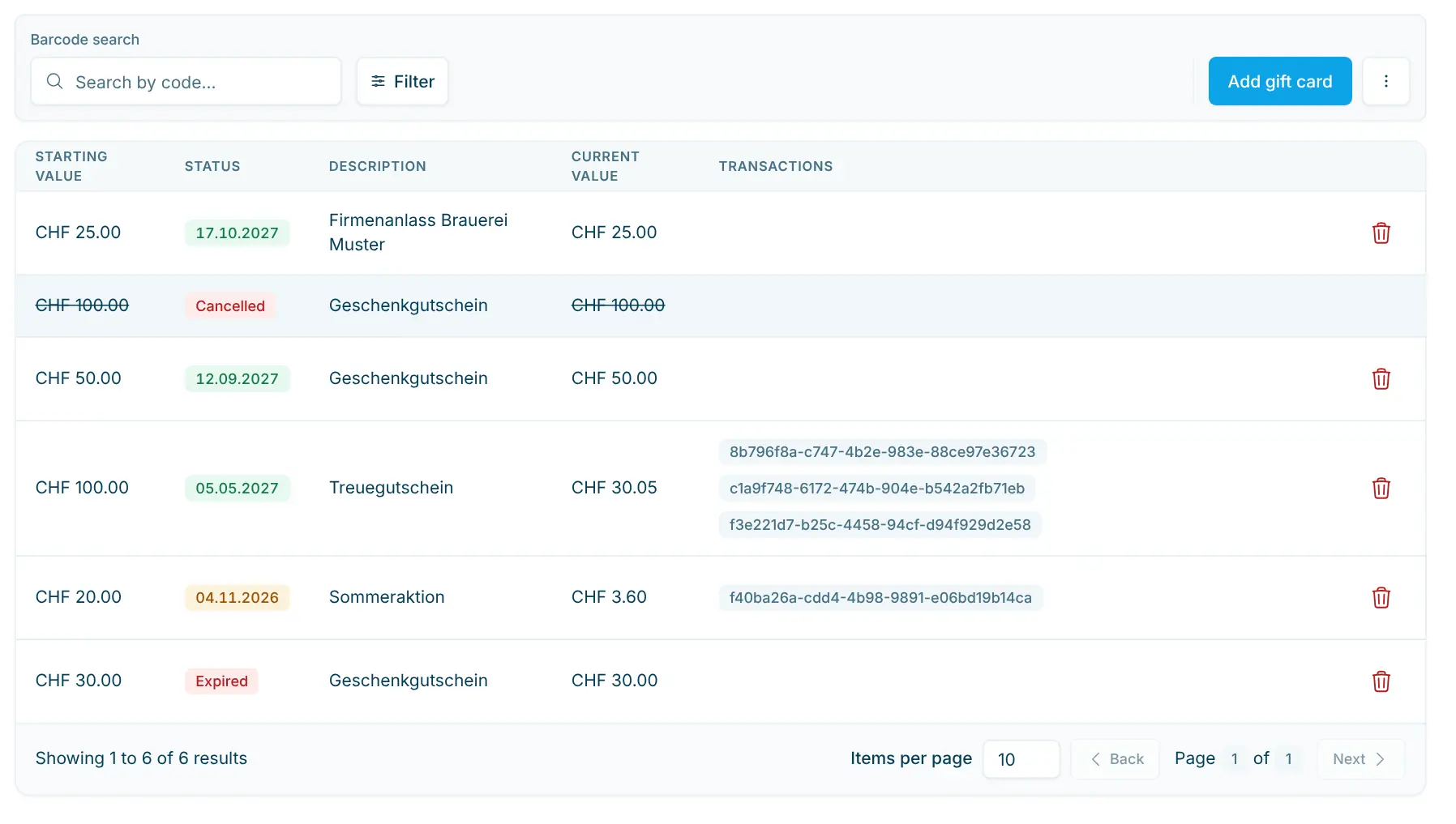
The list shows all gift cards with the following columns:
Column | Content |
|---|---|
Starting value | Value of the card when it was created. |
Status | Expiry date of the card, colour-coded (see below). |
Description | Your description of the card, e.g. "Christmas voucher". |
Current value | Remaining credit. |
Transactions | Order IDs in which the card was charged or topped up. |
The colour in the Status column shows at a glance whether a card is still valid:
Display | Meaning |
|---|---|
Date in green | The card is valid. |
Date in orange | The card expires within the next 30 days. |
Expired (red) | The expiry date has passed; the card can no longer be redeemed. |
Cancelled | The card was deleted. The amounts are struck through and the row can no longer be opened. |
Clicking a row opens the card's detail page.
Search and filter gift cards
Three filters are available above the list:
- Barcode Search: Enter or scan a card's code to find a specific card.
- Amount Range (CHF): Shows cards whose starting value is between Min and Max.
- Expires Before: Shows cards that expire on or before the selected date.
While a barcode search is active, the other filters are disabled. The amount range and the date cannot be used at the same time.
Add a gift card
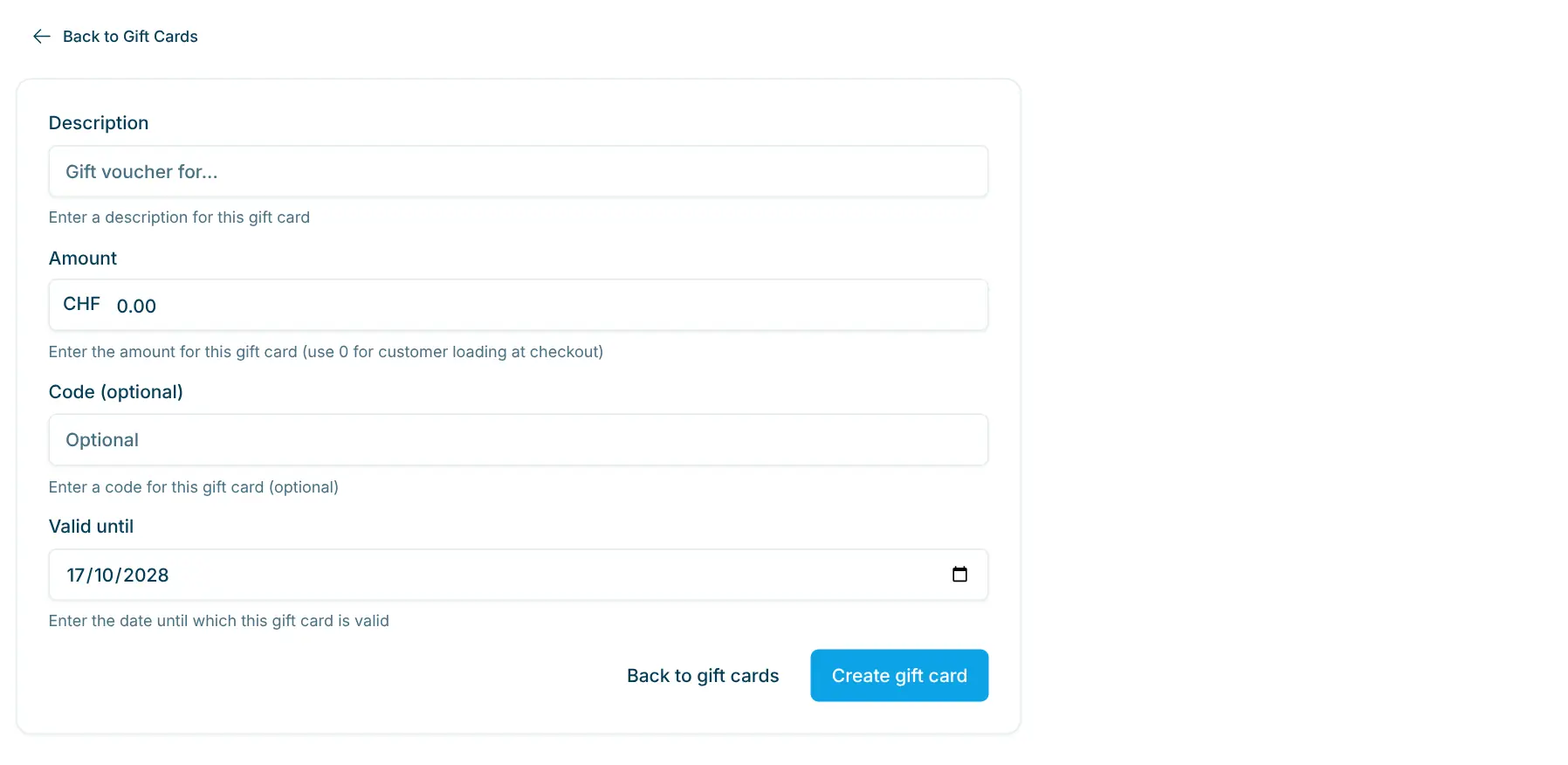
- In the overview, click Add gift card.
- Fill in the New gift card form:
- Description: e.g. "Voucher for …".
- Amount: Value of the card in CHF. Enter
0if the customer should top up the card herself at the checkout. - Valid until: Expiry date. Today in two years is suggested.
- Code (optional): If you leave the field empty, the system automatically generates a unique code. Use your own code, for example, if you already have pre-printed cards.
- Click Create gift card.
The card is ready to use immediately and you are taken straight to its detail page. Back to gift cards returns you to the overview.
Create multiple gift cards
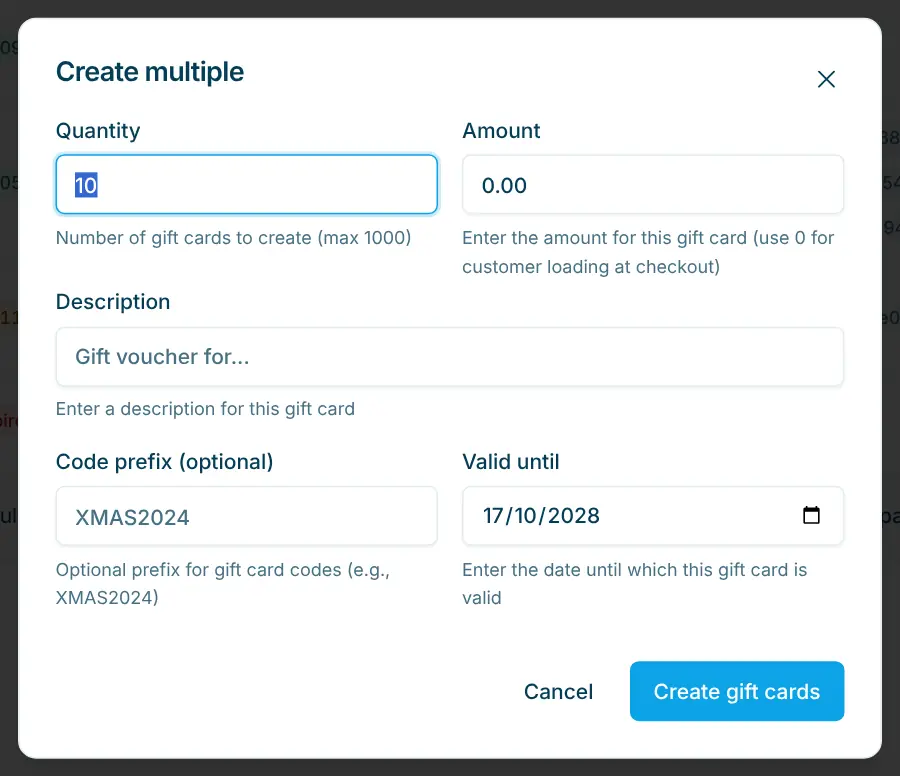
For promotions or pre-printed cards, you can create up to 1000 identical gift cards in one step:
- In the overview, open the ⋯ menu and select Create Multiple.
- Fill in the fields:
- Quantity: how many cards to create (1 to 1000).
- Amount: value per card in CHF (
0for cards that are topped up at the checkout). - Description: applies to all cards.
- Code Prefix (Optional): common beginning of all codes, e.g.
XMAS2024(the codes then start withxmas2024-). This lets you recognise the cards of a promotion later. - Valid until: expiry date of all cards (suggested: today in two years).
- Click Create Gift Cards.
- The Created Gift Cards Summary shows the quantity, Total Value, Amount Each and Valid until. Now download the files:
- Download CSV: list of all new cards with their codes, e.g. for your print shop.
- Download QR Codes: ZIP file with one QR code image (PNG) per card.
- Close the dialog with Close & Refresh.
💡 Download the CSV and QR codes before closing the dialog. You can also get individual QR codes later on each card's detail page.
View and edit a gift card
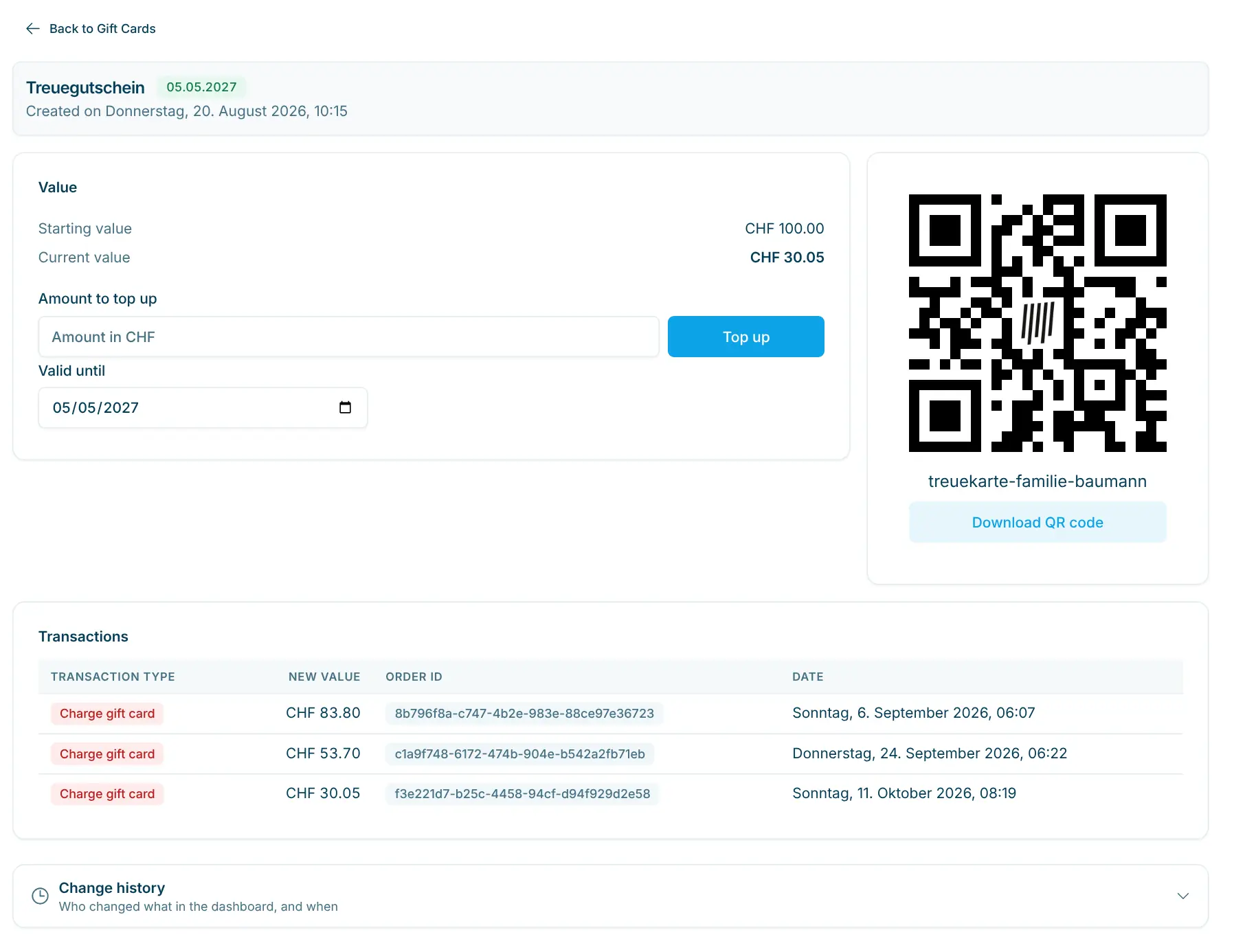
At the top, the detail page shows the card's description as the title, its status next to it (the expiry date or, for example, Expired) and, below it, Created on with the date and time. There is no separate "Edit" button – you change the values directly on the page:
- Value: The box shows the Starting value and Current value in CHF.
- Valid until: In the same box, change the expiry date using the date field or the calendar. The change is saved automatically. A card always needs an expiry date.
- QR code: Next to it on the right is the QR code with the card's code; Download QR code saves it as a PNG.
Below that, the Change history shows who changed what on the card, and when.
Transactions
The table lists all movements on the card:
Column | Content |
|---|---|
Transaction type | Charge gift card (redemption during a purchase) or Top up gift card. |
New value | Credit after the transaction. |
Order ID | ID of the order in which the card was used, or "Manual top-up". |
Date | Date and time of the transaction. |
Top up credit manually
- In the Value box, enter the amount in CHF under Amount to top up.
- Click Top up.
The current value increases immediately. The transactions show an entry Top up gift card with the order ID "Manual top-up". Use this function, for example, if you sell a gift card on invoice or increase it afterwards.
Download the QR code
In the Description box on the detail page, click Download QR code. You get the card's QR code as a PNG image and can print it on cards, vouchers or labels of your choice. There is no ready-made PDF template – this way you design your gift cards entirely in your own style.
💡 Print the QR code dark on a light background and not too small so that the checkout scanner reads it reliably.
Redeem a gift card at the checkout
The customer scans the gift card's QR code at the checkout. The credit is offset against the purchase and recorded in the transactions as Charge gift card. Cards with an amount of 0 can be topped up by the customer at the checkout.
A redeemed gift card is a means of payment, not a discount: it does not reduce product revenue in statistics and financial reports.
If the checkout scanner does not read the QR code, QR code recognition must be enabled on the scanner – see Barcode scanner.
Export gift cards
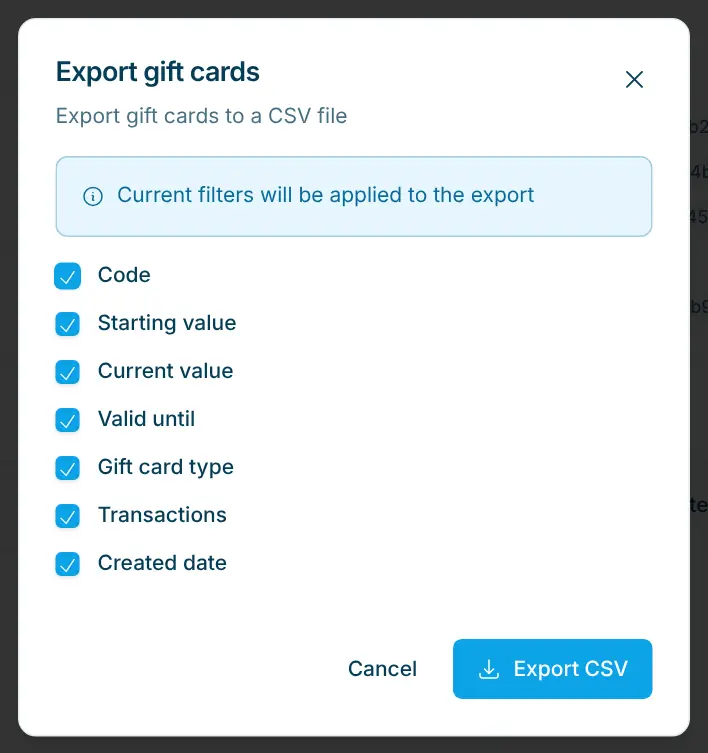
- If needed, set filters in the overview – they are applied to the export.
- Open the ⋯ menu and select Export CSV.
- In the Export Gift Cards dialog, choose the columns you want: Code, Starting Value, Current Value, Valid Until, Gift Card Type, Transactions, Created Date.
- Click Export CSV. The file is downloaded.
💡 CSV files from the dashboard open in Excel with a double click, split into columns and with umlauts intact. If everything still ends up in one column, import the file via Data › From Text/CSV and choose semicolon as the delimiter.
Delete a gift card
In the overview, click the trash can icon in the card's row and confirm in the Delete gift card dialog. The card is cancelled: it remains visible in the list with the status Cancelled but can no longer be redeemed.