Cloud Dashboard
Products
Under Products you maintain your range: everything your kiosks sell. For each product you set the name, price, VAT, barcode, deposit, supplier and category, and decide how and where it appears at the kiosk. Time-limited offers, cost prices for margins, and exporting and importing entire product lists are also part of it.
The page is available to all roles from Employee upwards and is included in all plans. Only Admin and Owner can run a bulk import. Assigning and filtering by supplier requires the Retail or Pro plan.
Product list
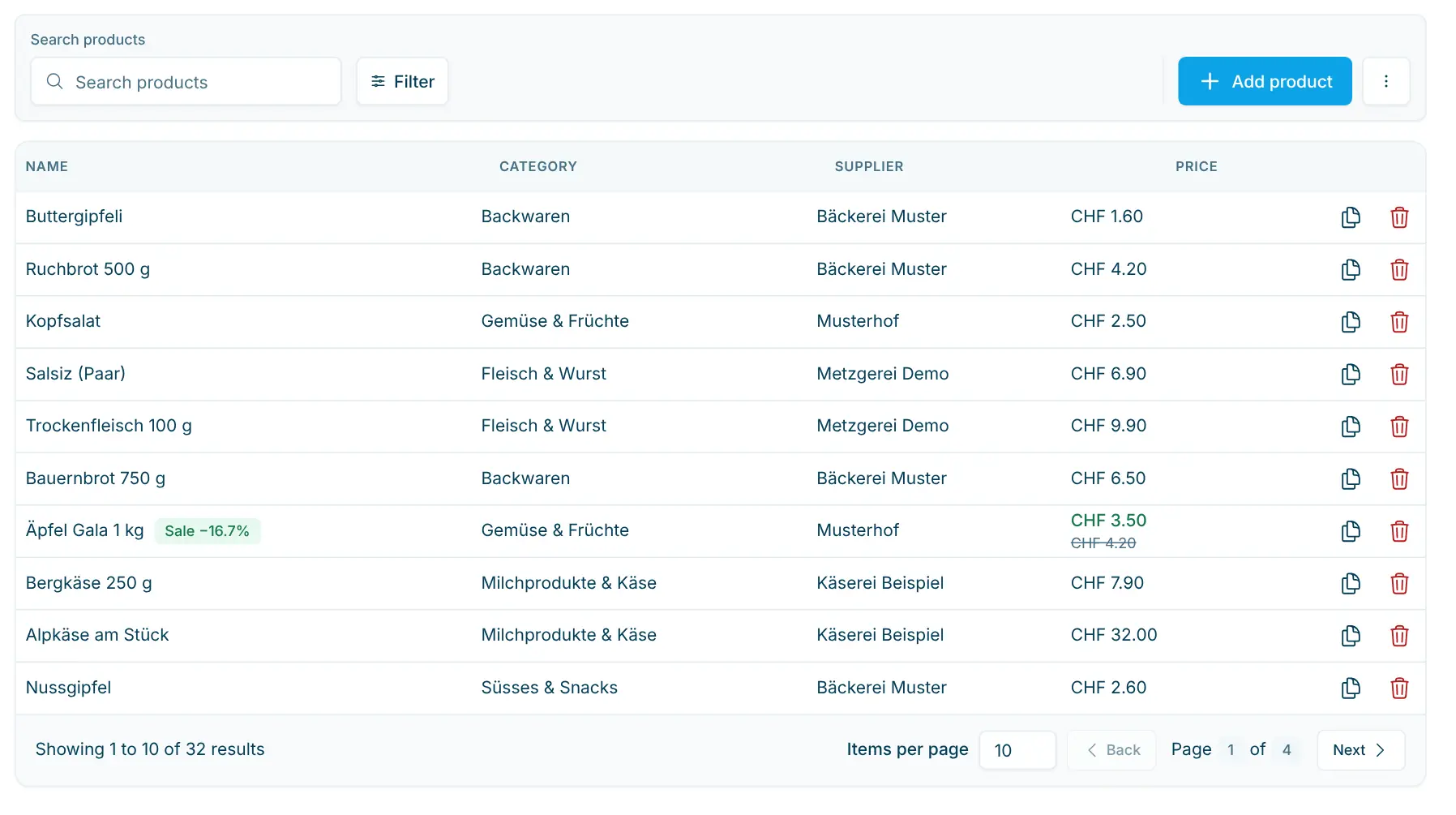
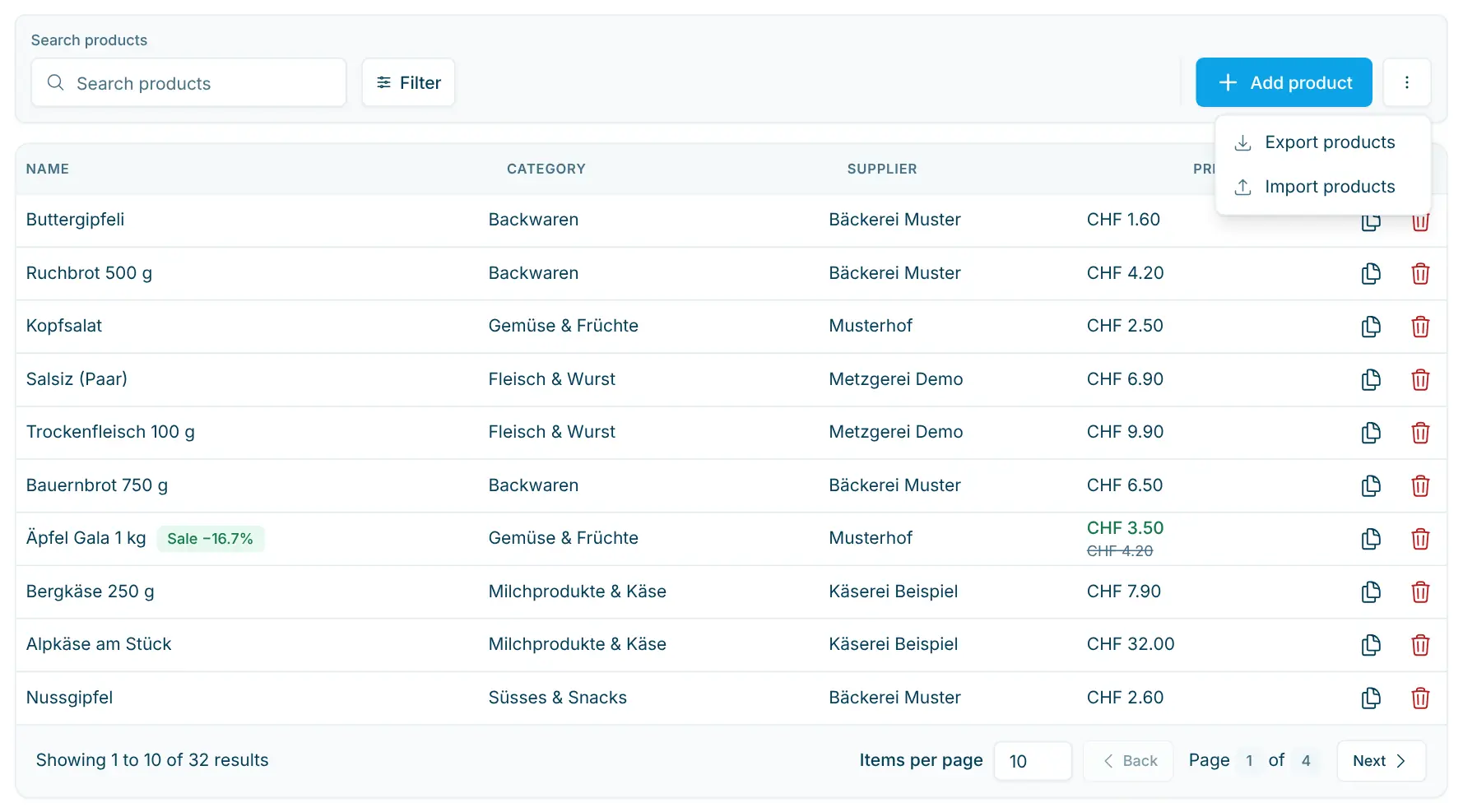
The table shows Name, Category, Supplier (Retail and Pro plans) and Price for each product. You also see:
- the Deactivated badge for products that are not loaded onto the kiosk,
- a sale badge for products with an offer, with the discount in percent and the period (Sale from / Sale to; "open" if no date is set).
Click a row to open the product.
Search and filter
- Search products: Finds products by name, barcode or external ID. If the search term matches the barcode or external ID, the match is highlighted below the product name.
- Filter: Narrows the list down to a supplier (Choose supplier) and/or a category (Choose category).
Actions per product
At the end of each row (in the ⋯ menu on a smartphone) there are two actions:
- Duplicate Product: Creates a copy with "(copy)" added to the name and opens it. Price, VAT, deposit, external ID, description, declarations, supplier, category, margin, index and the kiosk and store settings are copied. The barcode (the copy gets a new automatic ID), offer, cost price, image and sound are not copied. The copy is always active.
- Delete product: Removes the product from your range after you confirm with Yep, delete the product. Past orders remain unchanged.
Create a new product
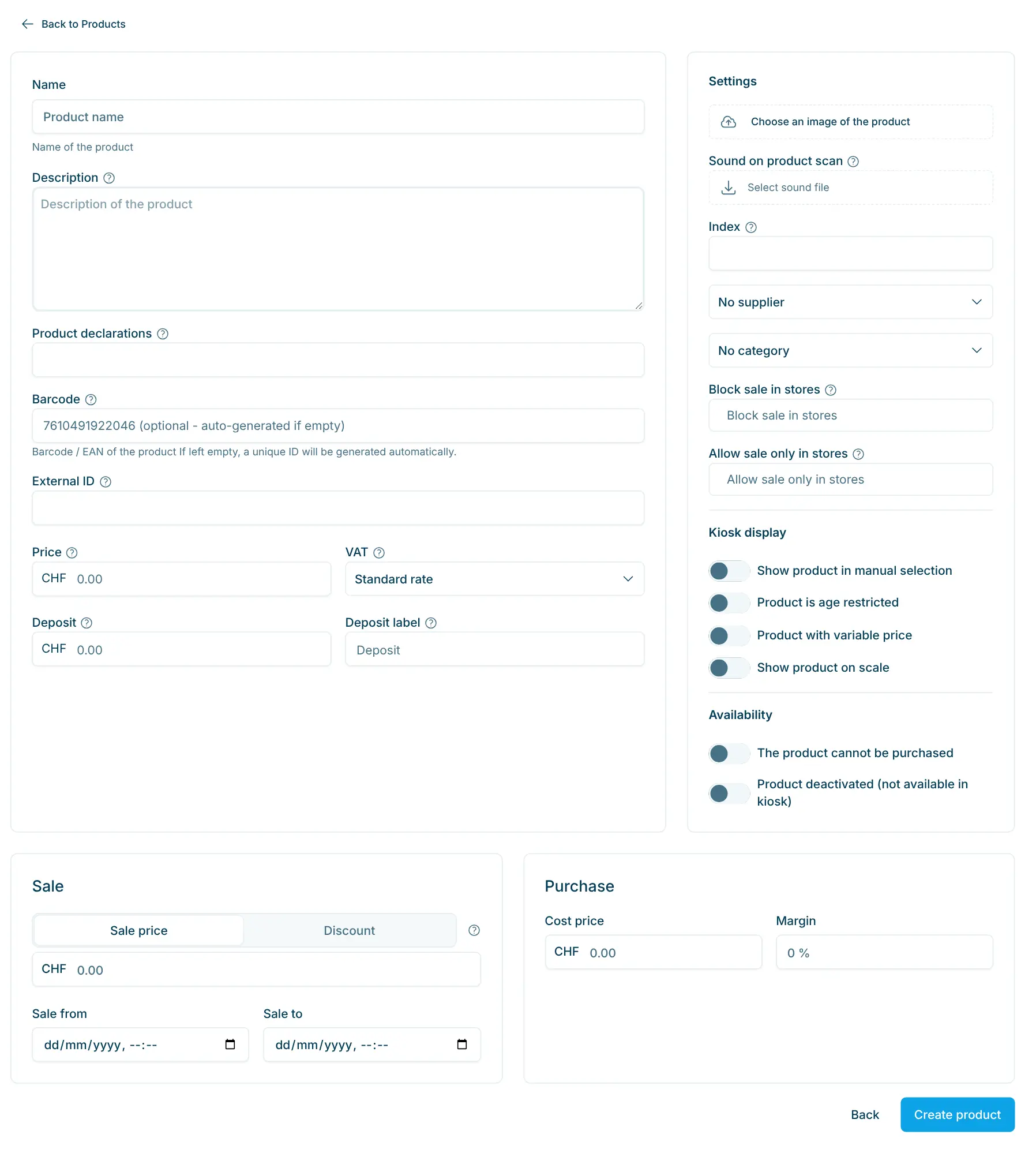
- Click Add product. The New product form opens.
- Enter at least the Name. Usually you also add the Barcode, Price, VAT and, for returnable containers, the Deposit and Deposit Label.
- Under Settings, set the image, Supplier, Category and store visibility, and enable the options you need under Kiosk Display and Availability.
- If needed, enter a Sale and, under Purchase, the cost price or the margin.
- Click Create product. Back cancels.
Once created, the product's detail page opens. It has the same fields as the form; that is where you change them later.
If you leave the barcode empty, scango.ch automatically assigns a unique combination of letters and numbers. If the barcode you enter is already used by another product, a warning with that product's name appears.
If the supplier catalogue is enabled for your organization (on request), you can search for a catalogue item at the top of the form; its name, prices and supplier are then copied.
Edit a product
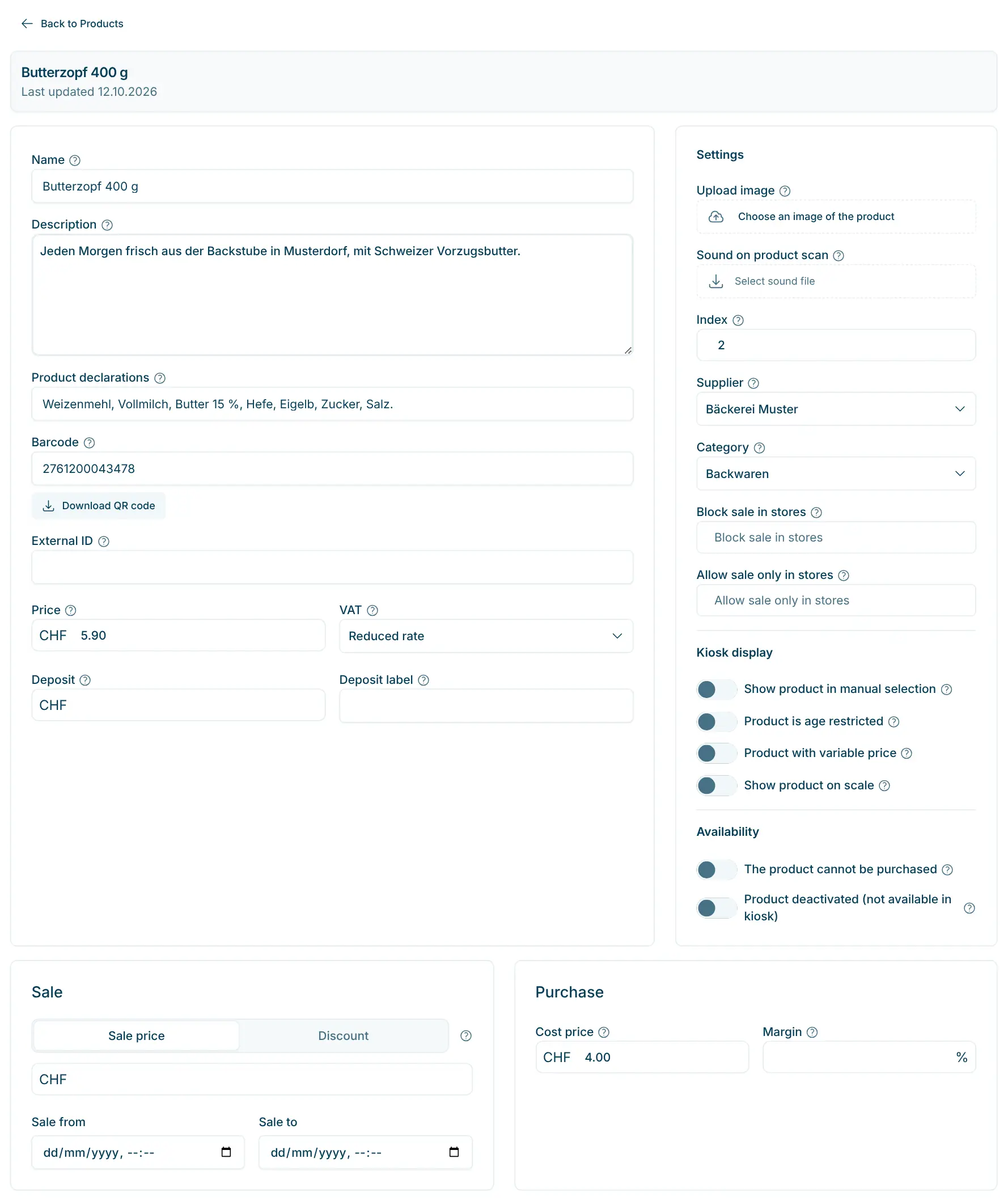
On the detail page, every change is saved automatically as soon as you leave a field or switch an option. There is no save button. The header shows the product name and when it was Last updated; you change the name in the first field, Name. The (?) icon next to each field briefly explains what it is for. Back to Products returns you to the list.
The kiosk loads the product data at the start of each purchase. Changes are therefore visible from the next purchase onwards. If a purchase is in progress, cancel it and start again.
Basic data
Field | Meaning |
|---|---|
Name | Shown at the kiosk and printed on the receipt (e.g. Schlorzifladen). |
Description | For internal use only, not shown to customers. |
Product Declarations | Ingredients and allergens. Customers see them at the kiosk via the info icon (i) after scanning or selecting the product. |
Barcode | EAN/GTIN code or QR code value of the product (e.g. 7610491922046), or a template for variable prices and weights (see below). Download QR Code gives you the code as a QR graphic for printing. |
External ID | Optional ID from another system, e.g. your inventory management. |
Price | Selling price in CHF including VAT. |
VAT | Standard rate, Reduced rate, Special rate or VAT exempt. The rate is shown on the receipt. |
Deposit | Deposit per item in CHF for returnable containers (e.g. 0.30). It is added to the price and shown separately on the receipt. |
Deposit Label | Name of the deposit on the price tag (e.g. bottle deposit, crate). If the field is empty, "Deposit" is used. |
Settings
Field | Meaning |
|---|---|
Upload image | Product image for the kiosk. Recommended: square, at least 200 × 200 pixels. |
Sound on product scan | MP3 file that the kiosk plays when the product is scanned, in addition to the usual beep. To use it, enable Play sound in the Sounds section of the store under Settings › Organization › Stores. |
Index | Order in the manual selection at the kiosk. Lower numbers appear first (1 = first). Without an index, products are sorted alphabetically. |
Supplier | The product's supplier, used for orders and statistics (Retail and Pro plans). |
Category | Grouping at the kiosk and in reports. |
Block sale in stores | Stores where the product is not sold. |
Allow sale only in stores | Stores where the product is sold exclusively. Empty means: all stores. |
Restricting stores is useful, for example, if your stores buy the same product (bread, coffee …) from different suppliers.
Kiosk Display
- Show product in manual selection: Customers can select the product at the kiosk without scanning. The product's category must also be enabled for manual selection (in the category: Show in manual selection). If it is not, a notice points this out.
- Product is age restricted: The kiosk requires an age check before purchase. Age verification is available on request, see Age verification with Stellard Age.
- Product with variable price: When the product is selected, the kiosk opens an input field where customers enter the price themselves, e.g. for donations.
- Show product on scale: The product appears for selection on the separate scale. You don't need a separate category for this: the scale lists every product with this switch alphabetically, regardless of its category and the category's settings.
Availability
Option | Effect at the kiosk |
|---|---|
The product cannot be purchased | Sale stop: the product stays on the kiosk and is recognised when scanned, but customers get a message that it cannot be purchased. |
Product deactivated (not available in kiosk) | The product is not loaded onto the kiosk and is not recognised when scanned, as if it did not exist. In the list it shows the Deactivated badge. |
For seasonal products, deactivating is often better than deleting: you can reactivate the product later with one click.
Add a sale
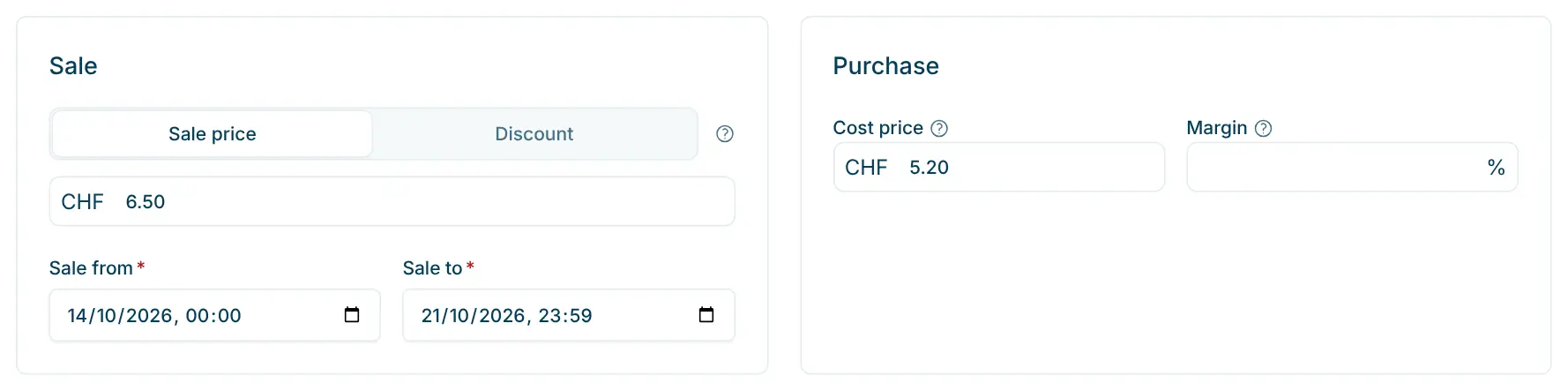
In the Sale section you set up a time-limited promotion. When it ends, the kiosk sells the product at its normal price again.
- At the top, choose whether you enter a fixed Sale price in CHF or a Discount in percent. Only one of the two applies at a time.
- Enter the price or the percentage.
- Set Sale from and Sale to (date and time).
Both dates are required. If one is missing, the note "Without from and to dates, the offer will not be applied." appears. A percentage discount also applies to products whose price is read from the barcode (template with PPPPP, see below).
Purchase: cost price and margin
In the Purchase section you enter what the product costs you. scango.ch uses this to calculate the margins on the Dashboard and in reports.
- Cost price: your purchase price or cost in CHF (e.g. 0.70).
- Margin: your margin as a percentage of the selling price (e.g. 30% of CHF 1.00).
Enter one of the two fields. If a Cost price is entered, it takes precedence. If it is missing, the kiosk uses the Margin and, if that is missing too, the store's General margin for all products field (under Settings › Organization › Stores). For accurate margins we recommend real cost prices.
Barcodes
Each product has one Barcode field. The kiosk accepts everything your scanner reads, i.e. EAN-13, EAN-8, UPC and QR codes. Tips:
- Your own codes: For products without a barcode, leave the field empty. scango.ch then assigns a unique ID, which you can print as a graphic with Download QR Code or via Price Tags.
- Third-party QR codes: Some packaging carries a QR code next to the EAN code (e.g. with product information). The kiosk reads it too but tells the customer to scan the other code. If such a QR code is right next to the EAN code, create its value as a separate product with the same data. This avoids failed scans.
- Duplicate codes: If a barcode is already used by another product, the dashboard asks before saving and names that product. Save anyway keeps the code; Cancel keeps the previous one. If you save anyway, the kiosk always sells only one of the products for this code, and you cannot choose which one. Give each product its own code.
Read more about barcode types and your own codes in the Barcodes article.
Variable barcodes: price or weight in the code
For pre-packed products of varying weight, e.g. pieces of cheese or meat, the price or weight is contained in the barcode itself. For such products, enter a 13-character template in the Barcode field:
- Positions 1–7: the product key, i.e. the first 7 digits of the code that identify the product (e.g. 2200000).
- Positions 8–12: five placeholders, PPPPP for the price in centimes or GGGGG for the weight in grams.
- Position 13: the check digit, as a placeholder e.g. "?".
Template in the Barcode field | Scanned code | Result at the kiosk |
|---|---|---|
2200000PPPPP? | 2200000012500 | Digits 8–12 = 01250 → price CHF 12.50 |
2200000GGGGG? | 2200000015006 | Digits 8–12 = 01500 → 1500 g = 1.5 kg; price = 1.5 × price per kg |
Important:
- There are exactly 7 digits before the placeholders.
- For GGGGG, enter the price per kilogram in the Price field. If a sale is running, the sale price is used as the price per kilogram.
- For PPPPP, the barcode determines the selling price. A percentage discount from the sale is applied to it.
Export products
Use the export for analyses, for a stocktake or to change many products at once and import them again.
- Open the ⋯ menu at the top right and choose Export products.
- If needed, narrow it down to a supplier or a category.
- Click Prepare products for export and then Export CSV. The file products.csv is downloaded.
The file contains the same columns as the import, including Product ID, external ID, product name, price, supplier, VAT rate, category, barcode, deposit, description, declarations, cost price, margin, index and the kiosk options. Deleted products are not included. Image, sound, sale, deposit label, store visibility and the Deactivated status are not exported.
Note: When you import the file again, scango.ch recognizes existing products by Product ID, barcode, article number or name. The Product ID column is therefore not strictly required, but keeping it in the file gives the most reliable matching.
Import products
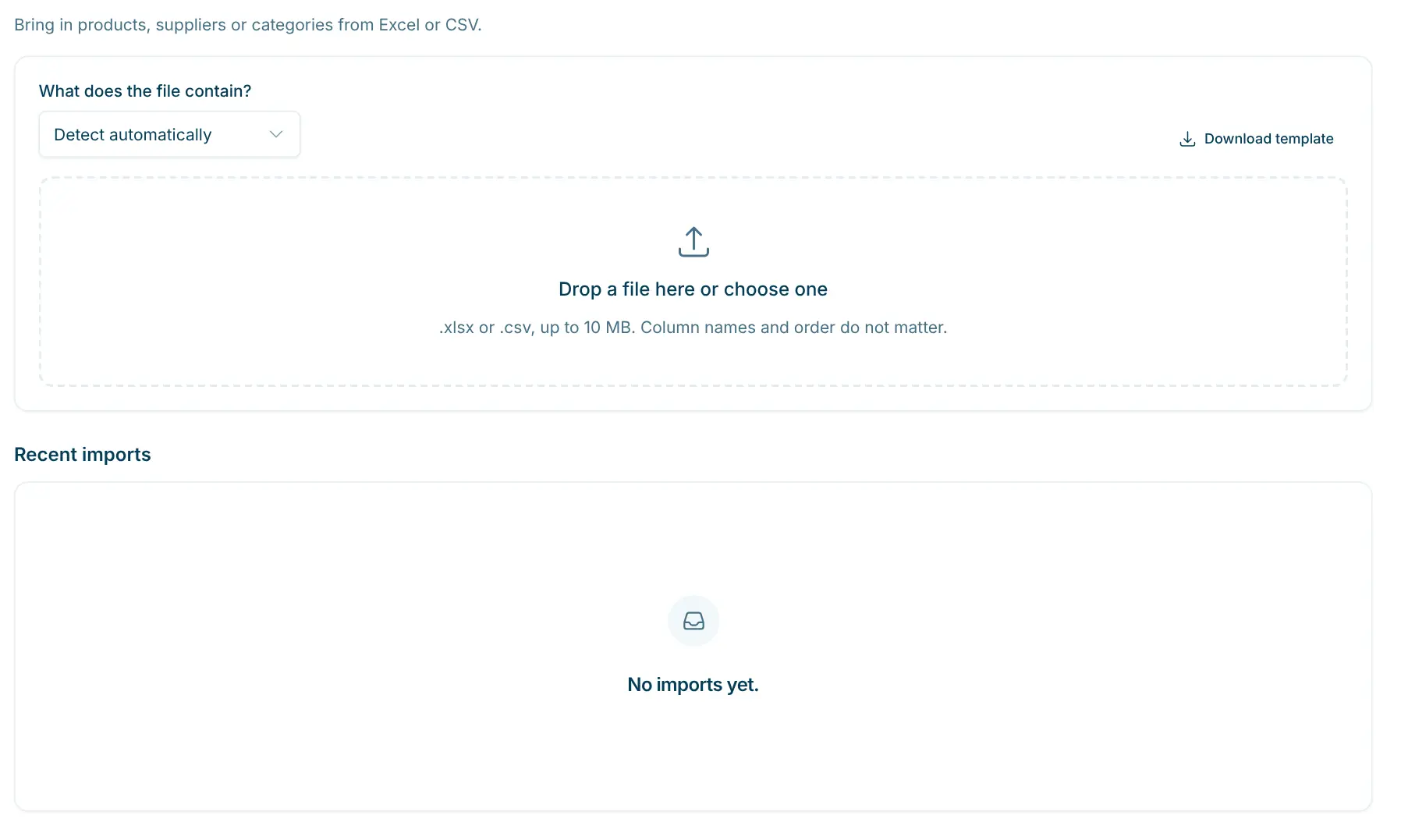
With the import you create many products at once or update existing ones, for example with a list you exported earlier, a price list from your supplier or an export from another system. You see exactly what will change beforehand. Nothing is saved until you confirm the import.
Upload the file
- Open the ⋯ menu at the top right and choose Import products. The Import page opens.
- Under What does the file contain?, choose the content of the file: Products, Suppliers, Categories or Detect automatically.
- Drag the file onto the Drop a file here or choose one area or click Choose file. The file is read and matched against your product range.
You can use .xlsx and .csv files of up to 10 MB and 20,000 rows. Old .xls files are not supported; save them as .xlsx or .csv in Excel. Column order and column names do not matter, and supplier price lists and exports from other systems work as they are. You therefore do not need a template. If you prefer to start from an empty sheet, get one with Download template.
Recent imports lists your previous imports with their status. Click Open to continue an import you have not finished yet.
The steps
After the upload, the import guides you through the steps Columns, Matches, Settings, Review and Result. It opens directly on the first step that needs your attention. Use the step bar at the top to switch to another step at any time.
- Columns: For each column of the file you see sample values and the scango.ch field it belongs to. Recognized columns are already assigned. Change the assignment if needed or choose Do not import. Columns without a field are not imported.
- Matches: Lists the suppliers, categories and stores from the file. Check whether a name belongs to an existing entry or should be created. Suppliers and categories that do not exist yet are created by the import. Stores are recognized by their city; the import never creates new stores.
- Settings: Add what is missing from the file, such as VAT rate for new products, Supplier for all rows or Category for new products. If you turn off Create rows without a match, only existing products are updated. With Use product names from the file, the import also replaces the names of existing products; without it they keep their names, as suppliers often spell names differently. For a file with the Product ID column (your own export) the option is on. This is also where you decide whether stock items are created (see below).
- Review: Every row is shown with the product found, the decision (Create new, Update or Skip) and the changes field by field. Rows that need your decision come first under To review. You can change any decision or assign a different product with Choose another entry….
- Result: After the import you see what was saved.
Confirm the import
- In the Review step, click Start import. The summary shows how many products will be created, updated and skipped and which suppliers and categories will be added. Rows you have not reviewed yet are skipped.
- Tick I have checked the matches.
- Click Import now.
Nothing is saved before this click. Discard import cancels the import.
The Result shows how many entries were saved and how many stock items, suppliers and categories were created. If rows were not imported, download them as a CSV file with Download rows not imported. It contains the affected rows with an extra Reason column. Fix the rows and import the file again.
How the import recognizes existing products
For every row, scango.ch looks for the matching product in this order:
- same Product ID (from a scango.ch export),
- same barcode or additional barcode (even if Excel removed leading zeros),
- same article number (External ID) from the same supplier,
- similar name from the same supplier.
If the name is only roughly the same, the row comes to you for review. The import never resolves conflicts on its own, for example when a product ID no longer exists, a barcode belongs to several products or two rows of the file affect the same product. Such rows are skipped until you decide. Rows without a match are created as new products.
Import rules
- For existing products, the import only changes the fields that differ. Empty cells never clear an existing value.
- A column simply called "Price", as in many supplier price lists, is treated as the Cost price. The same goes for additions such as "net CHF". Only columns such as "Selling price", "Retail price" or "Selling price CHF" (as in the export) set the selling price. You can change the assignment in the Columns step.
- New products need a Product name and a VAT rate (from the VAT rate column or from the Settings). If the price or barcode is missing, you get a notice.
- The value "yes" in the Delete product column deletes the product. Yes/no columns such as Manual selection understand "yes"/"no", "ja"/"nein", "oui"/"non", "sì"/"no", "1"/"0" and "x" for yes.
- You can import just some of the products. Products that are not in the file remain unchanged.
- Images, sounds and sales cannot be imported. Add them on the detail page.
Create stock items at the same time
In the Settings step, enable Create stock items and choose a Store or All stores. scango.ch then creates stock items for the imported products. Existing stock items stay unchanged. The stock data comes from columns such as Store (for stock), Stock quantity, Minimum stock, Maximum stock, Base unit (UOM), Package unit (UOM), Items per package and Package barcode. Read more about stock management in the Stock article.
AI assistance
Whatever cannot be assigned unambiguously is clarified by AI: unclear columns, names of suppliers, categories and stores, and rows that were only found by a similar name. Rows decided by the AI are listed in the Review step under Decided by AI, each with the answer and its probability. If the AI is not certain enough, you decide yourself.
The next import
If you later import a file with the same columns, such as the next price list from the same supplier, scango.ch reuses the column assignment from the last import. It also remembers the name matches that you or the AI confirmed. So next time there are usually only a few rows left to review.
Imports can be run by Admin and Owner.
Deposit return products
A product's deposit is automatically added to the price at checkout. When customers bring back empty containers, you refund the deposit with one or more deposit return products. You create them like normal products, with these specifics:
- Enter the deposit amount per container in the Price field with a minus sign (e.g. -0.30).
- Set VAT to VAT exempt.
- Enable Show product in manual selection so that customers can select the product without a barcode.
- Ideally, create a separate category for deposit return products and enable Show in manual selection there. This helps customers find them faster (you manage categories under Settings).
Example: returnable bottle
Field | Value |
|---|---|
Name | Returnable bottle return |
Price | -0.30 |
VAT | VAT exempt |
Category | Deposit returns |
Show product in manual selection | enabled |
Frequently asked questions
Why don't I see a change at the kiosk?
The kiosk loads the product data at the start of each purchase. Cancel a purchase in progress and start again. Also check whether the product is deactivated or blocked for the store.
Why doesn't a product appear in the manual selection?
Both the product (Show product in manual selection) and its category (Show in manual selection) must be enabled for this.
Do products for the scale need their own category?
No. Whether a product appears on the scale depends only on Show product on scale. The product must also not be deactivated or blocked for the scale's store. You can still create a category such as "Scale" if it helps you keep an overview.
Why isn't my sale applied?
Check that Sale from and Sale to are set and that the current time lies between them.