Know-how
Connect the PayTec terminal to the checkout
This is how you connect your PayTec payment terminal (PayTec UTP1000F) to the scango.ch checkout terminal in a few minutes.
We set up this connection for you at the start, before the hardware is shipped. You only need this guide if something changes during operation, e.g. when a payment terminal is replaced.
Preparation
- The PayTec payment terminal and the scango.ch checkout terminal are connected to power and the internet, and the scango.ch app on the checkout terminal is started.
- Open the checkout's terminal menu now, where you will enter the connection code later. There are two ways to do this:
- Access QR code: Scan the "access QR code checkout screen" with the checkout scanner. You find it in the fact sheet you received from us at the start (digital or printed).
- Without the fact sheet: On the checkout's cart screen, tap the title at the top ("Your Shopping") 5 times within 3 seconds. In the Admin PIN window, enter your store's four-digit PIN and confirm with OK. If you don't know the PIN, contact support@scango.ch.
- You have the CONFIG sheet from PayTec at hand, digital or printed. You received this document from PayTec when your contract started. It contains the customer password you need for the terminal.
1. Enter the customer password
Enter the customer password (see the CONFIG sheet from PayTec) on the PayTec payment terminal and confirm with OK.
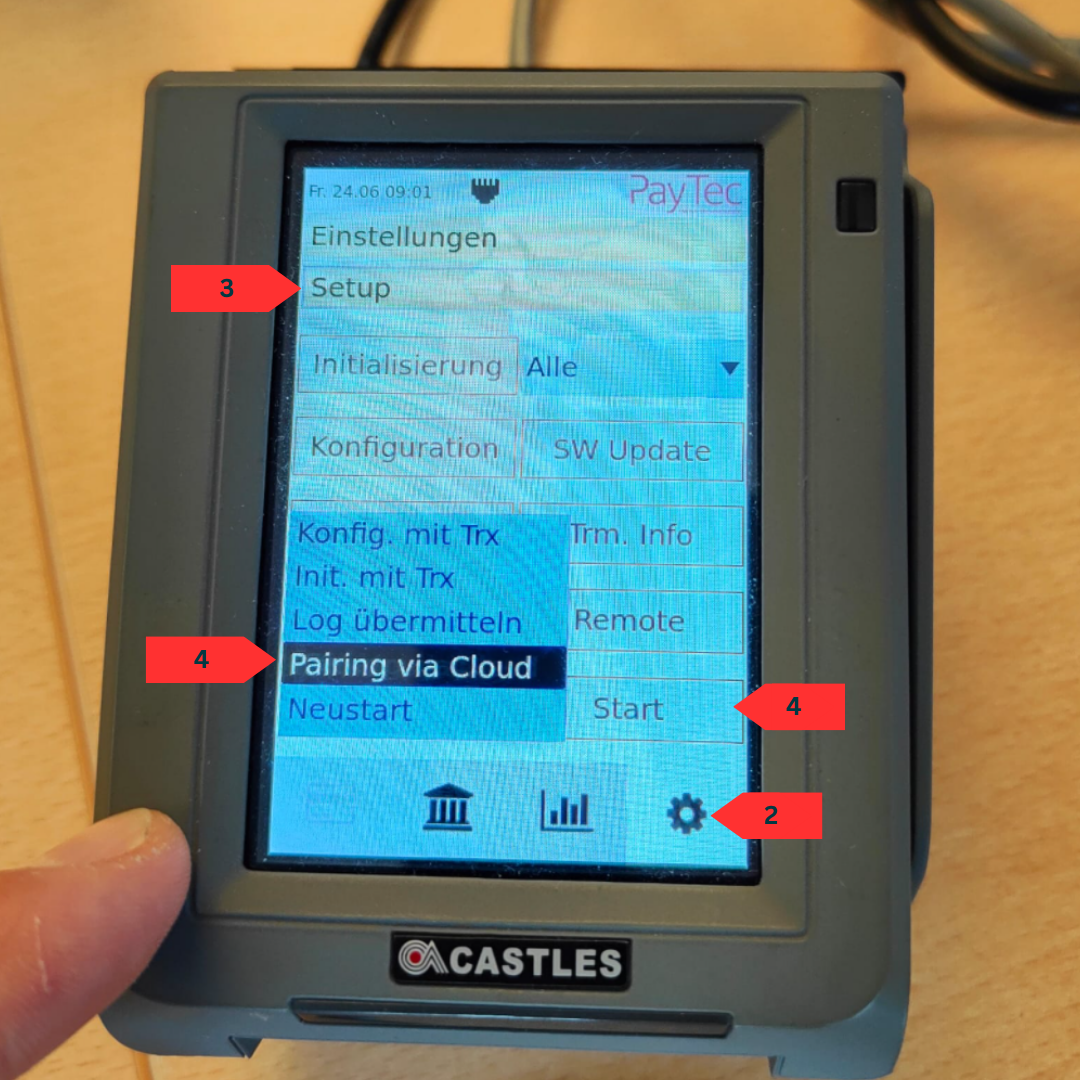
2. Open the settings
On the PayTec payment terminal, tap the gear icon (Settings) at the bottom right.
3. Open Setup
Then tap Setup at the top.
4. Select the pairing method
- On the PayTec payment terminal, tap the blue button at the bottom left and select "Pairing via Cloud".
- Then tap "Start".
5. Enter the customer password again
If requested, enter the customer password on the PayTec payment terminal again and confirm with OK.
6. Read the connection code
The PayTec payment terminal now displays a connection code.
7. Enter the connection code at the checkout
- In the checkout's terminal menu (see Preparation), tap "Connect to terminal".
- In the "Pairing with Terminal" window, enter the connection code under "Please enter the pairing code:" and confirm with OK.
- If the "Activate terminal" button appears afterwards, tap it.
The labels in the terminal menu follow the checkout's device language (e.g. "Mit Terminal verbinden" and "Terminal aktivieren" in German). If "Connect to terminal" does not appear because another terminal is still connected, contact support.
8. Exit the menu at the checkout and test
- Scan one of your products to exit the terminal menu.
- Test the connection with a short purchase: tap "Pay CHF … with card / TWINT"; the payment terminal must activate.
Change the name shown after payment
After a payment, TWINT shows the merchant name stored for your payment terminal at the payment provider. The checkout only sends the amount to the terminal, so this name cannot be changed in scango.ch. To change it, e.g. after renaming your shop, contact PayTec or your acquirer.
Something not working?
- Both devices are connected to power.
- All cables are plugged in correctly.
- The internet connection is working (modem running, access via another device possible). Note: If your network has a firewall or internet access is otherwise restricted, check that the checkout terminal and the payment terminal are allowed on the network.
- If the checkout shows "Wrong PIN", check your store's admin PIN.
Still not working?
- Send an email to support@scango.ch.
- Describe as precisely as possible what is not working and send pictures if possible. Only precise error descriptions can be processed efficiently.
- Leave the devices connected to power and the internet so that remote maintenance access is possible.
For more on setting up the devices, see Hardware.