FeatureRetail plan
Multi-store management
Several locations run in one organisation with a shared catalogue. Per store you set the receipt, kiosk and range, and you see sales and stock separately or combined.
Why it matters
Grow without double work
One catalogue for all
You maintain products once. Per product and category you decide in which stores they are sold or hidden.
Every store with its own kiosk
Receipt, payment methods, languages, kiosk texts, colours, background images and sounds are set per store.
Compare locations
The dashboard shows revenue with one line per store. With the store picker, every figure refers to one location.
How it works
Setting up a new store
1 Add the store
Under Settings › Organization › Stores with “Add store”. The name is printed on the receipt, the city tells stores apart in the dashboard.
2 Set up the kiosk
Choose payment methods, languages, texts and appearance. Under Organization › Devices you assign the checkouts to the store.
3 Range and stock
Allow or block products for the store and create stock items. Each store has its own stock.
4 Assign the team
With “Store access” you limit members to their stores. They then only see those stores’ purchases and stock.
In the dashboard
Set per store, analysed together
The images are taken straight from the Cloud Dashboard.
app.scango.ch
- 1
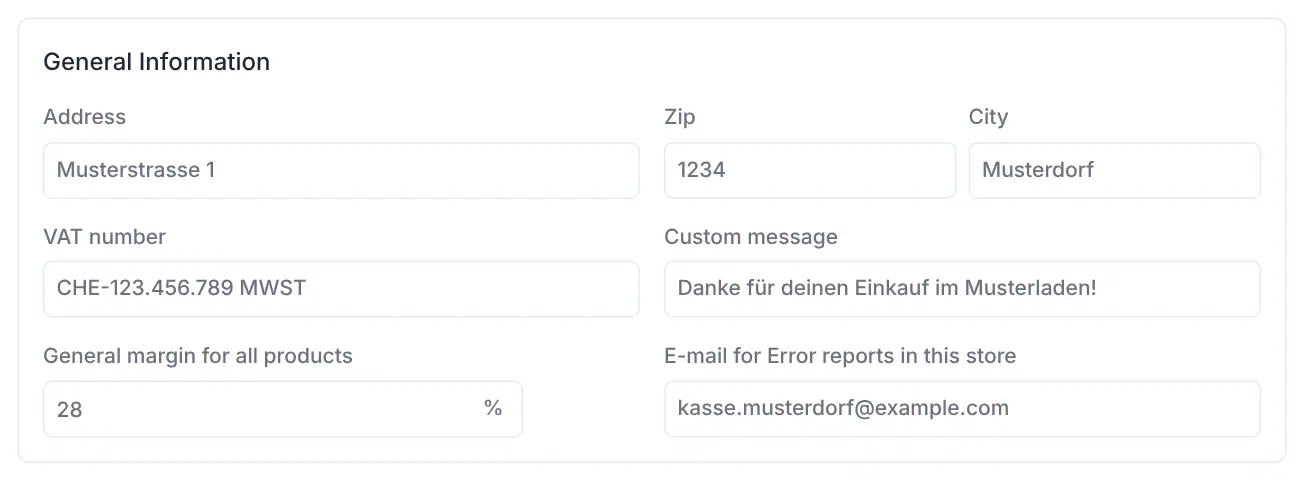
Receipt details
Address, VAT number and a custom message on the receipt. Plus the margin for products without a cost price and the email the checkout reports problems to.
app.scango.ch - 2
Languages and kiosk texts
Choose the primary language and offer more if you like. Every standard kiosk text can be replaced with your own wording per language.
app.scango.ch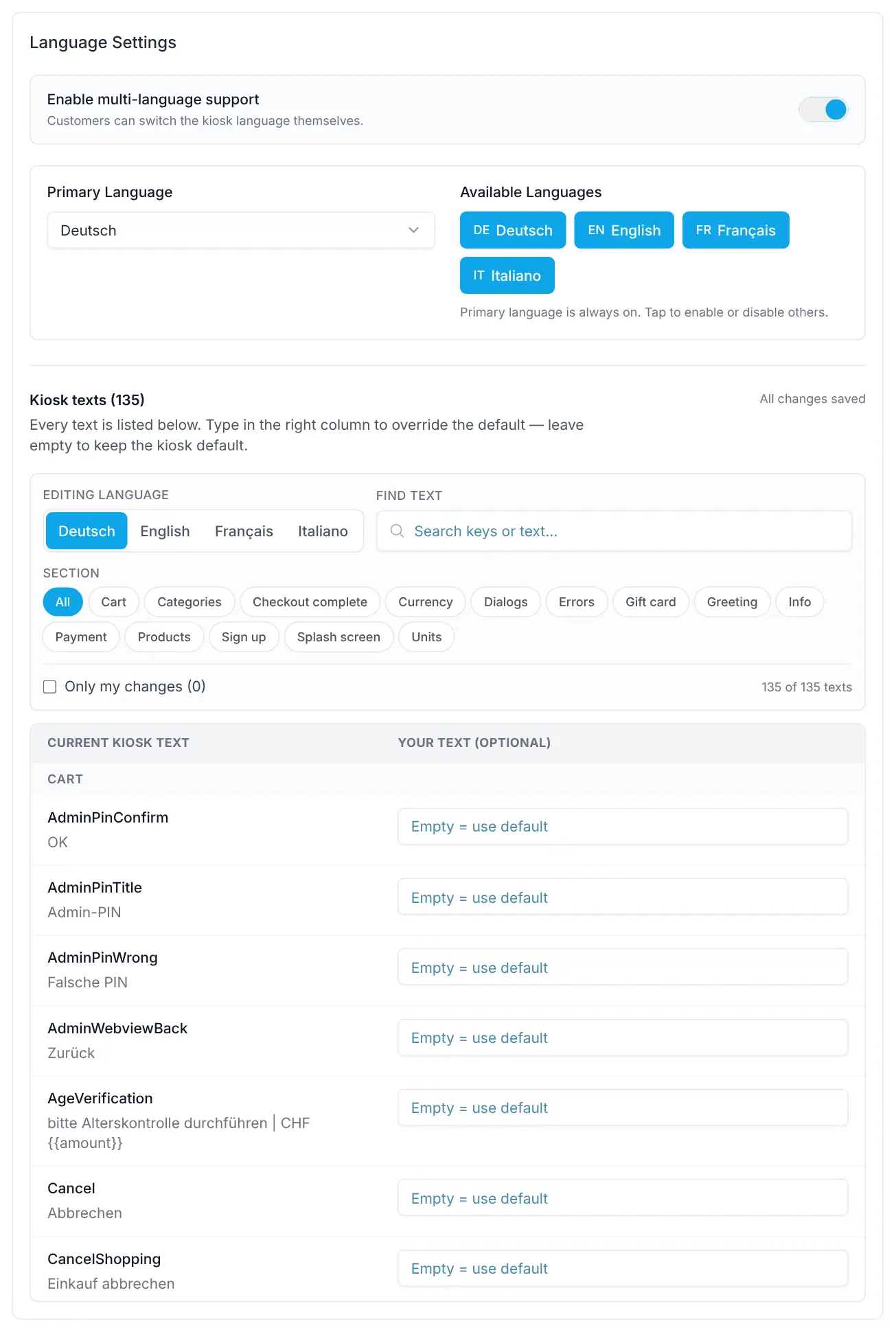
- 3
Store access for the team
The member list shows in the Stores column who sees which locations. Admins and owners change it via “Store access”.
app.scango.ch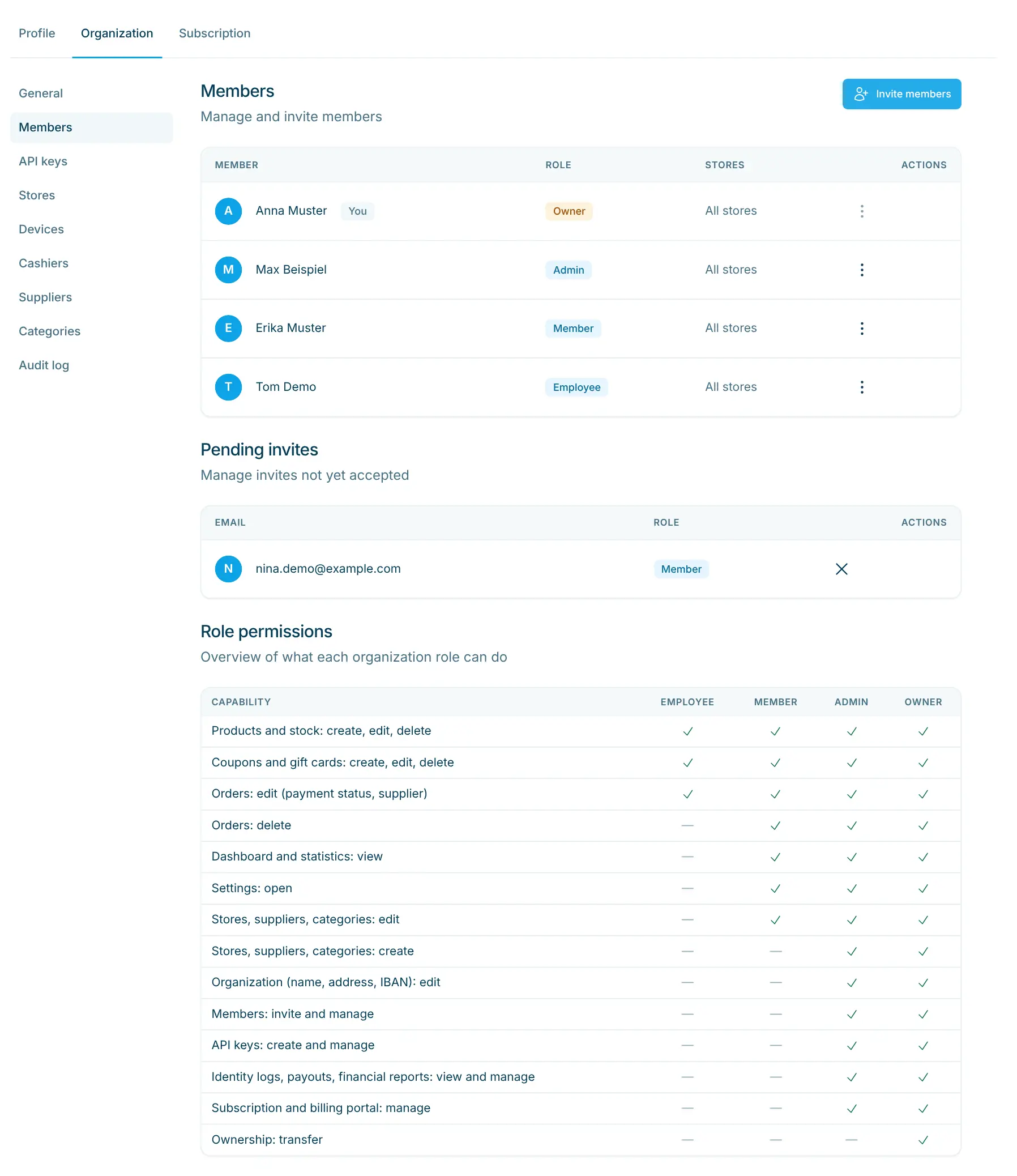
- 4
Revenue per store
In the dashboard each store has its own line, for today with a forecast to the end of the day. Hover over a day to see the values per store and the total.
app.scango.ch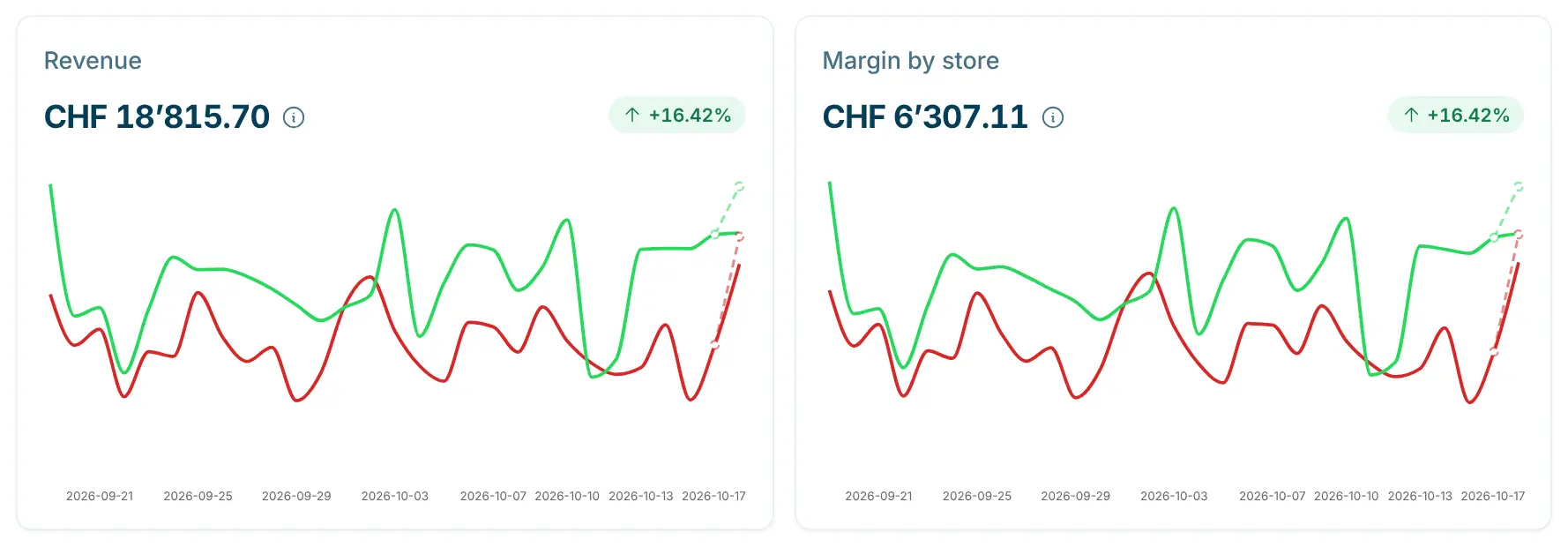
- Read the full guide
Good to know
Who multi-store management suits
Anyone running more than one location: a second village shop, a company shop right at the production site or several 24/7 shops. Stores often share the same name, so the dashboard tells them apart by city. Give every store a unique one.
You move goods between stores with “Transfer Stock”. If a store gets a product from a different supplier, create it as a separate product and allow it only there.
- Basic
- 1 store, CHF 99.–/month
- Retail
- up to 3 stores, CHF 179.–/month
- Pro
- up to 10 stores, CHF 199.–/month
- Additional checkout
- CHF 59.–/month
- Receipt
- name, address, VAT number, custom message
- Kiosk
- payment methods, languages, texts, colours, images, sounds
- Stock
- own stock per product
- Change history
- who changed what and when
Stores per plan
Per store
scango.ch
More features
Pro plan
Supplier dashboard
Shop-in-shop: suppliers see sales, top products and peak hours via their own link.
All plans
Product management
Prices, barcodes, VAT, deposit, age and visibility – maintain your assortment yourself.
Pro plan
Temperature monitoring
Shelly sensors, thresholds and alerts – in the Pro plan, sensors sold separately.
Messagesnow
scango-ch
Temperature too high: Drinks fridge (Musterdorf) 4.3 °C (target 8.0 °C)
FAQ
How many stores does a plan include?
Basic 1 store, Retail up to 3 and Pro up to 10 stores. The first checkout is included in the plan, each additional one costs CHF 59.– per month.
Do I have to maintain the range twice?
No. There is one catalogue. With “Block sale in stores” and “Allow sale only in stores” on the product, or the store settings on the category, you control what appears where.
Can a store have different prices?
A product has one price for all stores. If a store carries a product differently, create it as a separate product and allow it only in that store.
Do employees only see their store?
If you set it up that way. With “Store access” you limit a member to one or more stores. They then only see those stores under purchases, in stock and in the stock scanner.
Can I move goods between stores?
Yes, with “Transfer Stock” on the stock item: choose the transfer quantity and target store. Both bookings appear in the stock adjustments with the reason “Transfer”.
Why does the kiosk not show a change yet?
The checkout loads the store settings at start-up. If a change does not appear right away, restart the checkout.

Hi, I’m Tobias.
Happy to help. Sign up for free to get a first impression – or request a non-binding quote. I’m here if you have questions.
Tobias Kobelt · scango.ch