Know-how
Barcodes
Barcodes are the foundation of every self-checkout: the customer scans the code and the checkout recognises the product. This article explains which codes the scango.ch checkout reads, how to create your own barcodes for products without a manufacturer code, and how to print them as a scannable graphic.
What are barcodes?
Barcodes, or EAN codes, are used everywhere in retail. EAN-13 barcodes are the retail standard and are used to identify products. Each code is assigned to a unique item. The scanners at checkouts or handheld scanners read the barcode and thus identify the item.
For purchased retail goods, the barcode is already printed by the manufacturer. Simply copy this code into the product's Barcode field. You only need your own barcodes for products without a manufacturer code, e.g. home-made goods or goods sold loose.
Which codes does the checkout read?
The scango.ch checkout accepts anything the scanner transmits as a character string – for example EAN-13, EAN-8, UPC-A or QR codes. After scanning, the checkout searches in this order:
- a product with exactly this barcode,
- a product with the same barcode, but with or without a leading zero,
- a product with a price or weight template (see below),
- a discount code,
- a gift card.
A barcode should therefore occur only once in your organization. If you enter a barcode in the dashboard that is already stored for another product, the warning "Warning: Barcode already used by product: …" appears.
👉 Barcodes starting with a 0 may be transmitted differently depending on the scanner. What happens and how to fix it is explained in the article Barcode scanner.
Creating barcodes for internal purposes
EAN-13 barcodes are not only suitable for official retail, but also for internal purposes – e.g. for warehouse management or checkout systems. The following instructions refer to internal barcodes that are not used in official retail.
An internal EAN-13 code consists of 13 digits:
Position | Content |
|---|---|
1st digit | Always a |
2nd–12th digit | 11 freely selectable digits, e.g. a number for your product category and a sequential number. |
13th digit | Check digit. It is calculated from the 12 digits before it. |
How to proceed:
- Define the first 12 digits, e.g.
2+10(category) +000000042(sequential number) =210000000042. - Calculate the check digit with the Check Digit Calculator | GS1 Switzerland (example: GTIN-13). This is safer than calculating by hand. In the example the result is
5, so the complete code is2100000000425. - Enter the code in the dashboard in the product's Barcode field – see Products.
💡 If you leave the Barcode field empty when creating a product, scango.ch automatically generates a unique ID. It is suitable for the QR code (see below), but not as a classic bar code.
Products with variable price or weight
For pre-packed products with varying weight (e.g. pieces of cheese or meat), the barcode contains the price or the weight. The first 7 digits identify the product, digits 8–12 contain the price in centimes or the weight in grams, and the 13th digit is the check digit. In the dashboard, you enter a template with PPPPP (price) or GGGGG (weight) for this. How this works in detail is described under Products.
👉 Use a different beginning for fixed internal barcodes than for your price and weight templates so that the codes don't overlap.
Barcode as a scannable graphic
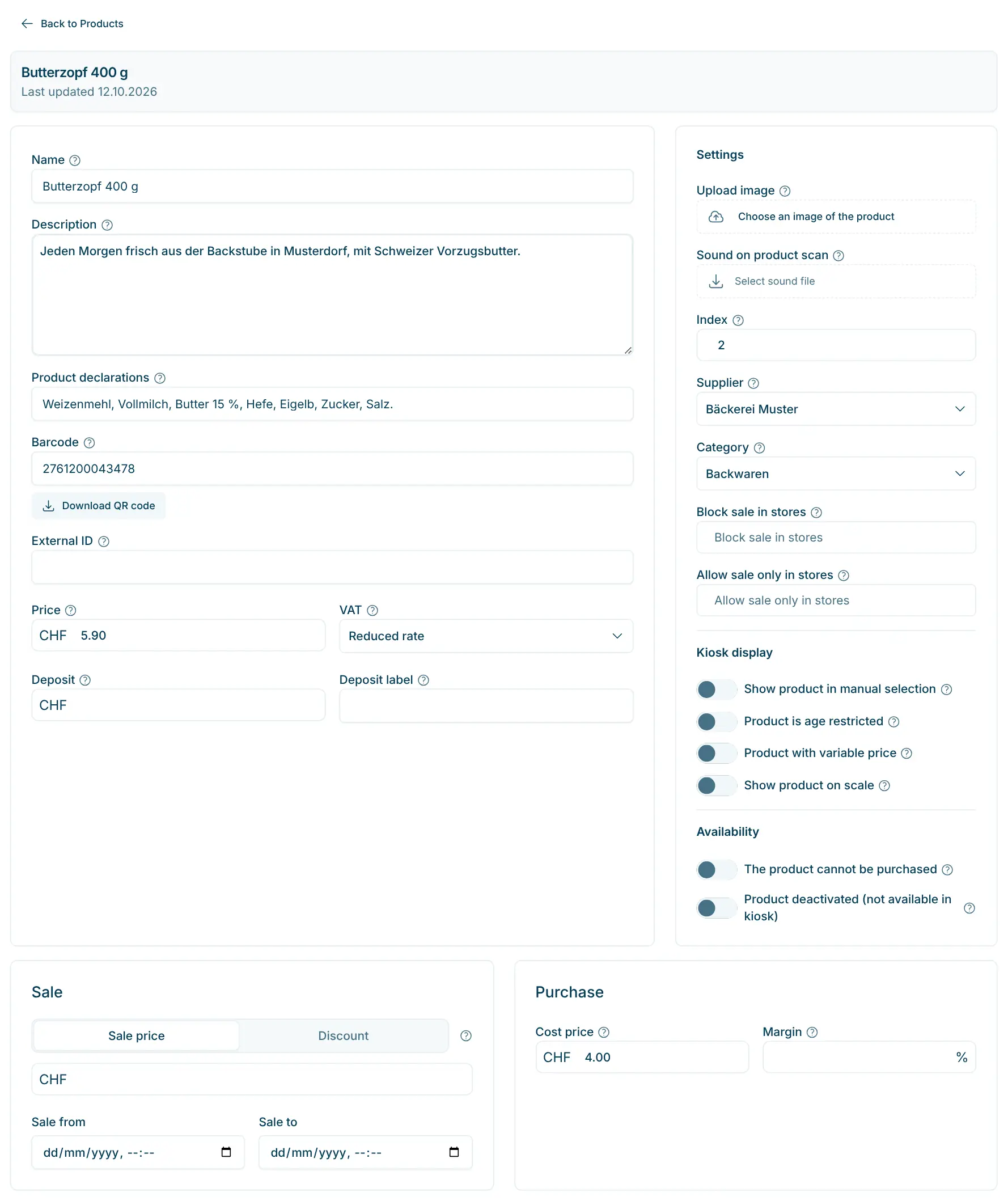
To be scannable, a code has to be printed as a graphic. The easiest way is directly in the dashboard:
- QR code per product: On the product page, below the Barcode field, you will find the Download QR Code button. You get a PNG image with a QR code containing the barcode. The checkout reads this QR code just like a bar code.
- Price tags: The price tags from the dashboard also contain a QR code with the product's barcode. If you label your products with price tags anyway, you don't need separate barcode labels.
If the checkout scanner does not read QR codes, QR code recognition must be enabled on the scanner – see Barcode scanner.
If you prefer a classic EAN-13 bar code, you can optionally use a free online generator, e.g. the Online Barcode Generator (TEC-IT, EAN-13):
- Select EAN-13.
- Enter the number (incl. check digit).
- Generate and download the graphic (PNG or PDF).
Printing barcodes
Depending on your printer, print the graphics on labels or A4 sheets and use them to label your products.
- Print the codes black or dark on a white or light background.
- Don't print the codes too small and leave some margin around them.
- Test a new code at the checkout before printing it in large quantities.
Codes for discounts and gift cards
Discount codes and gift cards have their own codes, which are printed as QR codes. They consist of lowercase letters, digits and hyphens; the dashboard automatically converts uppercase letters, spaces and umlauts when saving. The codes are generated in the dashboard – you don't need to create your own barcode for them.