Finances
Payouts
If you sell products from suppliers on a shop-in-shop basis (or a similar model), you regularly pay your suppliers their share of the revenue. The Payouts module calculates this share per supplier for any period you choose, creates a statement per supplier (PDF and Excel), sends it by email and generates a payment file that you upload to your e-banking.
Note: Payouts is a beta feature and is included in the Pro plan. In the menu, the Payouts entry is marked "Beta". The Admin and Owner roles have access.
Requirements
Before you create your first payout, enter the following details:
- Your organization's bank details: Under Settings › Organization › General, in the Banking Information section, enter the IBAN (plus BIC and bank). Without an IBAN, no payment file can be exported.
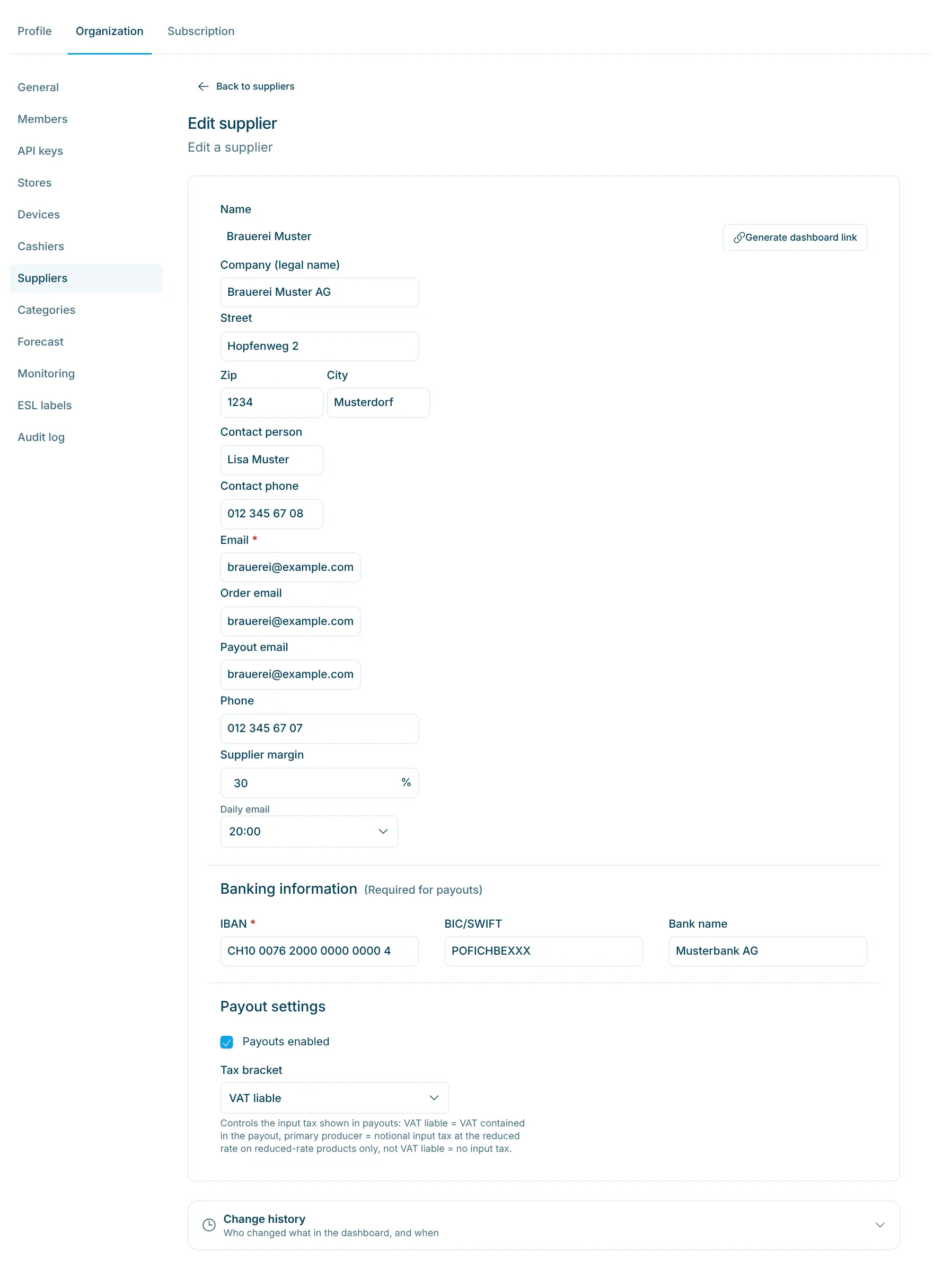
- Details per supplier: Under Settings › Organization › Suppliers, open the supplier and enter:
- the IBAN in the Banking Information section,
- in the Payout Settings section, the Payout Email (empty = the supplier's regular email is used) and the Payouts enabled switch,
- the Tax Bracket (see the section "VAT in the payout" below),
- the Supplier Margin in percent.
- Supplier and margin on the products: Assign each product to its supplier. If a product has a different margin from the supplier margin, enter it in the Margin field on the product page.
Payouts enabled can only be switched on if an email address and an IBAN are stored; otherwise the message "Email and IBAN are required for payouts" appears. Only suppliers with payouts enabled appear in a payout.
How the payout is calculated
Which sales count: all successful purchases whose purchase date falls within the selected period (midnight to midnight). Only sold products are included. Gift card sales and redemptions as well as discount codes are not part of the payout; discounts from discount codes are not deducted from revenue.
Which supplier: What counts is the supplier stored on the purchase line at the time of sale. If you later change a product's supplier, past sales stay with the previous supplier. If a sold product has no supplier, it appears under Pending Items (see below).
Which margin: The product's margin applies. If no margin (or 0%) is set there, the Supplier Margin applies; if that is missing too, 0% is used, i.e. the full revenue is paid out.
Formula: Payout = revenue incl. VAT − margin. The calculation is done per product and rounded to the cent.
Example | Amount |
|---|---|
Revenue of a product in the period (incl. VAT) | CHF 100.00 |
Margin 30% | − CHF 30.00 |
Payout to the supplier | CHF 70.00 |
Deposit: Deposits are not revenue. The deposit share is calculated with the same margin, shown separately as a deposit payout at 0% VAT and added to the transfer. The amount transferred per supplier is therefore: payout for the products + deposit payout.
VAT in the payout
The payout is a gross amount. For the supplier's bookkeeping, the statement and the Excel file split the amount by VAT rate. How depends on the supplier's Tax Bracket:
Tax bracket | Shown in the statement |
|---|---|
VAT liable | The payout is shown at the VAT rate of the products sold, with the VAT it contains (net = payout ÷ (1 + rate)). |
Primary producer | For products at a reduced rate (e.g. 2.6%), a notional input tax at the reduced rate on the amount paid out is shown (Art. 28 para. 2 Swiss VAT Act). All other products appear under 0%. |
Not VAT liable | The whole amount appears under 0%, without input tax. |
Examples: If the CHF 70.00 from the example above are products at 8.1% from a VAT-liable supplier, they contain CHF 5.25 VAT (net CHF 64.75). If a primary producer receives CHF 40.00 for eggs at 2.6%, a notional input tax of CHF 1.04 is shown (2.6% of CHF 40.00).
If no tax bracket is selected, the supplier is treated as VAT liable.
Create a payout
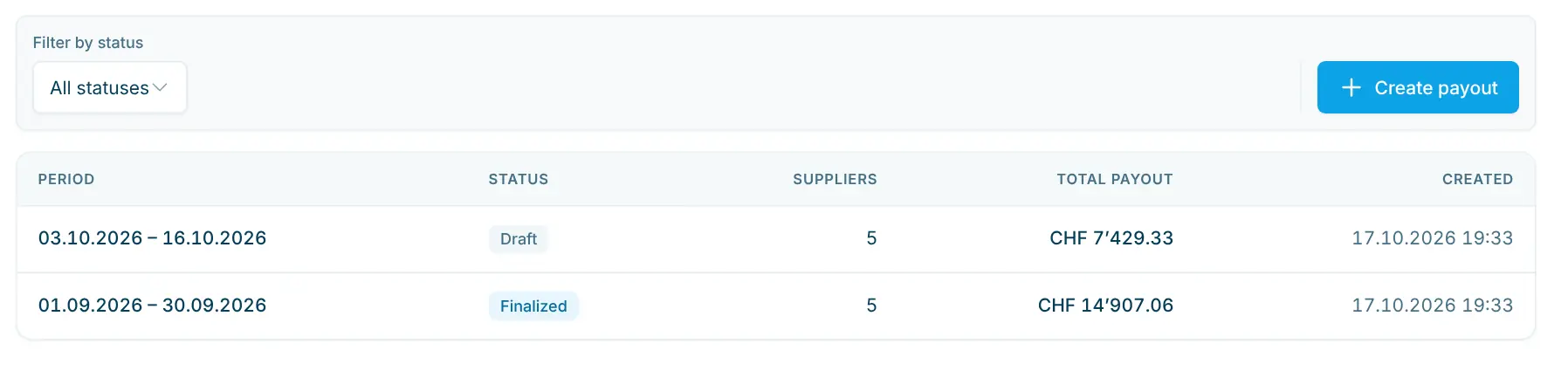
Under Payouts you see all previous payouts with period, status, number of suppliers, Total payout and creation date, laid out like the list of financial reports. Use Filter by status to narrow down the list.
- Click Create Payout.
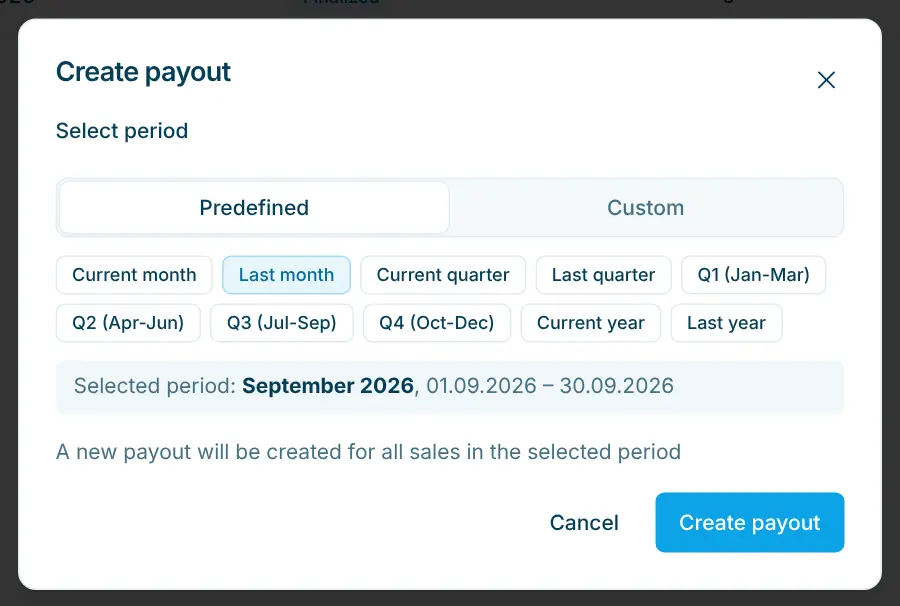
- Choose the period, as for financial reports:
- Predefined: a calendar month, quarter or year; Last month is preselected.
- Custom: any period with From and To.
- Click Create Payout in the dialog. The payout is calculated and saved as a Draft.
Supplier details (IBAN, email, tax bracket) are copied into the payout when it is created. If you change a supplier's details afterwards, delete the draft and create it again.
Review and adjust the draft
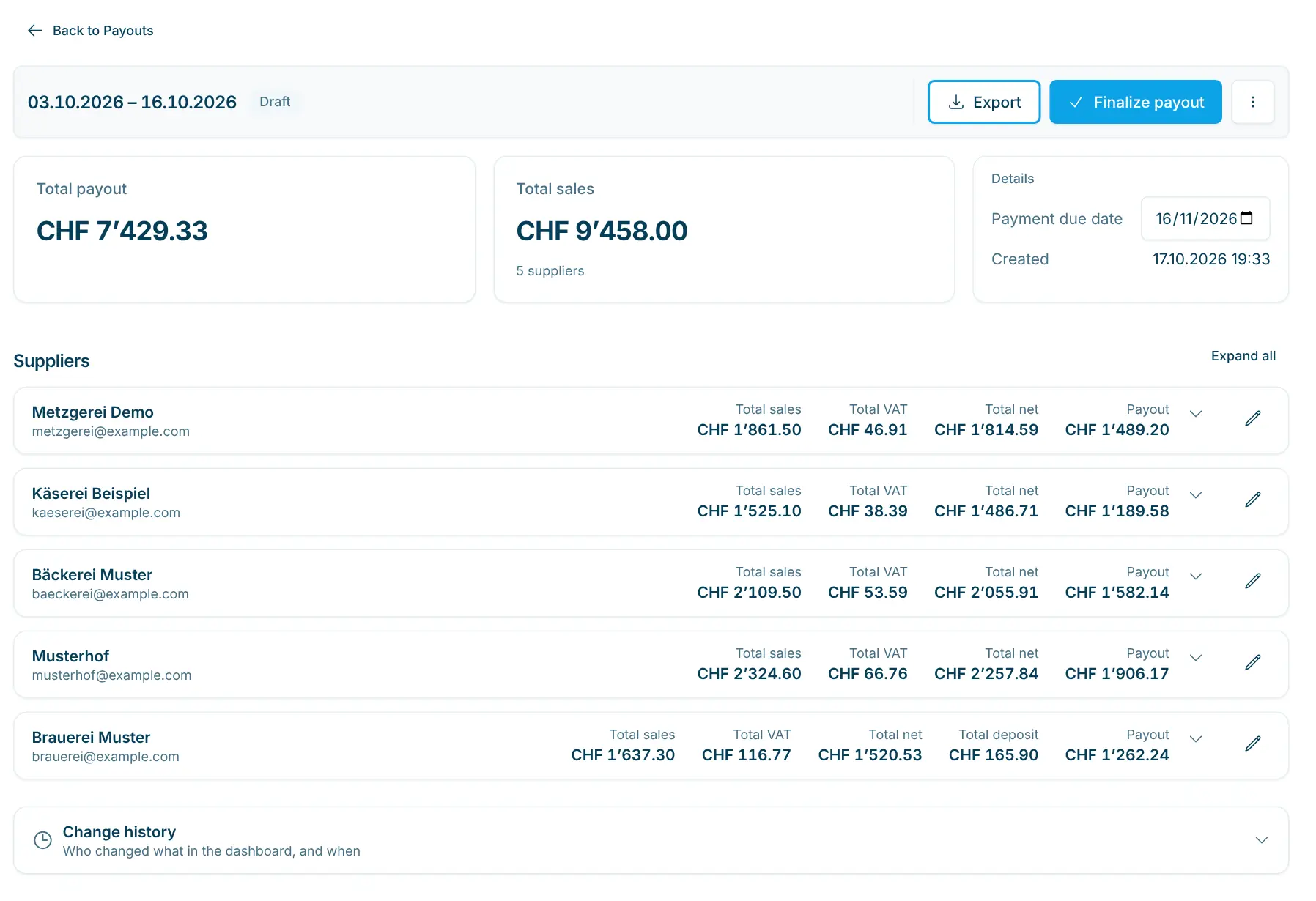
At the top, the detail page shows the period as title with status and actions, the key figures Total payout and Total sales and the Details card (period, Payment due date, creation, finalization, processed on). Below, Suppliers lists one row per supplier with Total sales, Total VAT, Total net, Total deposit and Payout. Expanded, it shows quantity, total sales, deposit, tax rate, tax amount, net amount, margin and payout per product.
In a draft you can:
- Resolve pending items: Products without a supplier are listed at the top under Pending Items. Click Assign Supplier and choose the supplier, or Remove from Payout. As long as there are pending items, the payout cannot be finalized.
- Adjust margins: Use the pencil icon in a supplier's row to change the margin per product, or Set all margins for all of the supplier's products; then Save. The change applies to this payout only, not to the product or supplier.
- Set the payment due date: In the Details card; it is saved when you pick the date. The date on which you execute the payment. It appears on the statements and is used as the execution date in the payment file.
- Export for review: Via Export › Export as PDF or Export as Excel.
- Delete: Via the ⋯ menu you can delete a draft at any time and create it again.
When everything is correct, click Finalize Payout. After that, no more changes are possible; this step cannot be undone.
Export and payment file
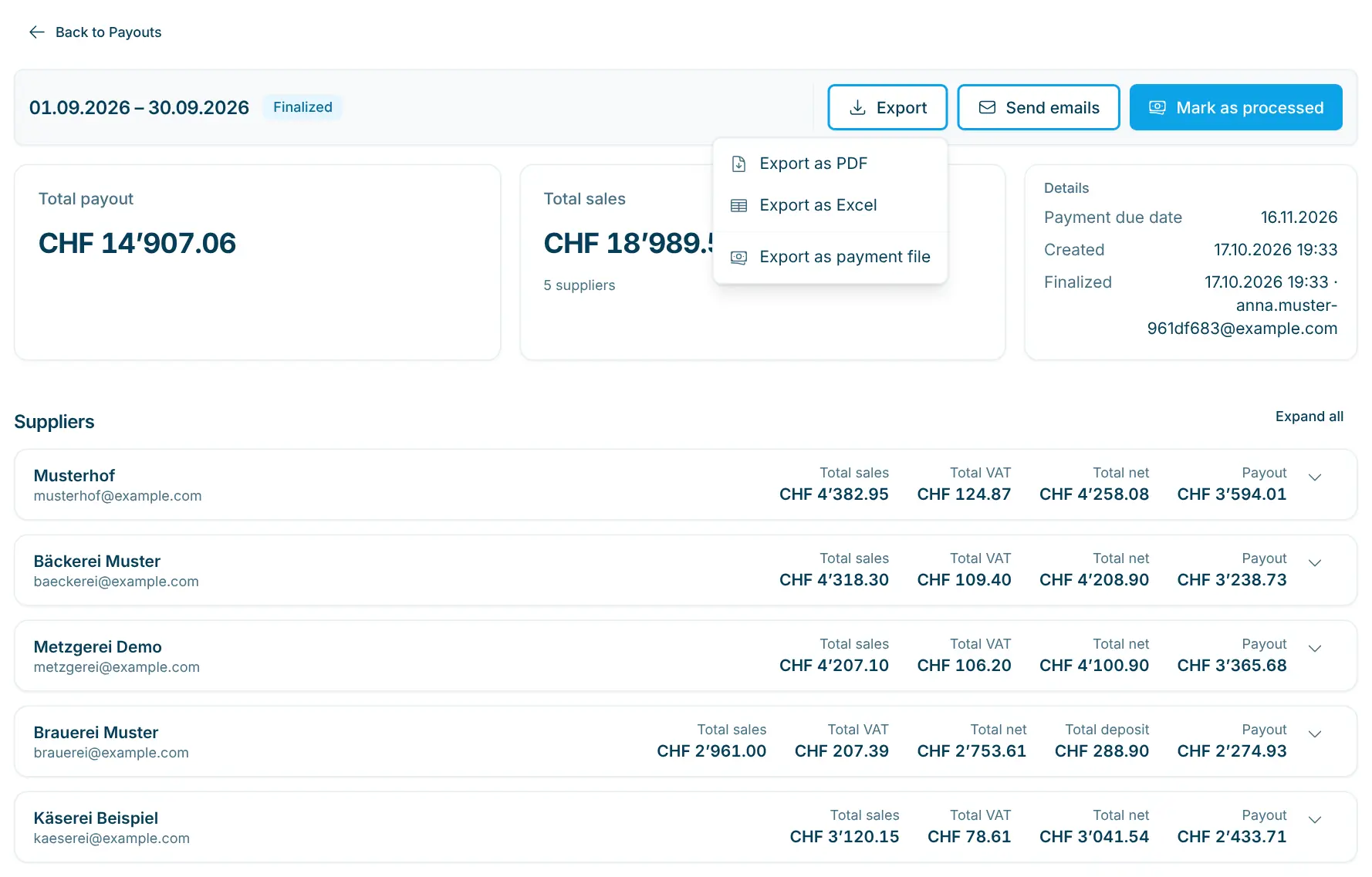
Export offers:
Export | Content |
|---|---|
Export as PDF | "Payout statement" per supplier (in the language you use the dashboard in) with period, payment date, VAT status, sales overview, breakdown per VAT rate (gross, net, VAT or notional input tax), deposit row and the transfer amount. |
Export as Excel | A "Summary" sheet with all suppliers plus one sheet per supplier with the products. |
Export as Payment File | XML file in the Swiss ISO 20022 standard (pain.001) for upload to e-banking, with one transfer per supplier. Only for finalized payouts; suppliers without an IBAN are not included. |
Upload the payment file to your e-banking and check the payments there before releasing them.
Send statements by email
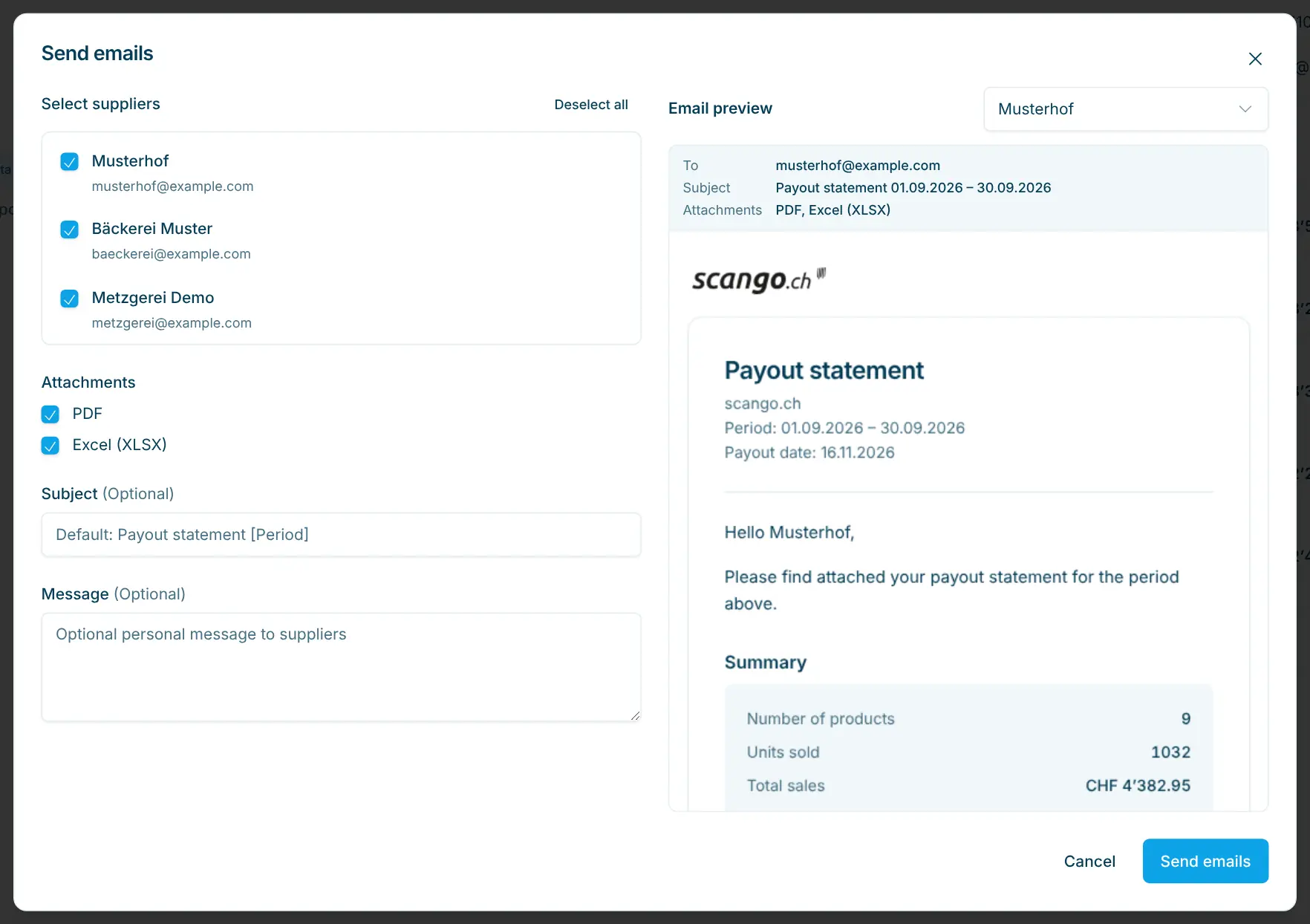
Statements are not sent automatically. For finalized and processed payouts, click Send Emails:
- Under Select Suppliers, choose the recipients. Suppliers who have already received an email are marked with a check mark; if an email address is missing, a notice appears.
- Choose the Attachments: PDF and/or Excel (XLSX).
- If needed, adjust the Subject (default: "Payout statement" with the period) and the Message.
- Check the email in the Email preview (with several recipients, pick one under Preview for) and send it with Send emails.
Mark as processed
Once you have executed the payment in your e-banking, click Mark as Processed. The payout stays in the list for documentation.
Status | Meaning |
|---|---|
Draft | Calculated, can still be changed and deleted. |
Finalized | Locked; payment file and email sending are available. |
Processed | Payment executed. |
Frequently asked questions
Why is a supplier missing from the payout?
Either Payouts enabled is switched off for the supplier, or there were no successful sales of their products in the period.
A product was assigned to the wrong supplier at the time of sale. What can I do?
The supplier at the time of sale is what counts. Correct the product's supplier for future sales. In the current payout, you can set this product's margin to 100% in the draft so that it is not paid out to the wrong supplier; settle the amount for the correct supplier outside the module.
Why does the revenue not match the amount in the financial reports?
The financial reports also include gift card sales and products from suppliers without payouts enabled; the payout only includes the products of participating suppliers.