Cloud Dashboard
Orders
Under Orders you see every checkout at your kiosks – successful purchases as well as cancelled, failed or still open payments. You can search and filter orders, view the details and the receipt, share the receipt with customers, cancel orders and export them as CSV for your bookkeeping.
The page is available to all roles from Employee upwards and is included in all plans. Cancelling orders and sending receipts by email requires at least the Member role.
Order overview
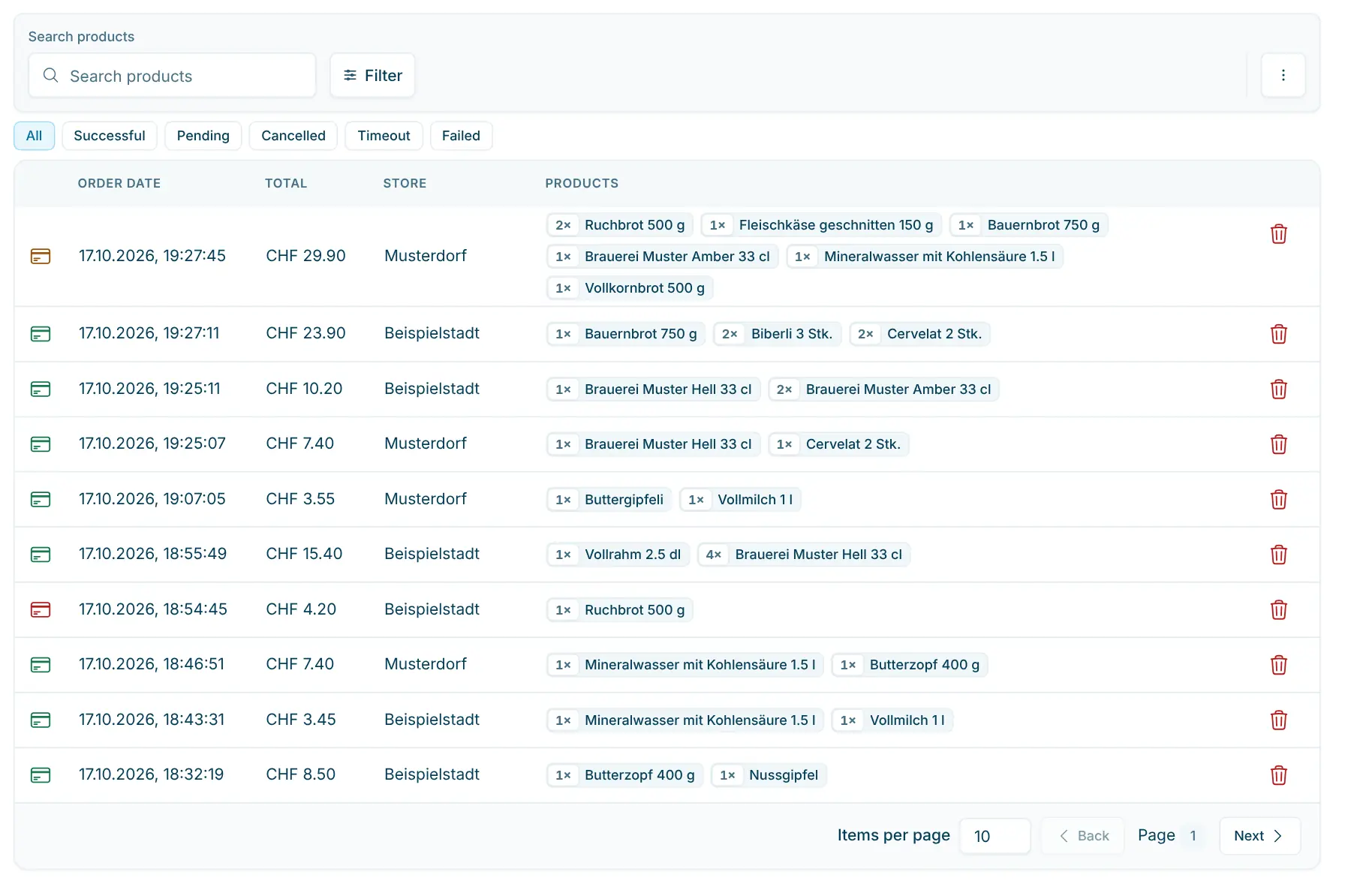
Above the table you can filter by status with one click: All, Successful, Pending, Cancelled, Timeout and Failed. The meaning of each status is explained further down.
The table shows for each order:
Column | Content |
|---|---|
Icon | Payment type: card, cash or gift card. The colour shows the status: green = successful, orange = pending, red = all others. Hover over the icon to see the status. |
Order date | Date and time of the order. |
Total | Order total. |
Store | Store where the order was made (only if you run several stores). |
Products | The products bought. |
The newest orders are at the top. Click a row to open the order. At the bottom of the list you can page through the results and choose how many orders are shown per page. Orders cancelled in the dashboard remain visible in the list but are greyed out and struck through.
The list loads when you open the page and whenever you change the search, a filter or the page. It does not refresh by itself: reload the page to see orders that have just been completed.
Search orders
In the Search products field, enter a product name or individual words from it. The list then only shows orders that contain a matching product. You can also search for an order ID. The search starts automatically as you type.
Filter orders
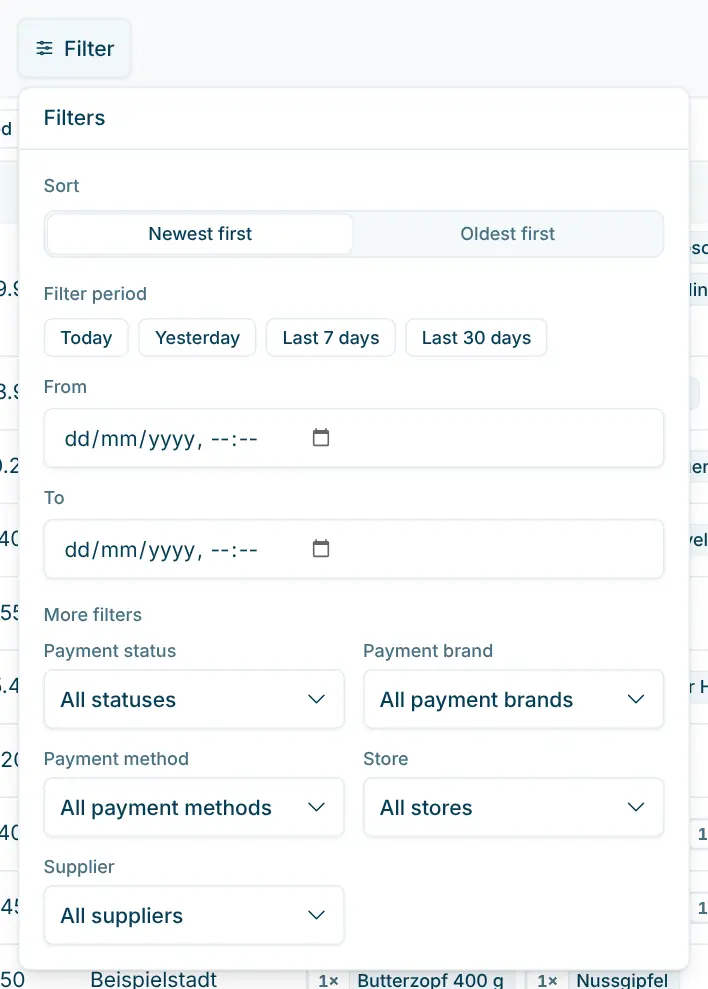
Click Filter to open the filter panel. The number on the button shows how many filters are active.
- Sort: Newest first or Oldest first.
- Filter period: Choose Today, Yesterday, Last 7 days or Last 30 days, or enter your own period with From and To (date and time). The selected preset is highlighted.
- More filters:
- Payment status: e.g. only successful or only failed orders.
- Payment brand: Postcard, Visa payWave, V Pay, Mastercard, TWINT or Maestro-CH.
- Payment method: PayTecTerminal (card terminal), Cash or Gift card.
- Store: only orders from one store. If a member is limited to some stores (Settings › Members › Store access), only those are offered and the list only shows their orders.
- Supplier: only orders that contain products from this supplier (Retail and Pro plans).
Reset all removes all filters at once.
What the statuses mean
The status shows how the payment at the kiosk turned out:
Status | Meaning |
|---|---|
Successful | The payment is complete and the order is booked. |
Pending | The payment process is still open. |
Cancelled | The customer cancelled the purchase at the kiosk. |
Timeout | The time limit for payment was exceeded and the order was cancelled automatically. |
Failed | The payment did not succeed, for example because the payment method was declined. The order was cancelled automatically. |
Only successful orders count towards revenue on the Dashboard.
Single order
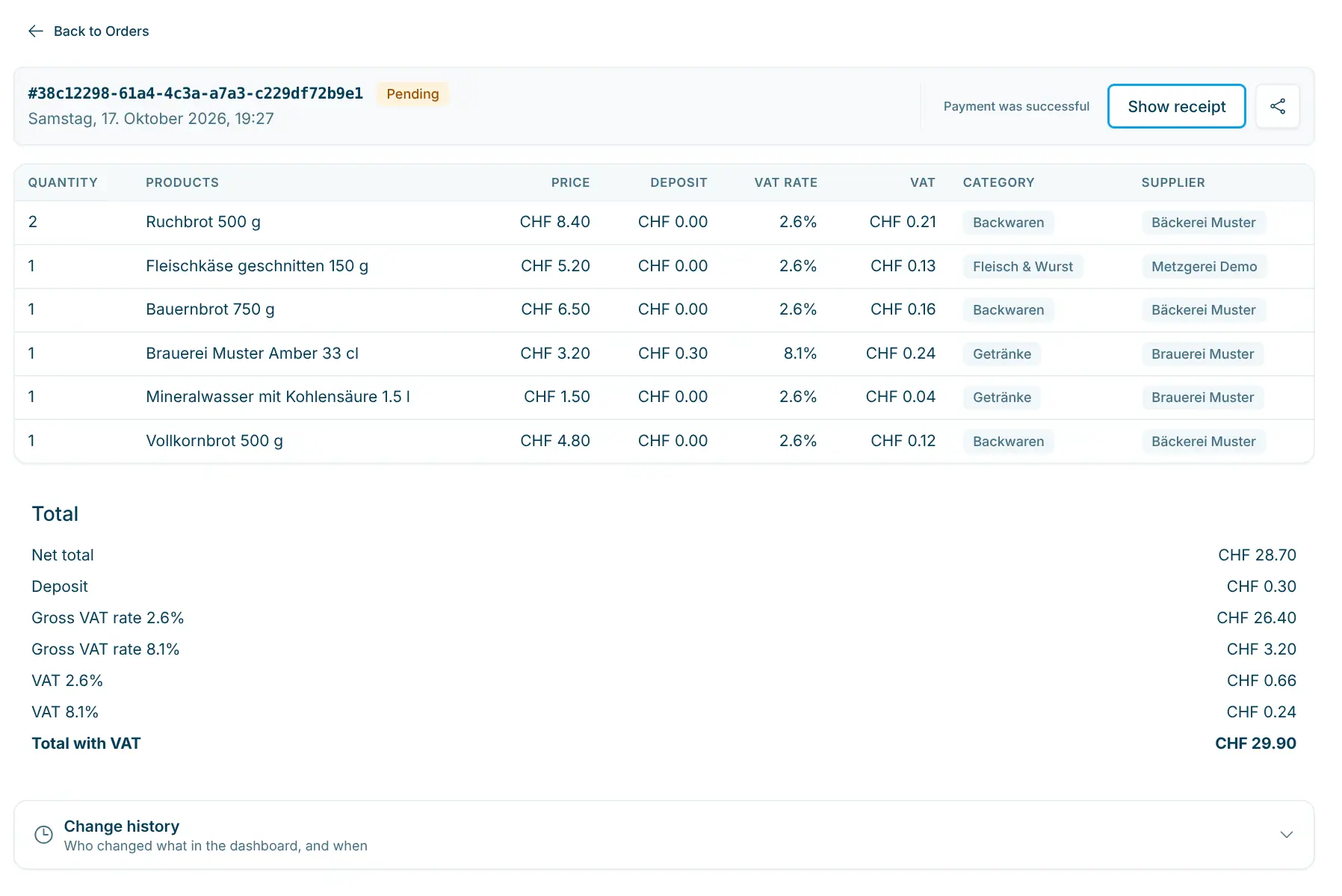
The detail page shows all information about an order. Back to Orders takes you back to the list.
Header
- Order ID: unique number of the order, e.g. #68b8c8b5-3afe-4463-bdae-eefcad69a6ec.
- Date and time, e.g. Saturday, 18 March 2023, 16:11.
- Status as a coloured badge. If the payment terminal returned a message for the transaction, open it with the info icon next to it.
- Show receipt and the share icon Share with customer (see below).
Notices
If something needs attention, notices appear above the table: Payment cancelled, Payment timeout, Payment failed, Deleted order (cancelled in the dashboard) or Unprocessed (the order is paid but not yet fully processed, e.g. the stock deduction; the system catches up on this automatically).
Line items
Column | Content (example) |
|---|---|
Quantity | Number of units bought (e.g. 1). |
Products | Product name (e.g. UrDinkel-Kringel 500g). |
Price | Price including VAT (e.g. CHF 6.90). |
Deposit | Deposit for the line, if any (e.g. CHF 0.30). |
VAT rate | VAT rate applied (e.g. 2.6%). |
VAT | VAT amount included (e.g. CHF 0.17). |
Category | Product category (e.g. Bakery and confectionery). |
Supplier | Product supplier (e.g. Bakery). |
If the order was paid with a gift card or a gift card was topped up, another table shows the card concerned with its code and values.
Totals
- Net total: total excluding VAT (e.g. CHF 6.73).
- Deposit: total deposit, if any.
- Gross VAT rate and VAT per tax rate (e.g. CHF 0.17 at 2.6%).
- Discount: deduction from a coupon code, if one was used.
- Total with VAT: total including VAT (e.g. CHF 6.90).
- Total with gift card: amount paid with a gift card.
- Total paid with …: payment method and amount paid (e.g. Total paid with Cash: CHF 6.90).
Mark an order as successful afterwards
For orders that did not complete successfully and were not cancelled, a Payment was successful button appears next to the status. Use it if the money was actually received but the kiosk did not record the payment as successful, for example after a timeout.
- First check, for example in the payment terminal's journal, that the payment really was received.
- Click Payment was successful.
- Confirm in the Mark Order as Successful dialog with Yes, mark as successful.
The order then gets the status Successful.
Receipt and customer receipt
Show receipt opens the order's receipt in a new tab. There you can download it with Download PDF.
If a customer wants the receipt afterwards, click the share icon Share with customer. The Customer receipt dialog opens:
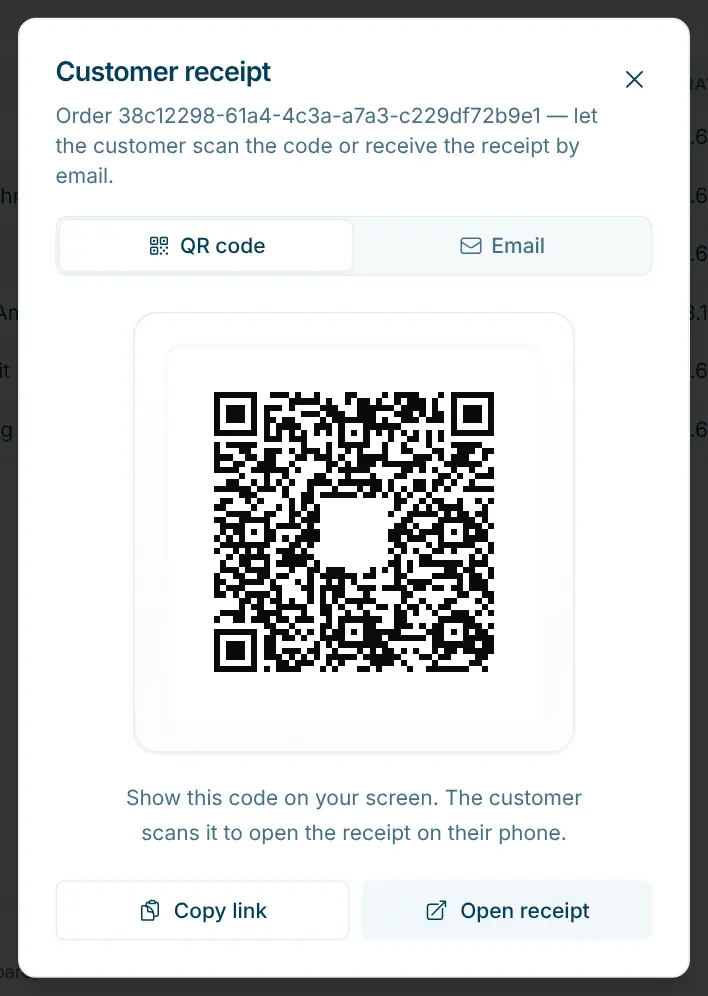
- QR code tab: Show the code on the screen. The customer scans it with their phone and opens the receipt there. Copy link copies the link to the receipt, Open receipt opens it for you.
- Email tab: Enter the Customer email and click Send receipt. The customer receives the receipt as a PDF and a link to the online view. This function requires at least the Member role.
Cancel an order
An order that should not have been booked (e.g. a test purchase) can be cancelled:
- In the list, click the trash icon (Cancel order) next to the order.
- If stock management is active and stock was deducted for this order, you can enable Reverse stock adjustments. A preview shows the Current and After stock for each product.
- Confirm with Yep, delete order.
The order remains in the system as cancelled: it is struck through in the list, the detail page shows the Deleted order notice, and it is no longer included in the CSV export.
Important: Cancelling in the dashboard does not trigger a refund. Handle any refund to the customer separately, e.g. via your payment terminal.
Assign free entries
Free entries are created when customers scan an item whose EAN or QR code has not yet been set up as a product. This can also happen when the producer or supplier has changed the code and the product data has not been updated yet. Such lines are named "Freieingabe Kunde" followed by the scanned code in the table.
If the assignment matters to you, for example for settlements with your suppliers, assign the line to a supplier afterwards:
- Open the order containing the free entry.
- In the Supplier column, choose the supplier in the Select supplier field.
The line is then renamed to "‹Supplier› manuelle Eingabe ‹Code›" (these texts are always in German). This keeps the manual entry traceable, but it no longer shows up as an open free entry.
Tip: Then create the scanned code as a product or add it to the existing product (see Products). The kiosk will then recognise the item at the next scan.
Export orders as CSV
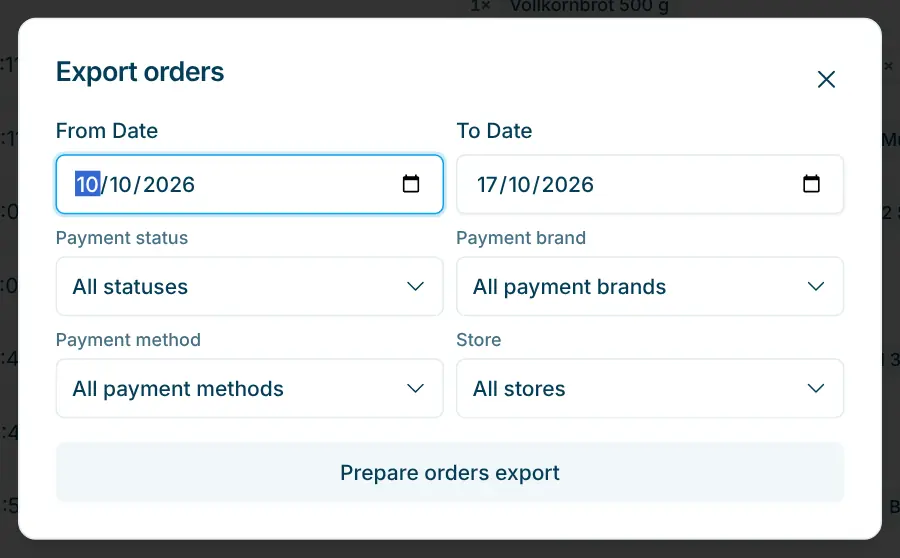
- Open the ⋯ menu at the top right and choose Export CSV.
- In the Export orders dialog, set the period with From Date and To Date (the last 7 days up to today are preselected). Optionally narrow it down by Payment status, Payment brand, Payment method and Store.
- Click Prepare orders export.
- As soon as the data is ready, download the file with Export CSV (orders.csv).
The file contains one row per line item, including ID, payment status, order date and time, store, total incl. VAT, product ID, title, quantity, price, tax rate, VAT, net price, deposit, cost price, category, supplier, payment method and payment brand. Orders cancelled in the dashboard are not included. Open the file in a spreadsheet application such as Excel or Numbers. The column headings follow the language of your dashboard.
💡 CSV files from the dashboard open in Excel with a double click, split into columns and with umlauts intact. If everything still ends up in one column, import the file via Data › From Text/CSV and choose semicolon as the delimiter.
Frequently asked questions
An order is missing from the list – what should I do?
Reload the page and check whether a filter, a status filter or a search is active. Reset all in the filter panel removes all filters.
Why can't I find my cancelled orders under "Cancelled"?
The Cancelled status filter shows orders that the customer cancelled at the kiosk. Orders you cancelled in the dashboard keep their payment status (usually Successful) and appear under that filter, struck through and with the Deleted order notice.
Can I create an order in the dashboard?
No. Orders are only created at the kiosk.