Cloud Dashboard
Statistics
Statistics let you analyse your sales for any period you choose: revenue, number of purchases, margin, the distribution across the time of day and the weekdays, and detailed data by product, category, store, supplier and payment type. If you like, you can compare the period with an earlier one.
You find the feature in the menu under Statistics. All roles from Member upwards have access; employees do not see the statistics. The feature is included in the Retail and Pro plans.
All successful purchases are included. Cancelled (deleted) purchases do not count.
Choosing the period and filters

- In the filter bar, click Period and choose a preset (see table) or enter From and To including the time yourself.
- If needed, narrow the analysis with Store, Category or Supplier. Without a selection, everything is included.
- Click Apply. Only then are the statistics recalculated.
When you open the page, Last 7 days is selected. Reset restores this starting point. The fields of the filter bar always show which filters are selected.
Group | Presets |
|---|---|
Single day | Today, Yesterday |
Rolling ranges | Last 7 days, Last 14 days, Last 30 days, Last 90 days, Last 6 months, Last 12 months |
Calendar periods | This week, Last week, This month, Last month, This quarter, Last quarter, This year, Last year |
With a category or supplier filter, only the matching products of a purchase count. This way you see, for example, the revenue of a single supplier even if customers bought other products in the same purchase.
Comparing periods
- In the filter bar, click Comparison period (default: No comparison).
- Choose a preset such as Previous period or set Compare from and Compare to yourself. Previous period is the period of the same length immediately before; No comparison turns the comparison off again.
- Click Apply.
Group | Comparison presets |
|---|---|
Shift period | Previous period, One week earlier, Two weeks earlier, One month earlier, One quarter earlier, Six months earlier |
Year over year | Same period last year |
With the comparison turned on, every tile in the overview shows the percentage change and, below it, the comparison value ("Comparison: …"). The charts get additional lines Revenue (comparison) and Baskets (comparison).
Tip: "One week earlier" is handy for comparing a single day with the same weekday of the previous week; "Same period last year" evens out seasonal fluctuations.
Overview
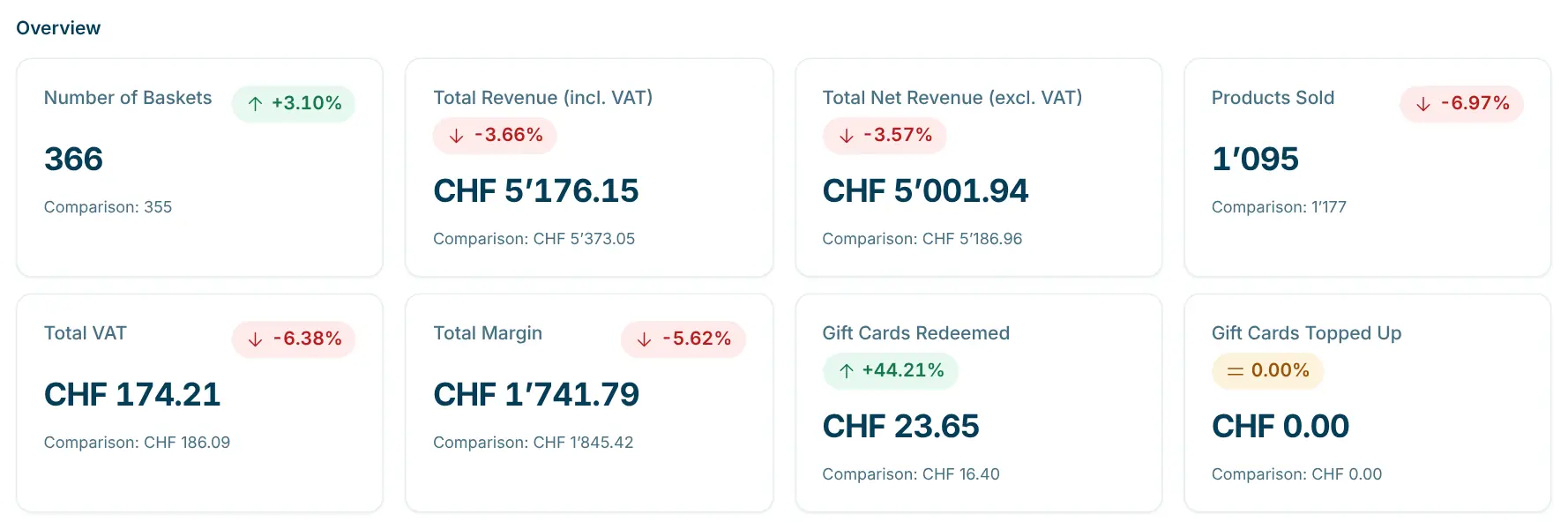
The Overview section shows the key figures for the selected period:
Key figure | Meaning |
|---|---|
Number of Baskets | Number of purchases in the period. |
Total Revenue (incl. VAT) | Revenue in CHF including VAT. |
Total Net Revenue (excl. VAT) | Revenue in CHF excluding VAT. |
Products Sold | Number of items sold. |
Total VAT | Total VAT in CHF. |
Total Margin | Sales price minus cost price of the products sold, in CHF. |
Gift Cards Redeemed | Amount in CHF paid with gift cards. |
Gift Cards Topped Up | Amount in CHF by which gift cards were topped up. |
The margin is only accurate if the products have a cost price (section Purchase, see Products). For products without a cost price, the entire sales price counts as margin.
Trends
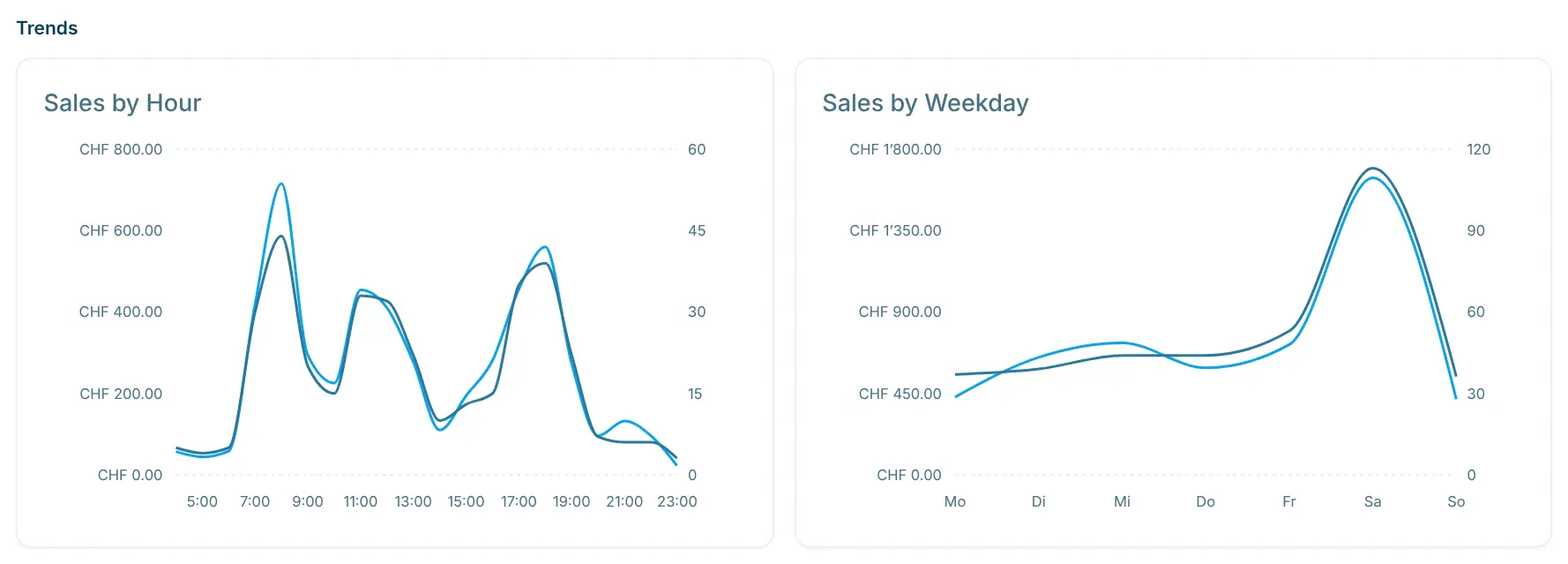
The Trends section shows two charts, each with a line for Revenue and Baskets:
- Sales by Hour: when during the day people shop, e.g. to spot peak times or quiet hours for restocking.
- Sales by Weekday: which weekdays are strongest.
Detailed data
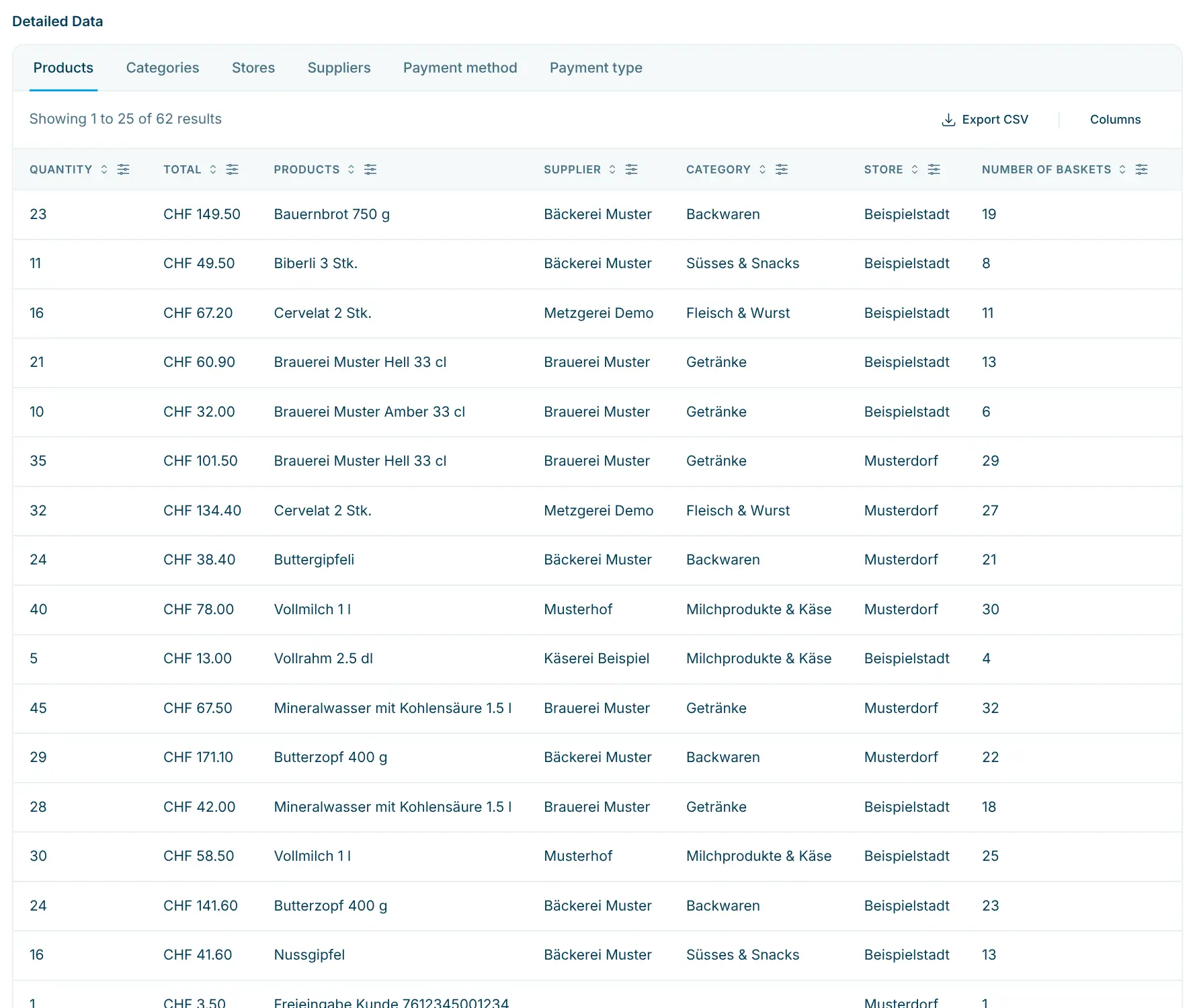
The Detailed Data section shows the figures as a table. Use the tabs to change the grouping:
Tab | Grouped by |
|---|---|
Products | Individual products, with supplier, category and store. |
Categories | Product categories. |
Stores | Stores. |
Suppliers | Suppliers of the products sold. |
Payment method | Type of payment, e.g. Card, PayTec terminal, Gift card or Cash. |
Payment type | Card brand, e.g. Mastercard, Visa or TWINT. |
Depending on the tab, the table contains the columns Quantity, Total, Number of Baskets, Cost price CHF, Margin CHF, VAT, Total excl. VAT and Deposit; the Products tab also has Products, Supplier, Category, Store, VAT rate and Product ID.
- Sort: click a column title to sort in ascending or descending order.
- Filter: use the icon next to the column title to search for terms or numbers, e.g. "butcher" in the Supplier column.
- Columns: show or hide individual columns via Columns.
- Show all: shows all rows instead of only the first page.
Exporting data
Export CSV downloads the data of the tab currently open (e.g. products.csv or suppliers.csv), for example to process it further in Excel. For other groupings, switch tabs and export again.
Tips
- The selected filters are part of the page address. Save an analysis you use often as a bookmark or send the link to a team member.
- For a quick overview of today and the last few weeks, use the Dashboard; statistics are meant for in-depth analysis.
- Individual purchases with all their lines are listed under Orders.