All plans
Manual selection
Pick items without a barcode by image and category – fresh and specialty goods.
Customers hold the barcode to the kiosk’s scanner and the product is in the basket. The kiosk reads EAN and QR codes, plus gift cards, discount codes and barcodes that carry a price or weight.
Enter the manufacturer’s barcode on the product once. From then on the kiosk finds it with every scan.
For items without a manufacturer code, download a QR code per product in the dashboard or print price tags with a QR code.
If the kiosk doesn’t know a code, the customer enters the price and carries on. You see the line in the dashboard afterwards.
The kiosk searches in a fixed order until it can match the code.
The customer holds the barcode or QR code to the scanner. The kiosk confirms with a sound.
First the kiosk looks for exactly this barcode, then for the same number with or without a leading zero.
Next it checks barcodes with price or weight, discount codes and gift cards.
If nothing matches, it asks “How much does the product cost?”. The customer types the price and keeps shopping.
Which code belongs to which product is set in the cloud dashboard. These images are taken straight from it.
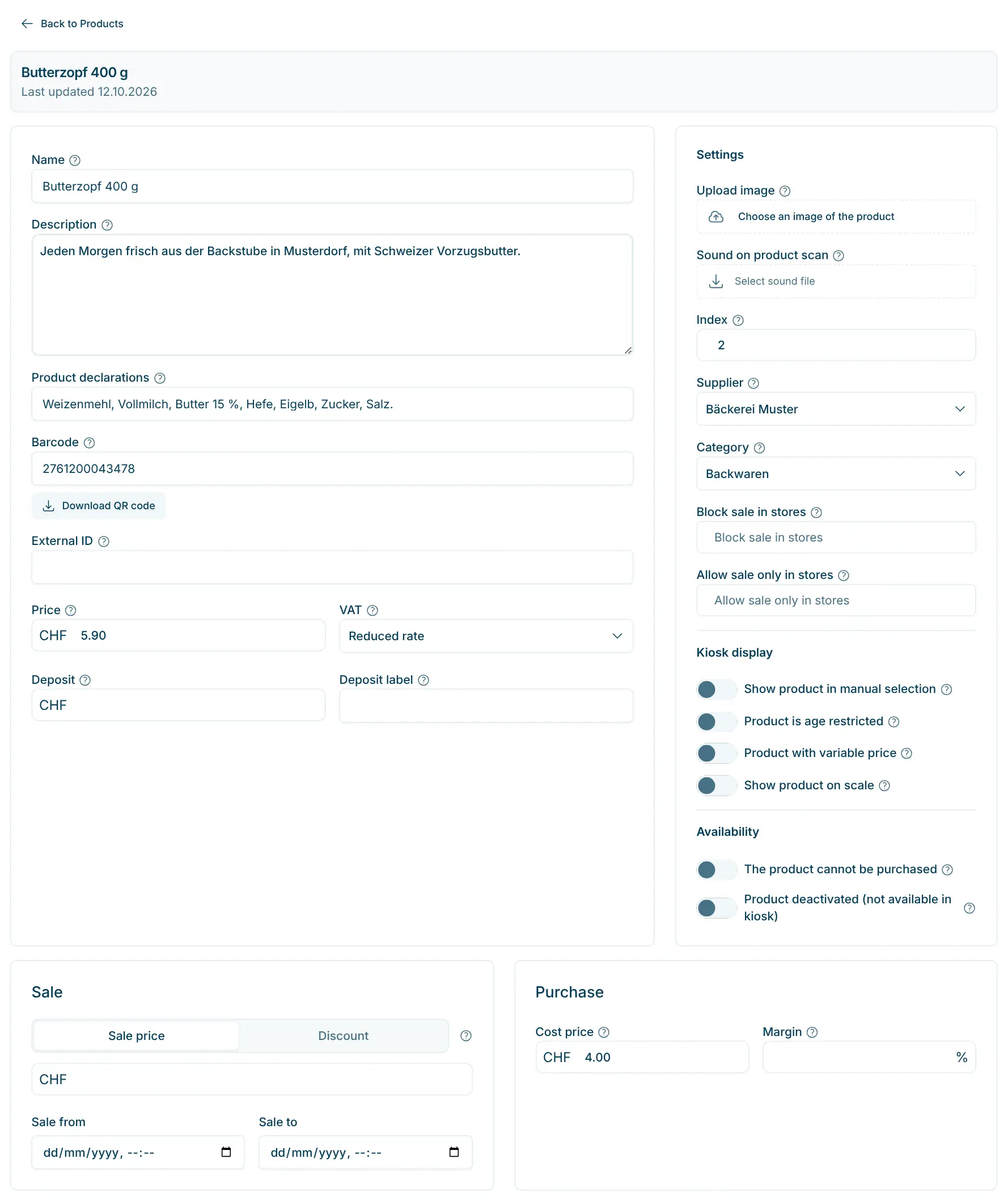
Barcode on the product
The “Barcode” field holds the manufacturer code or your own. “Download QR code” gives you a QR graphic to print.
Find a product by barcode
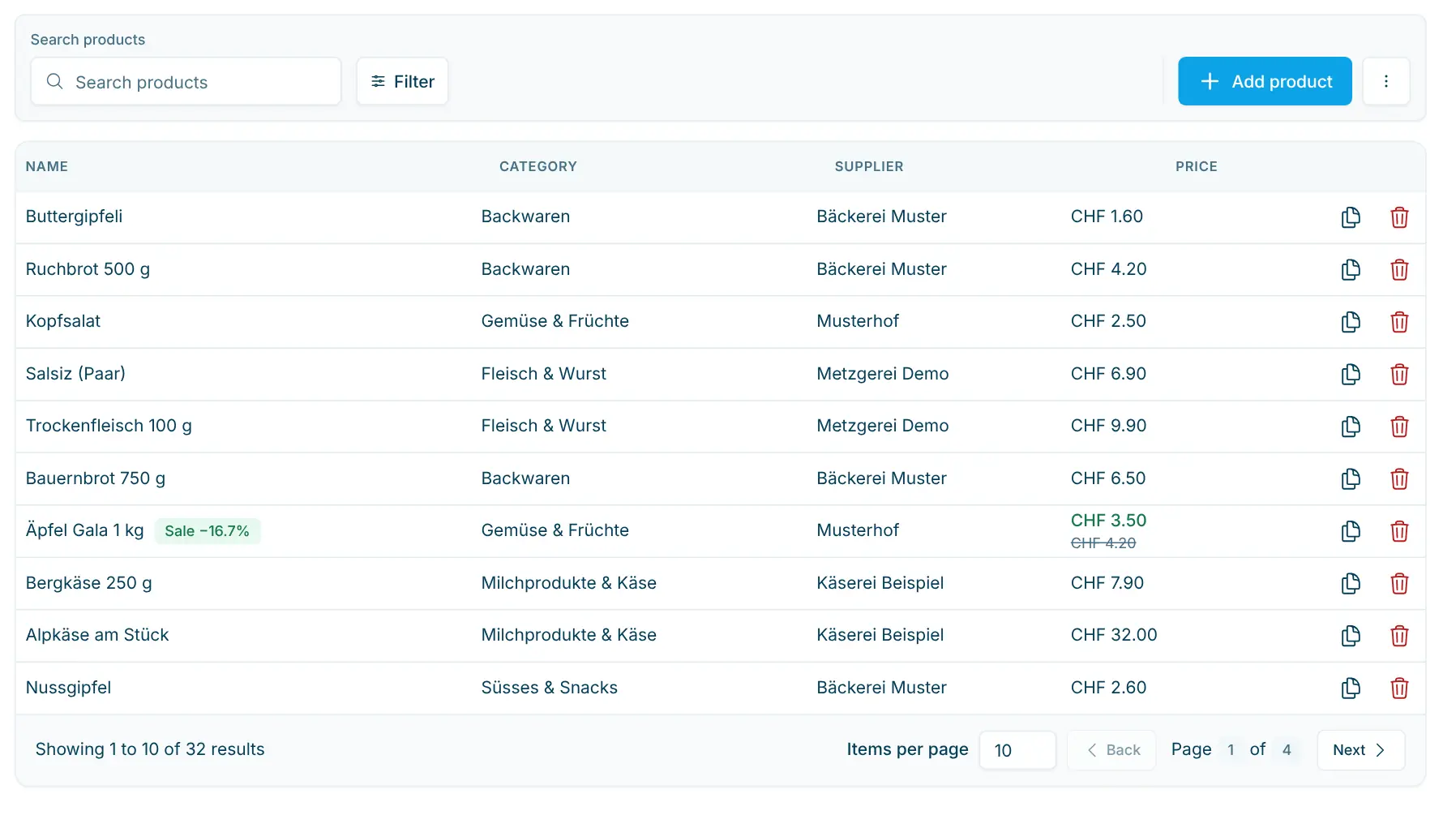
“Search products” also finds a product by its barcode or external ID. If a barcode is already used, the dashboard warns you when you enter it.
Messages from the kiosk
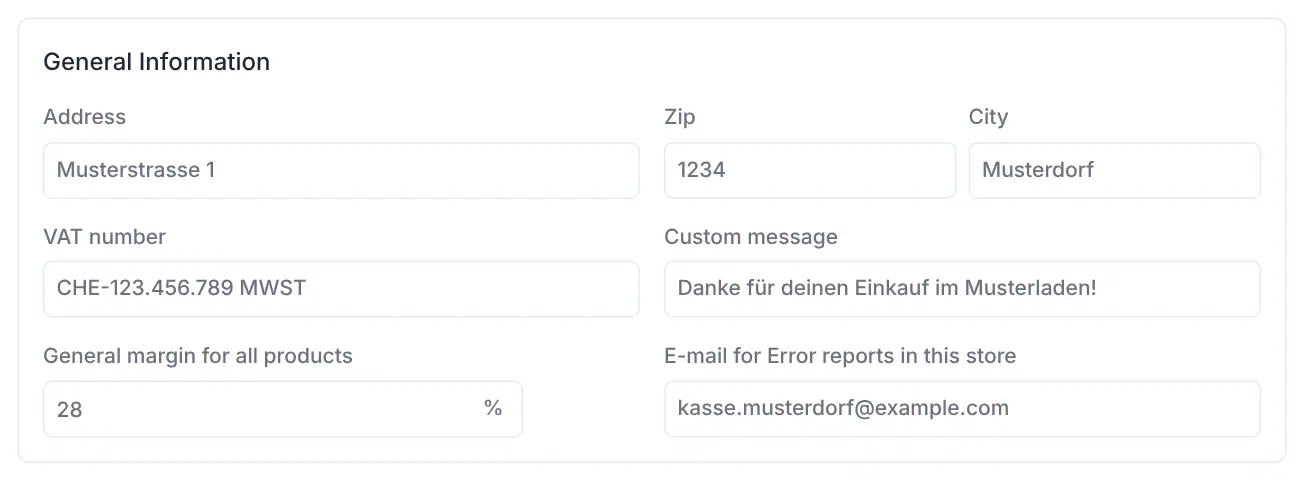
If someone scans an unrelated QR code, for example from packaging, the kiosk reports it to the “Email for error reports in this store”.
Branded goods already carry a printed barcode. For your own goods you build an internal EAN-13 starting with 2: GS1 reserves the range 20 to 29 for internal use. Internal codes should never start with 0. Items without a barcode are picked through manual selection, fresh goods by weight through the scale.
All plans
Pick items without a barcode by image and category – fresh and specialty goods.
All plans
Prices, barcodes, VAT, deposit, age and visibility – maintain your assortment yourself.
Anything the scanner sends as a string of characters, for example EAN-13, EAN-8, UPC-A or QR codes. It also recognises gift cards and discount codes (Retail and Pro plans).
The kiosk asks “How much does the product cost?” and the customer enters the price. In the dashboard the line appears as “Customer manual entry” with the scanned code. You can assign a supplier and add the code to the product.
Build an internal EAN-13 starting with 2, or download the QR code on the product and stick it on. For goods you don’t want to label, there is manual selection on the screen.
Yes. On the product you enter a template with PPPPP for the price or GGGGG for the weight. The first 7 digits identify the product, digits 8 to 12 hold the price in centimes or the weight in grams.
Out of the box the kiosk scanner ignores QR codes that contain a web link. Three programming barcodes from the manual switch them on. The steps are in the “Barcode scanner” article in the docs.
The customer scanned an unrelated QR code, for example from packaging. The kiosk then asks “Please scan the barcode, not the QR code.” and reports it to the store’s error email.

Happy to help. Sign up for free to get a first impression – or request a non-binding quote. I’m here if you have questions.
Tobias Kobelt · scango.ch