FeatureAll plans
Orders
Orders shows every checkout at your self-checkouts, successful ones as well as cancelled or failed payments. You open each purchase with all line items, give the customer the receipt by QR code or email and export orders as CSV.
Why it matters
Trace every purchase
Every checkout visible
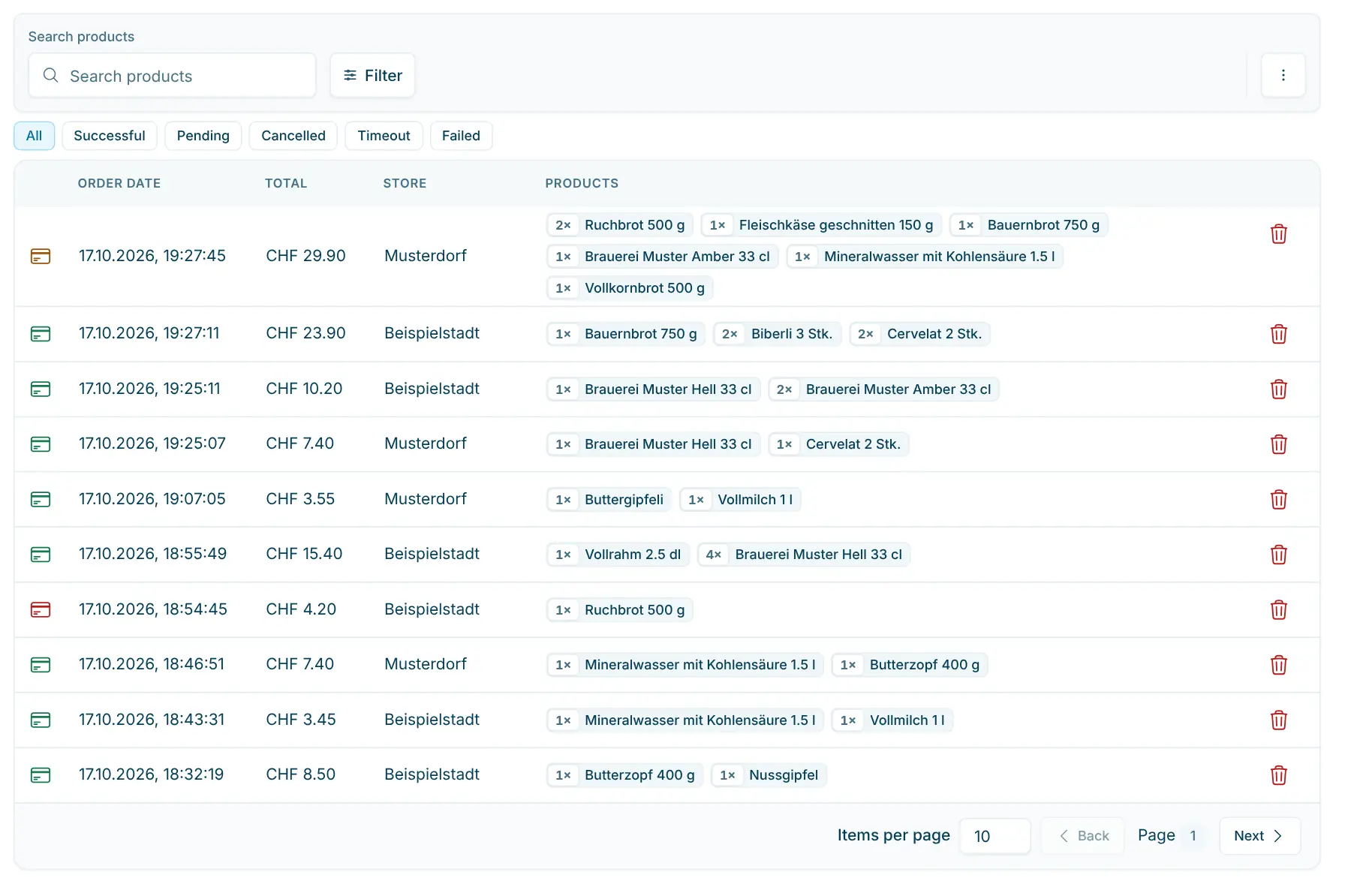
Status filters for Successful, Pending, Cancelled, Timeout and Failed. The icon shows whether the customer paid by card, cash or gift card.
Receipts after the fact
The customer scans a QR code on your screen or receives the receipt as a PDF by email.
Ready for the accountant
The CSV export has one row per line item, with VAT, deposit, purchase price, category, supplier and payment method.
How it works
When a customer asks for a receipt
After paying, customers can get the receipt on their phone via QR code at the checkout. If they need it later, you find the purchase in the dashboard.
1 Find the purchase
Search for a product or the order ID in “Search products”, or filter by period, store and payment brand.
2 Open the purchase
The detail page lists every line item with quantity, price, deposit, VAT rate, category and supplier.
3 “Share with customer”
Show the QR code on screen, or enter the customer’s email and click “Send receipt”.
4 Cancel if needed
You cancel a test purchase and can reverse the stock. Refunds are handled separately via the payment terminal.
In the dashboard
From the list to the customer receipt
The images come straight from the Cloud Dashboard, filled with sample data.
app.scango.ch
- 1
List with status filters
The newest purchases are at the top, with date, total, store and products. The icon colour shows the status: green successful, orange pending, red all others.
app.scango.ch - 2
Filter by period and payment
Today, yesterday, the last 7 or 30 days or a custom range with time. Plus payment status, payment brand, payment method, store and supplier.
app.scango.ch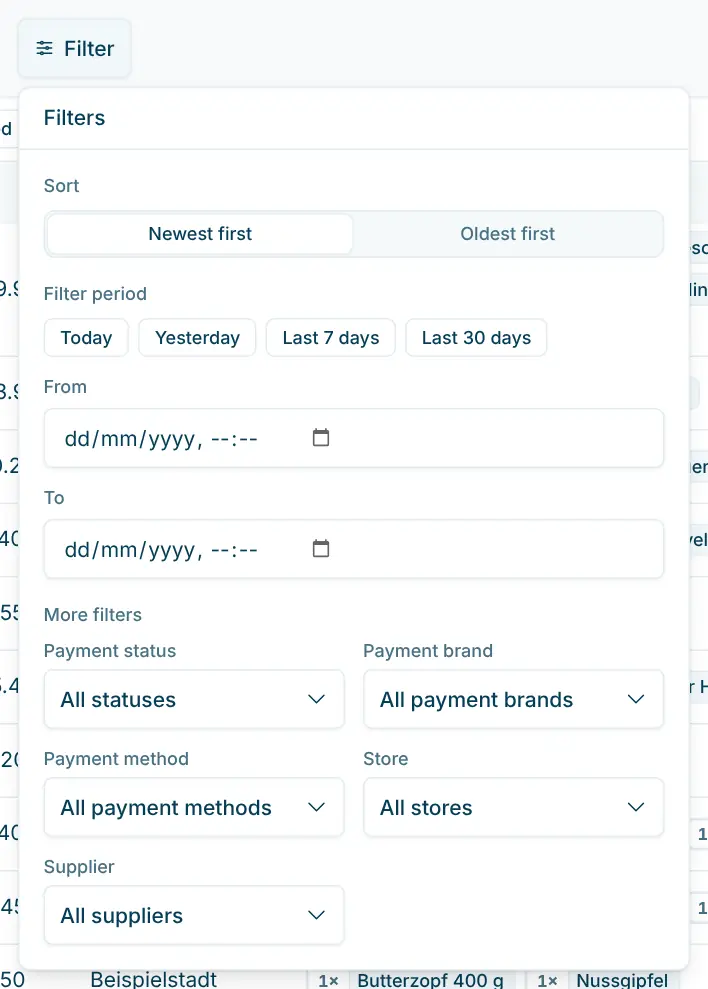
- 3
One purchase in detail
All line items with VAT rate and supplier, totals per tax rate and deposit. “Show receipt” opens the receipt, which you can download as a PDF.
app.scango.ch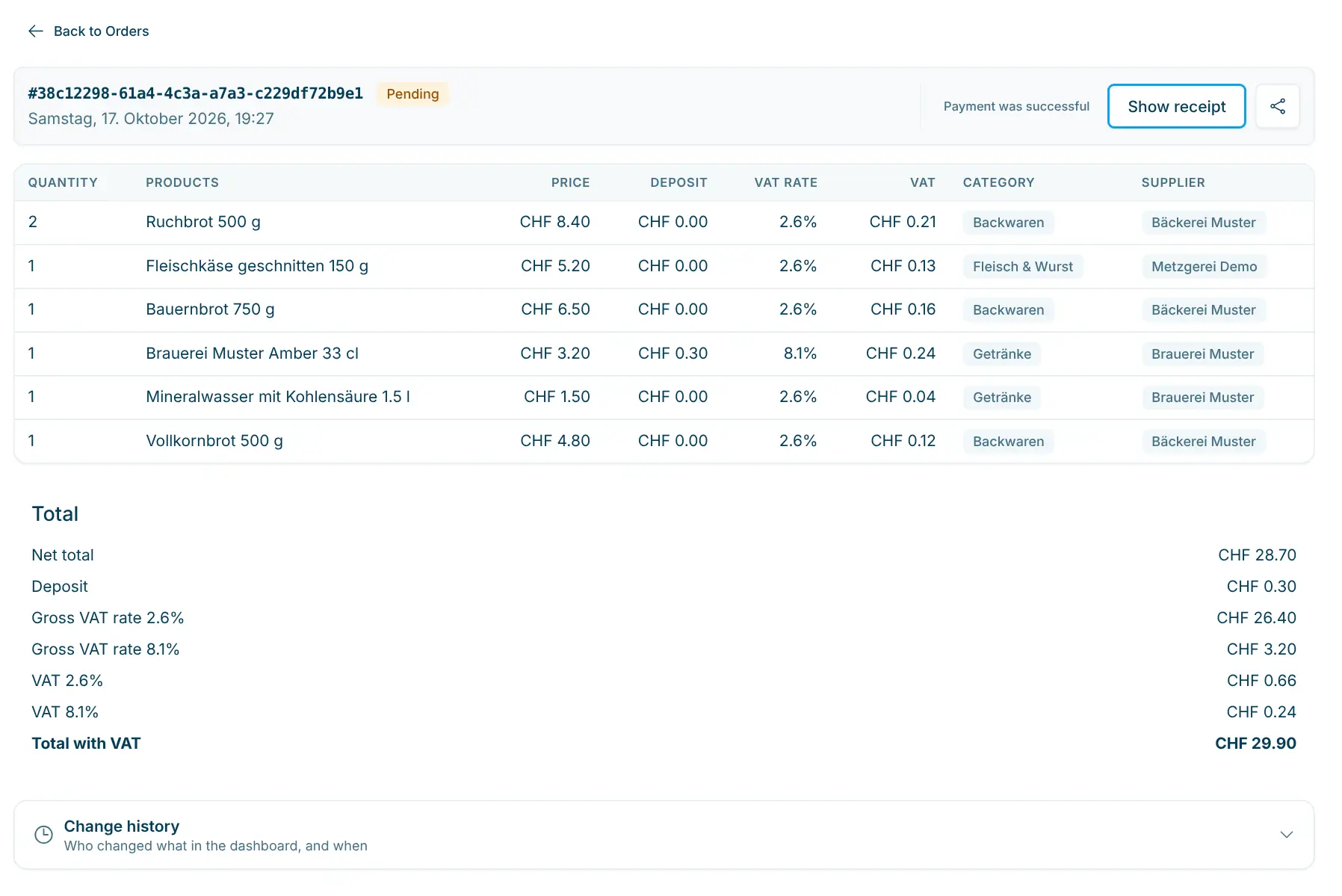
- 4
Customer receipt by QR code
The customer scans the code with their phone and opens the receipt there. On the Email tab, the receipt goes to their address as a PDF with a link.
app.scango.ch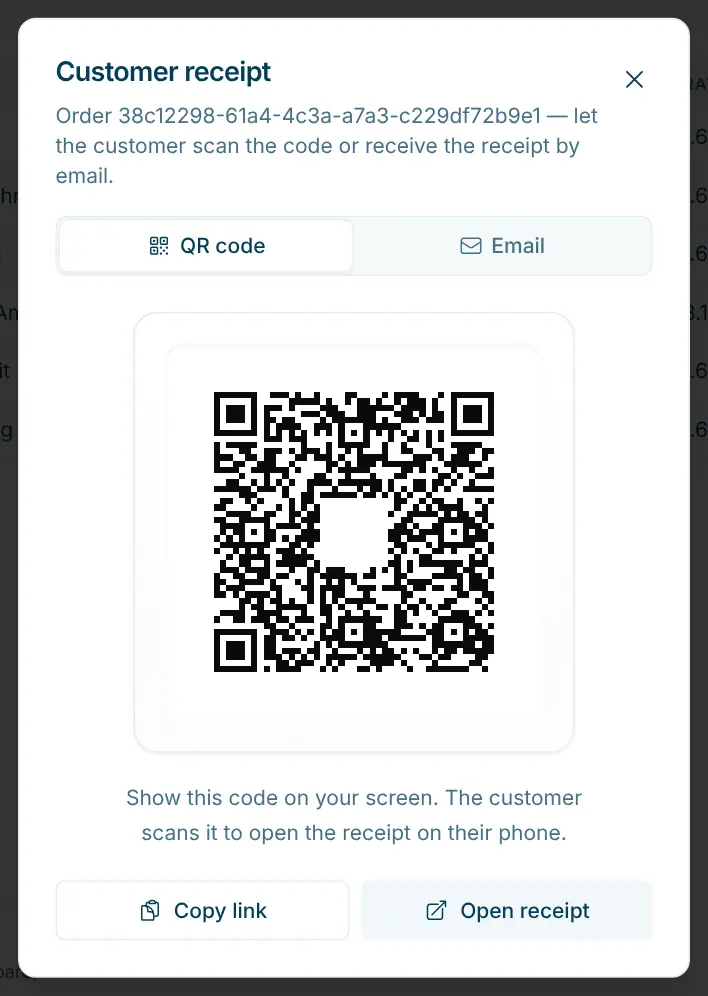
- Read the full guide
Good to know
What the list shows and what you can correct
Purchases are created only at the checkout; you cannot enter them in the dashboard. The list does not refresh by itself: reload the page to see purchases that were just completed. If a customer scans a code that is not yet set up as a product, the line appears as a customer free entry, and you can assign it to a supplier afterwards. If the money arrived but the checkout did not record the payment as successful, you mark the purchase with “Payment was successful”.
- Plan
- included in all plans
- Access
- from the Employee role
- Cancel, receipt by email
- from the Member role
- Search
- product name or order ID
- Filters
- period, status, payment brand, payment method, store
- Supplier filter
- from the Retail plan
- Export
- CSV, one row per line item
- Basis plan
- CHF 99.–/month
Requirements
In operation
Costs
scango.ch
More features
Retail plan
Statistics
Revenue, margin and VAT by product, store, supplier and payment – including CSV.
Add-on
Stellard Age age verification
Stellard Age checks age on the ID and releases the door or fridge – for unattended 24/7.
Frequently asked questions
A purchase is missing from the list. What should I do?
Reload the page and check whether a search, a status filter or another filter is active. “Reset all” in the filter panel removes all filters at once.
What does the Timeout status mean?
The time limit for the payment was exceeded and the purchase was cancelled automatically. If the payment terminal’s journal shows the money arrived anyway, mark it with “Payment was successful”.
Does cancelling trigger a refund?
No. Cancelling in the dashboard removes the purchase from the books and, if you choose, reverses the stock. You refund the money separately, for example via your payment terminal.
How does a customer get the receipt?
Right after paying via QR code at the checkout or, if a printer is connected, on paper. Later you send it via “Share with customer” by QR code or email.
Can I create a purchase in the dashboard?
No. Purchases are created exclusively at the checkout.
What is in the CSV export?
One row per purchased line item, including payment status, date and time, store, product, quantity, price, tax rate, VAT, deposit, purchase price, category, supplier and payment method. Purchases cancelled in the dashboard are not included.

Hi, I’m Tobias.
Happy to help. Sign up for free to get a first impression – or request a non-binding quote. I’m here if you have questions.
Tobias Kobelt · scango.ch